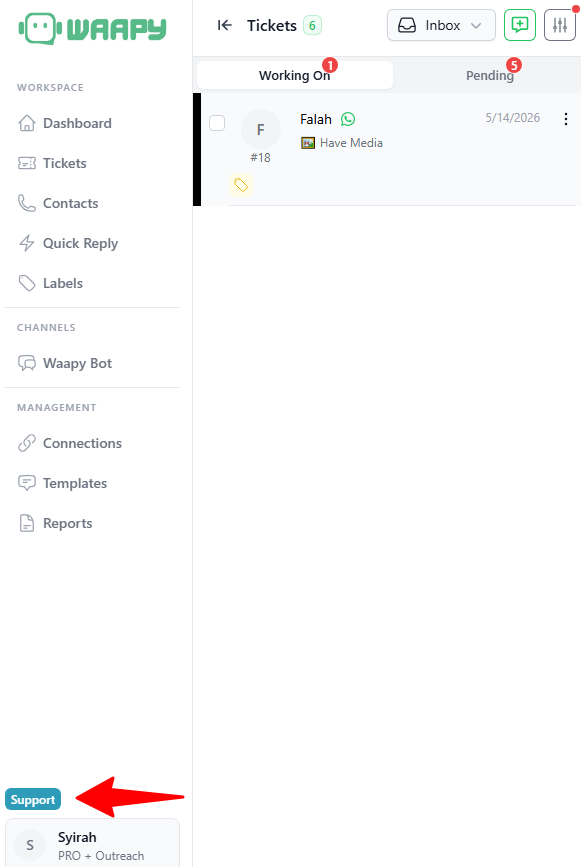
7. Users
1. How to Add a New User
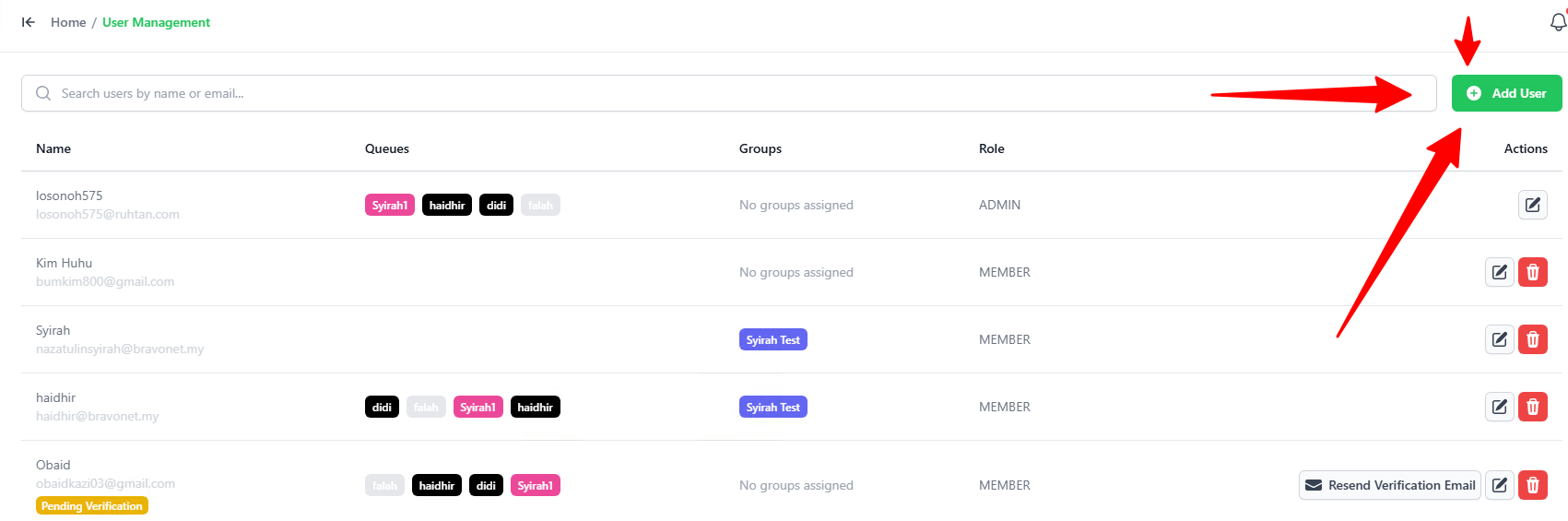
- Go to the User Management page.
- Click the green + Add User button in the top-right corner.
2. Inviting a Teammate
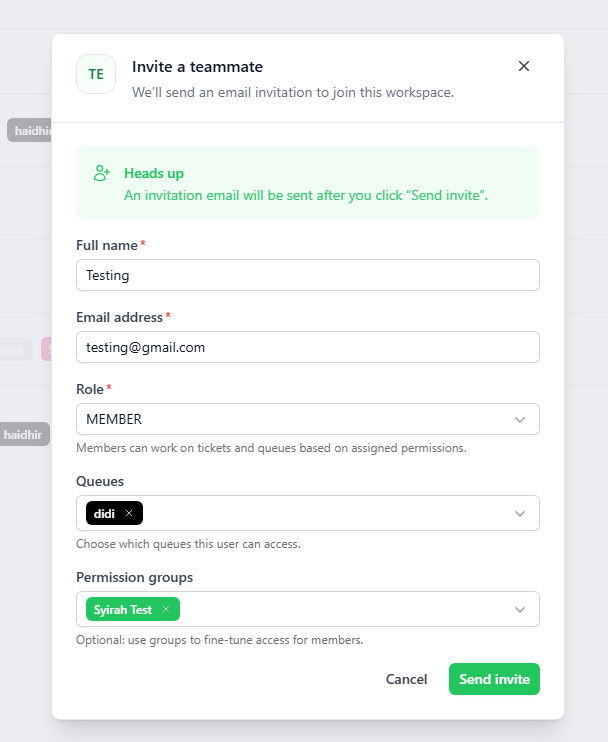
When the Invite a teammate popup opens:
- Full name: Enter the new user's name.
- Email address: Enter their email address.
- Role: Select their role (ADMIN or MEMBER).
- Queues: Choose the chat queues this user can access (you can select more than one).
- Permission groups: Select the permission level for the user.
- Click the green Send invite button.
- Note: The user will receive an email invitation to log in and set up their profile.
3. Editing a User
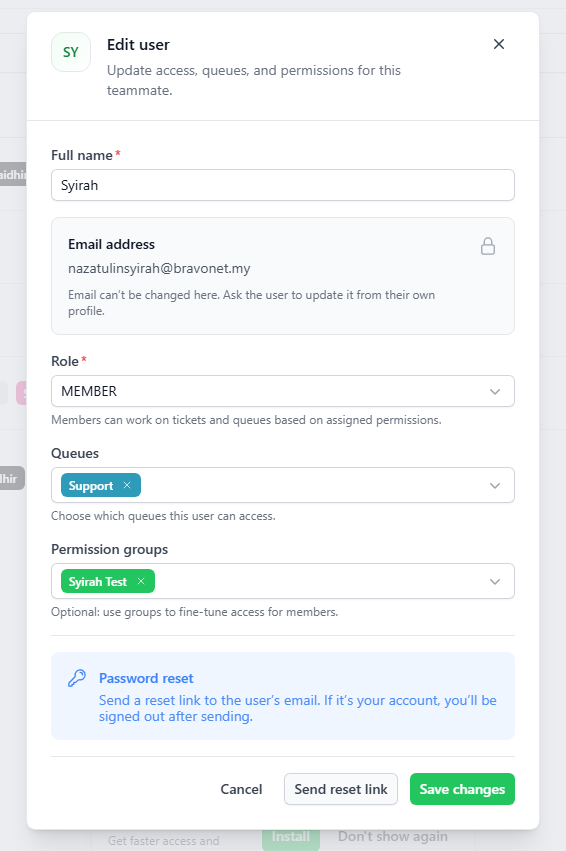
- Click the Pencil icon next to the user you want to edit.
- Update their Name, Role, Queues, or Permission groups.
- Note: You cannot change a user's email address here. The user must update their email from their own profile page.
- Click the green Save button.

4. What the User Sees
- When a user logs in, they will only see the tickets and queues that you assigned to them.
- They can view and select their assigned queues at the bottom left of the screen at all times