10. Queues
1. How to Add a New Queue
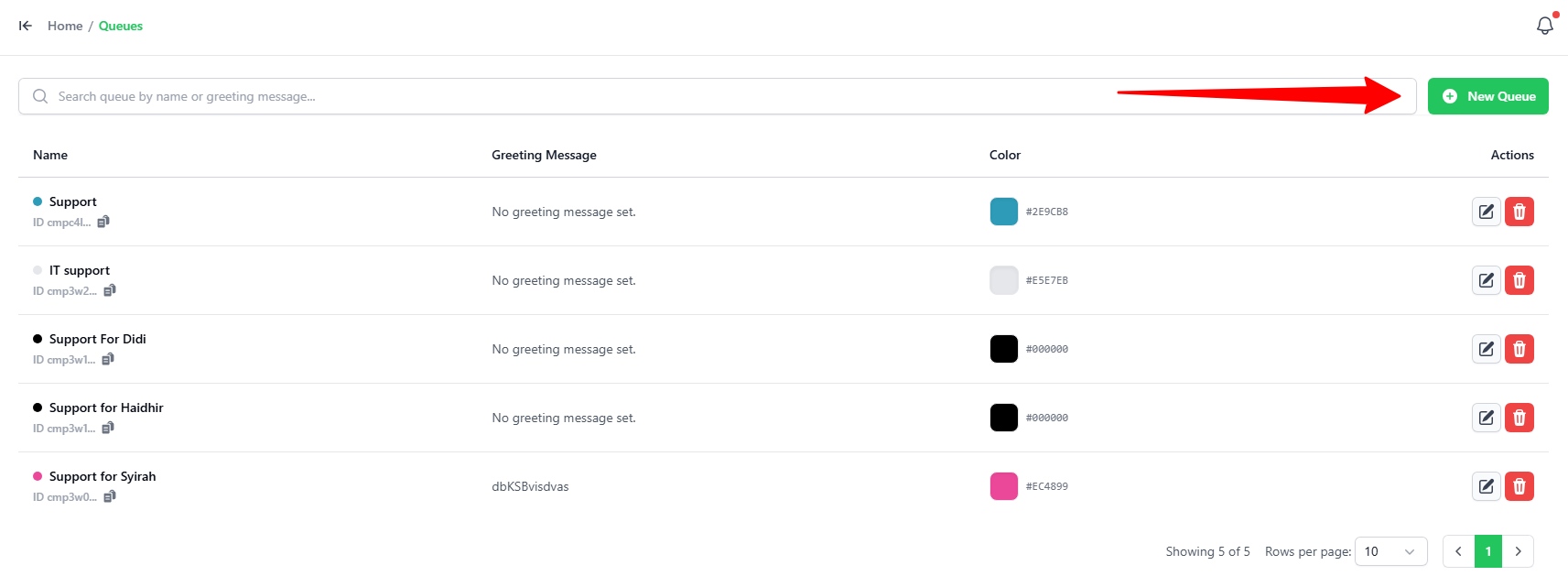
- Go to the Queues tab.
- Click the green + New Queue button in the top-right corner.
2. Setting Up the Queue
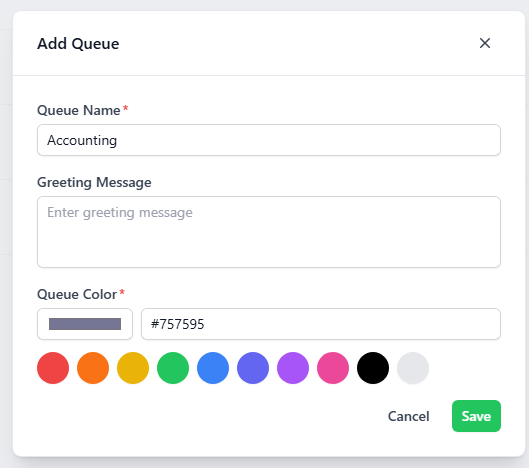
In the Add Queue popup, enter these details:
- Queue Name: Enter a name for the group (e.g.,
Accounting). - Greeting Message: Type an automatic welcome message. This message is sent automatically to the customer when a new ticket is received in this queue (optional).
- Queue Color: Pick a color for your queue. You can click one of the preset color circles or the color box to choose a custom color.
- Click the green Save button.