5. Labels
1. How to Create a New Label
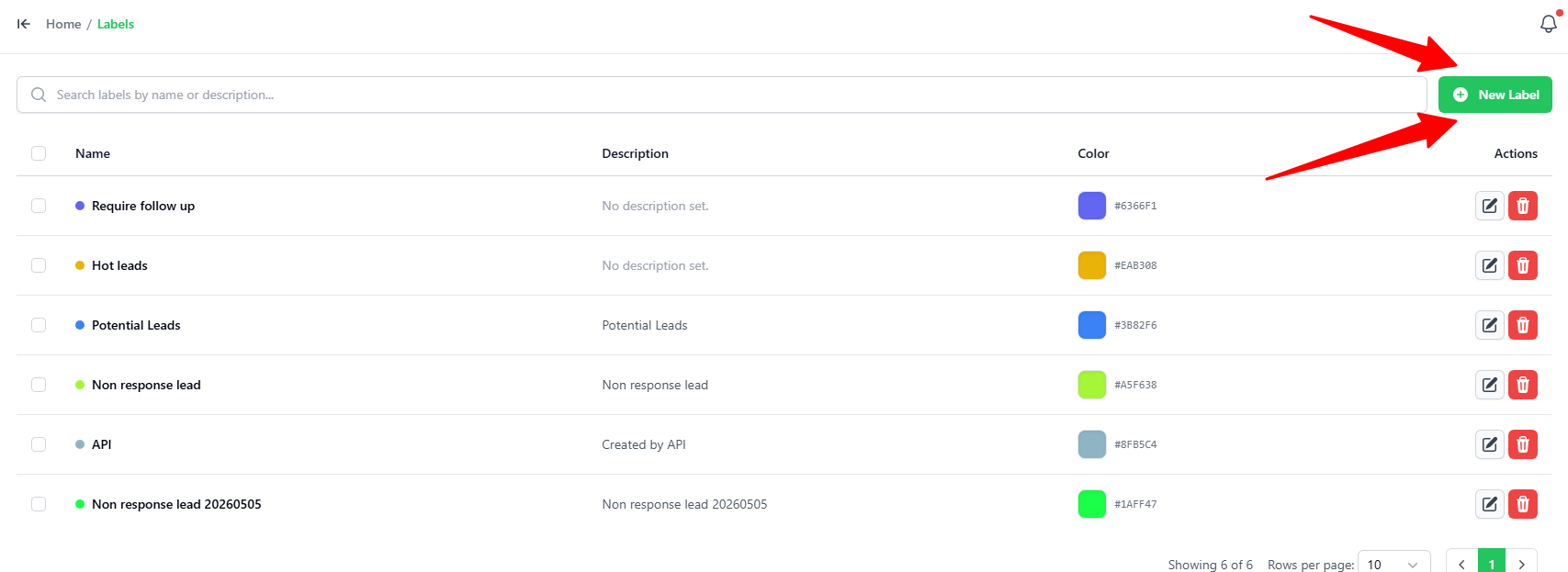
Go to the Labels tab.
Click the green + New Label button in the top-right corner.
2. Setting Up the Label
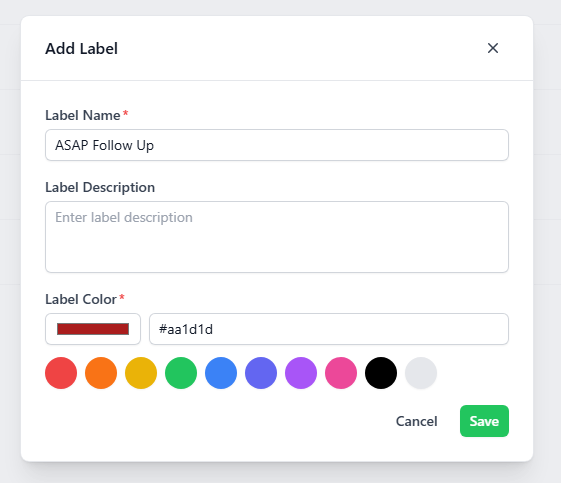
In the Add Label popup, enter the following details:
- Label Name: Type a short name for your label (e.g., "ASAP Follow Up").
- Label Description: Type a brief note explaining what the label is used for (optional).
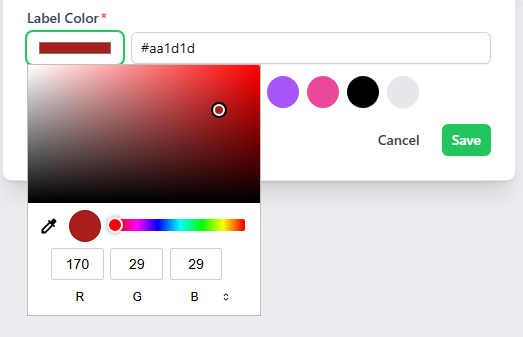
- Label Color: Pick a color for your label. You can:
- Click one of the pre-set color circles.
- Click the color box on the left to open the color picker and select a custom color (using hex code or RGB sliders).
- Click the green Save button to create your label.