
3. i) Contacts
How to add Contact in Outreach ?
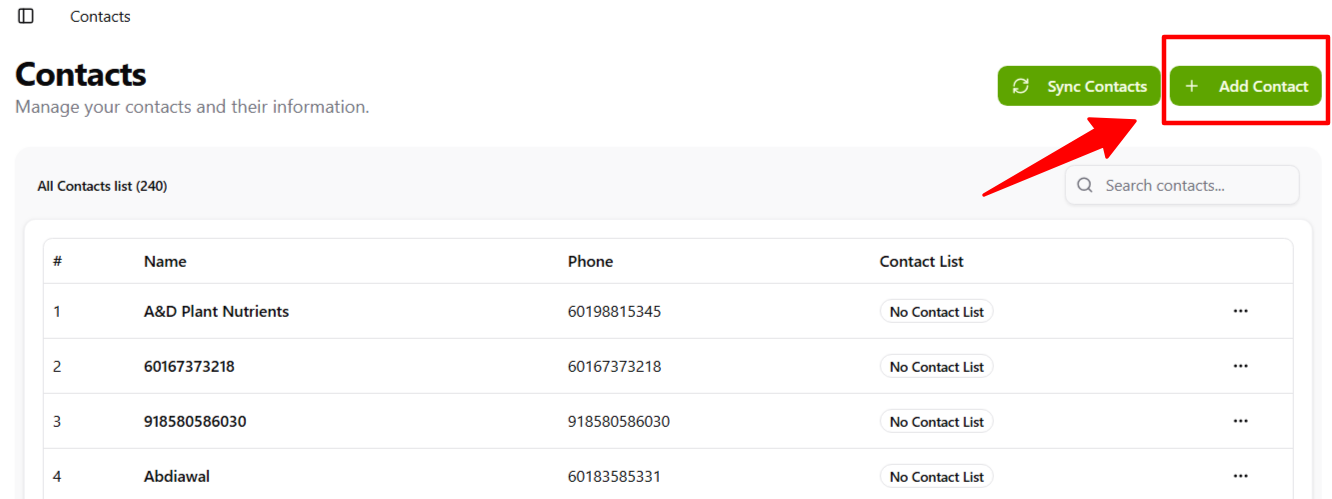
Step 1 :
Tap the Add Contact button at the top right.
Step 2 :
Fill in the form by entering the name and phone number.
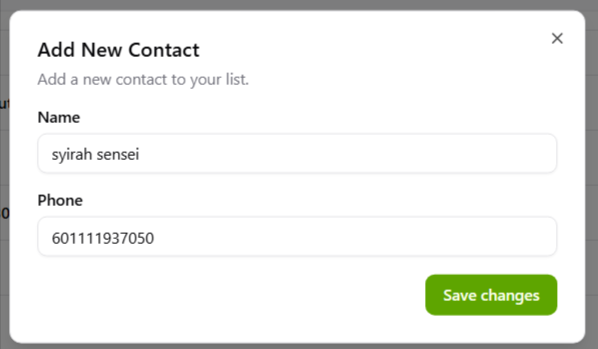
Press Save Changes once you’ve finished filling it out.
Step 3 :
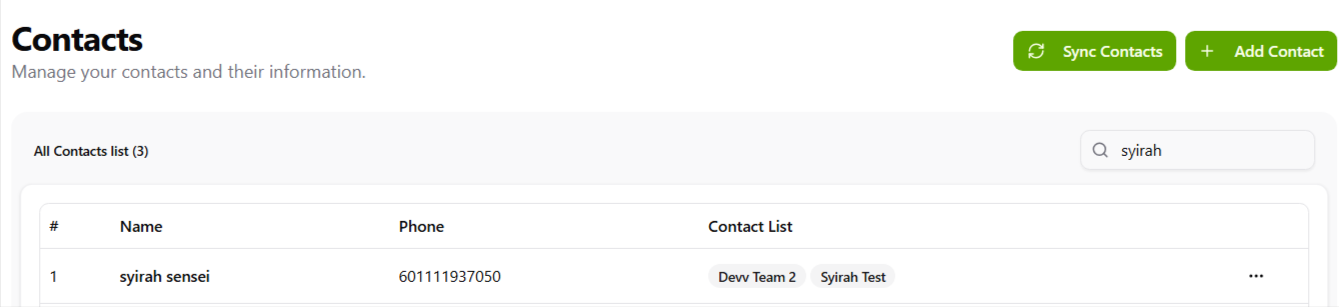
You can now see the contact you added in the All Contacts list.
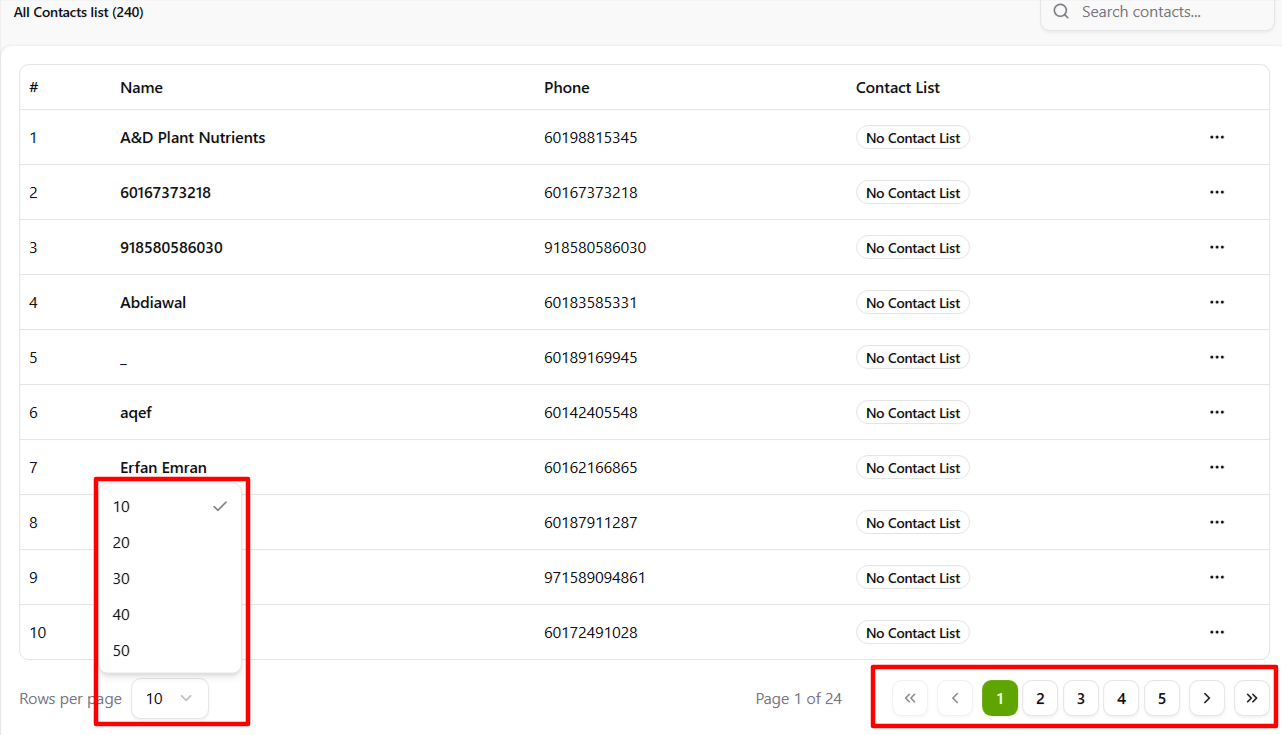
- You can expand the contact list to show more rows, up to a maximum of 50 rows.
- You can also navigate between pages of the contact list, like going from Page 1 to Page 2.
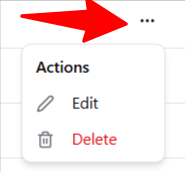
- You can edit an existing contact to change the name or phone number, just like when you add a new contact.
- You can also delete an existing contact if needed.
Sync the Contact :

- Click to refresh or import contacts from connected sources (e.g., phone contacts, CRM, WhatsApp groups, or external files).
- Use this after adding new contacts outside the platform to bring them in.