16. Auto Follow Up
Guide: https://drive.google.com/file/d/16eQE5uCZ0hp47T7UOjVGK4gIJWotNJ2I/view?usp=sharing
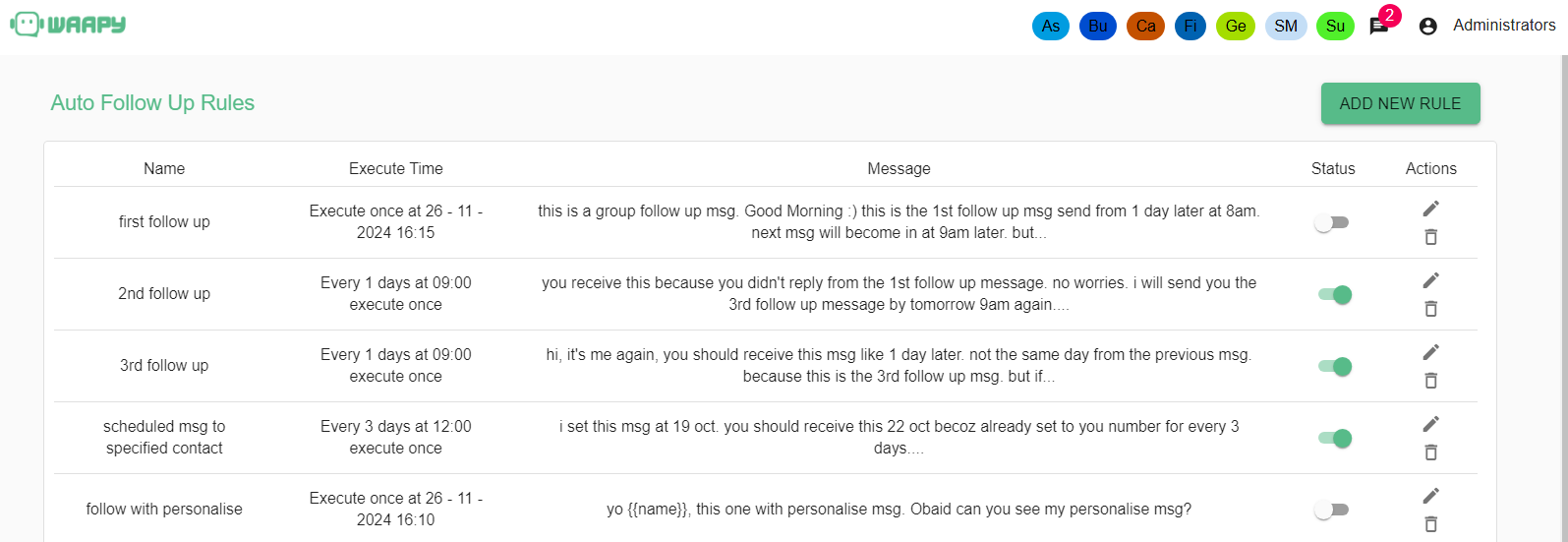
- Here the auto follow up user interface. It can help to auto send message to a specific user or tickets by setting it. You can add a new follow up rules by clicking on the “ADD NEW RULE” button. Besides that, you can edit or delete the rules too.
- You can open or close the rules at the status to allow it to send out the message or not.
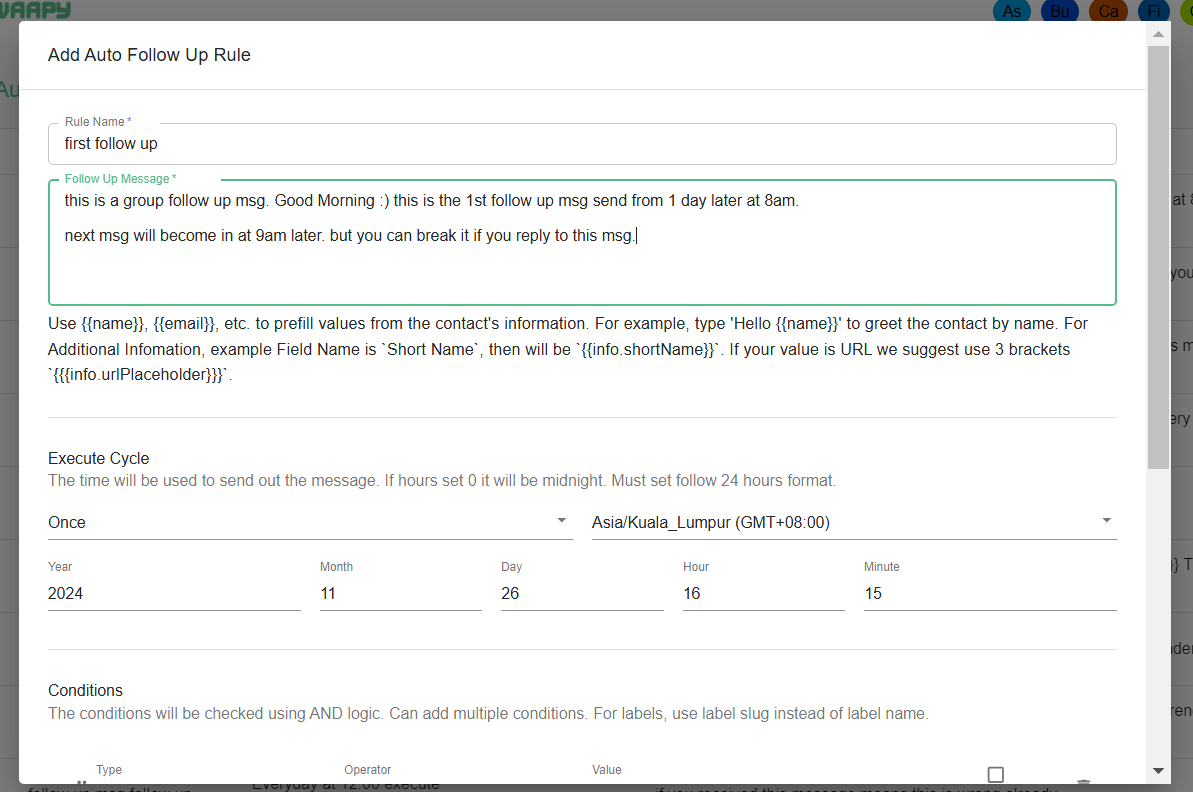
- Insert the Rule Name and the follow up messages that need to be sent out in the fields.
- You can use {{}} to fetch the data of the user.
- Then, you can set the time when the message will be sent out. There are three options on it, which are:
- Once - the message will only be sent on a day
- N Daily - the message will be sent out the message every n day
- Daily - the message will send out everyday
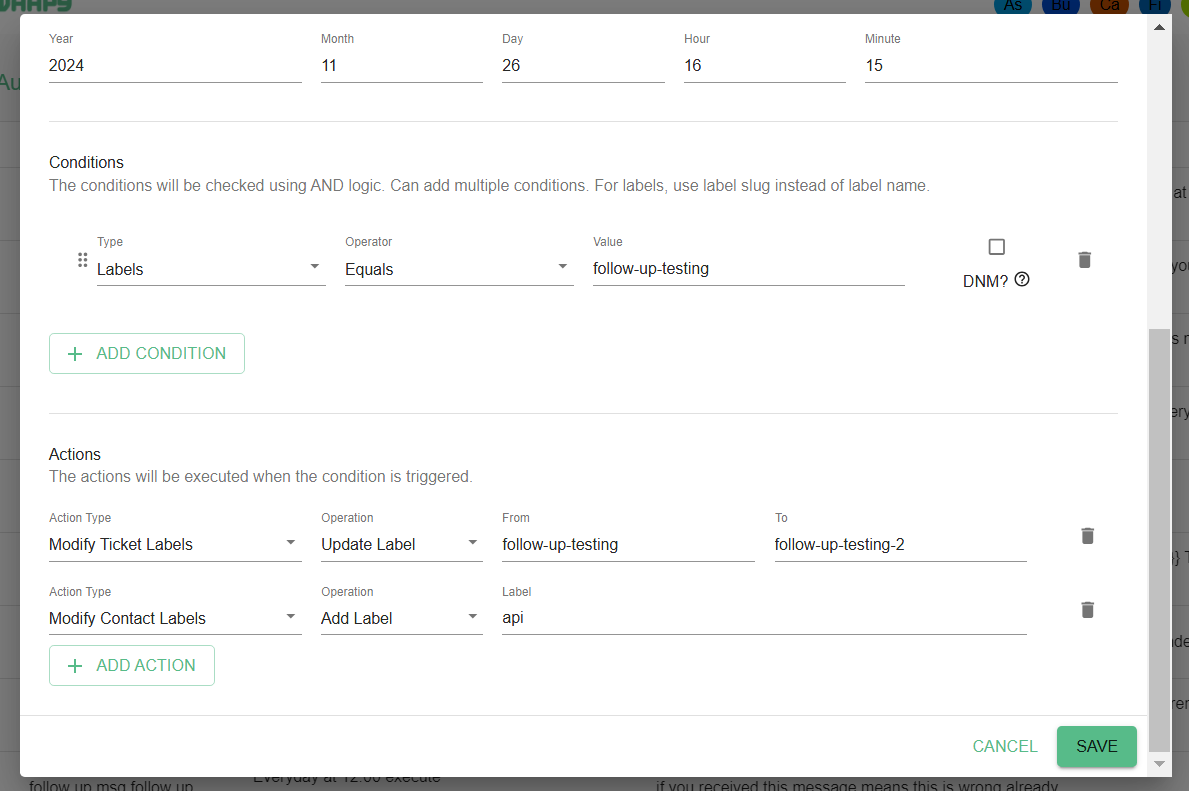
- Conditions must be set to let the system know the need to send the message to whom. For example, the labels equals follow-up-testing. So, the system will send the message to the tickets who have this label.
- For the actions, it will be executed when the condition is triggered. So, like the message is sent out to the labels of follow-up-testing, but the clients still are not replying to any message, then the system will change the label of the tickets to follow-up-testing-2.