13. Permissions
Here is the permissions’ user interface. You can click on the “Add New Group Permission” to add a new permission on it.
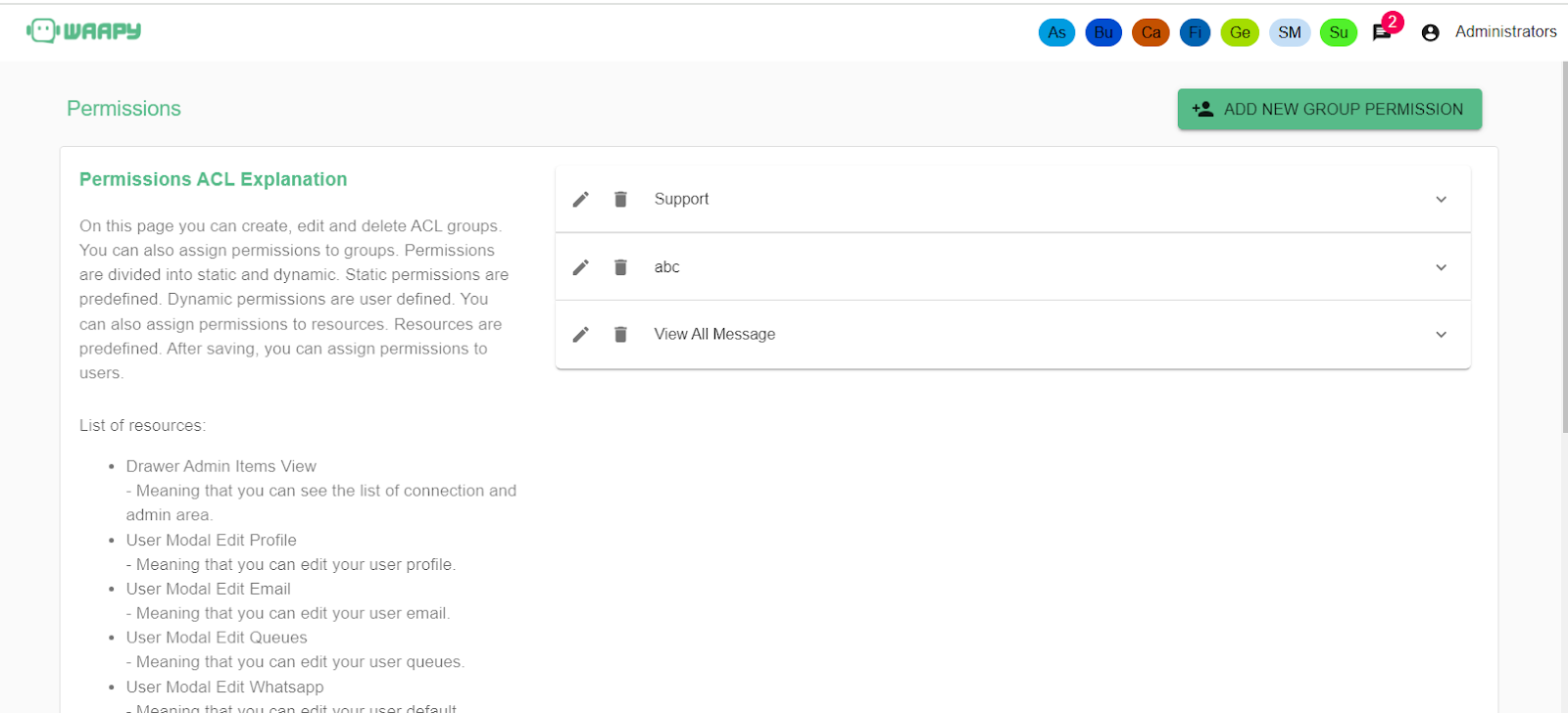
There are several permissions that can be set by the Admin. Below are the permissions:-
Drawer Admin Items View
Allows access to view the connection list and admin area.
User Modal Edit Profile
Enables editing of the user profile.
User Modal Edit Email
Grants permission to update the user email.
User Modal Edit Queues
Allows modification of user queue settings.
User Modal Edit WhatsApp
Permits updating the default WhatsApp account for the user.
User Modal Edit Group Permission
Provides the ability to manage and edit group permissions.
Tickets Manager Show All
Grants visibility to all tickets if the user has admin privileges.
Tickets Manager Show Same Queues In Working Tab
Enables viewing tickets from the same queues in the working tab.
Tickets Manager Show Same Queues In Queue Tab
Allows viewing tickets from the same queues in the queue tab.
Ticket Options Delete Ticket
Provides the capability to delete a ticket.
Ticket Options Transfer Ticket
Grants access to transfer tickets to another user or team.
Ticket Options Transfer WhatsApp
Allows transferring a ticket to another WhatsApp account.
Tickets Accept Button
Enables the acceptance of a ticket.
Tickets Return Button
Grants the ability to return a ticket to the queue list.
Tickets Resolve Button
Permits the resolution of a ticket.
Scheduling Settings
Meaning that you can edit scheduling settings
Voice to Text Access
Meaning that you can access voice to text feature.
Contacts Page Delete Contact
Enables deleting a contact from the contact list.
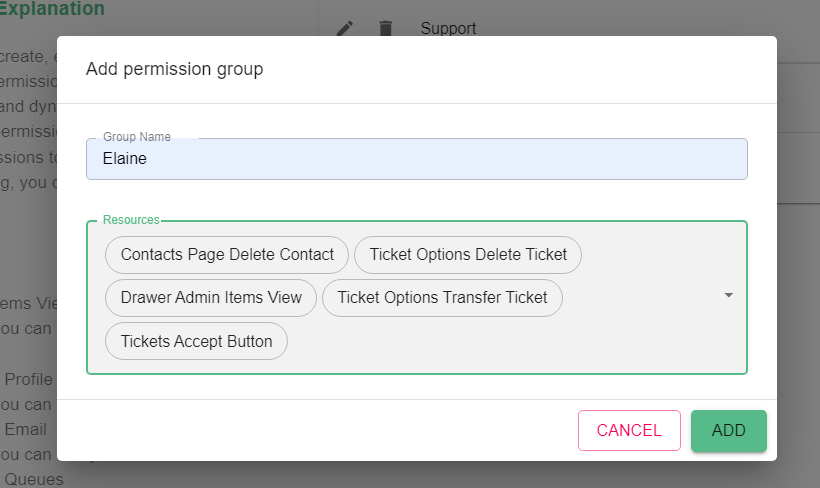
- You can add a new permission group by clicking the “ADD NEW GROUP PERMISSION” button.
- Then, insert the group name and choose the actions that can be accessed for this permission.
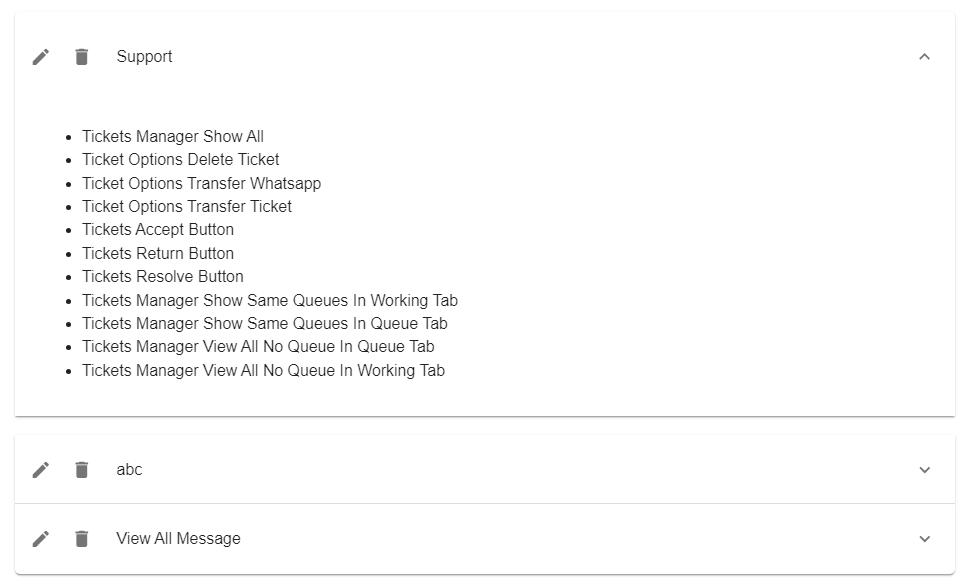
- Click on the down arrows to view the given permissions for this group.