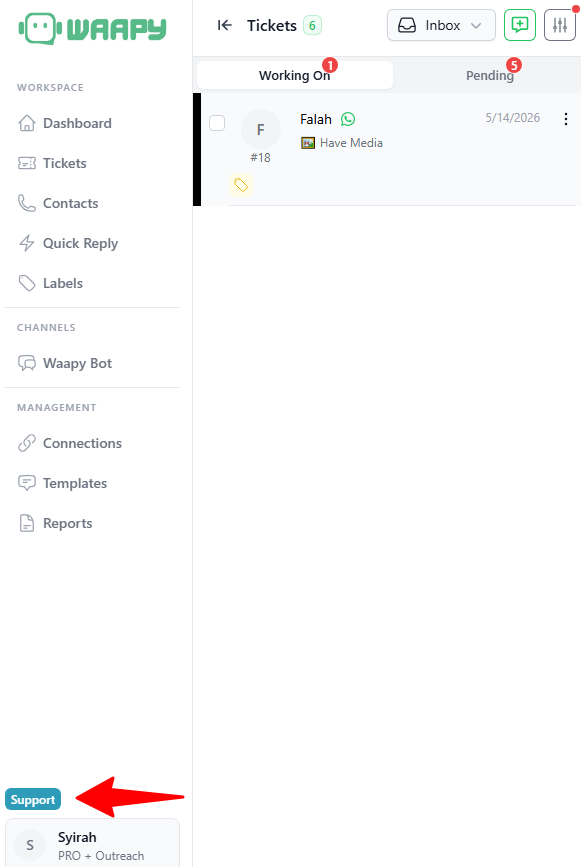
7. Users
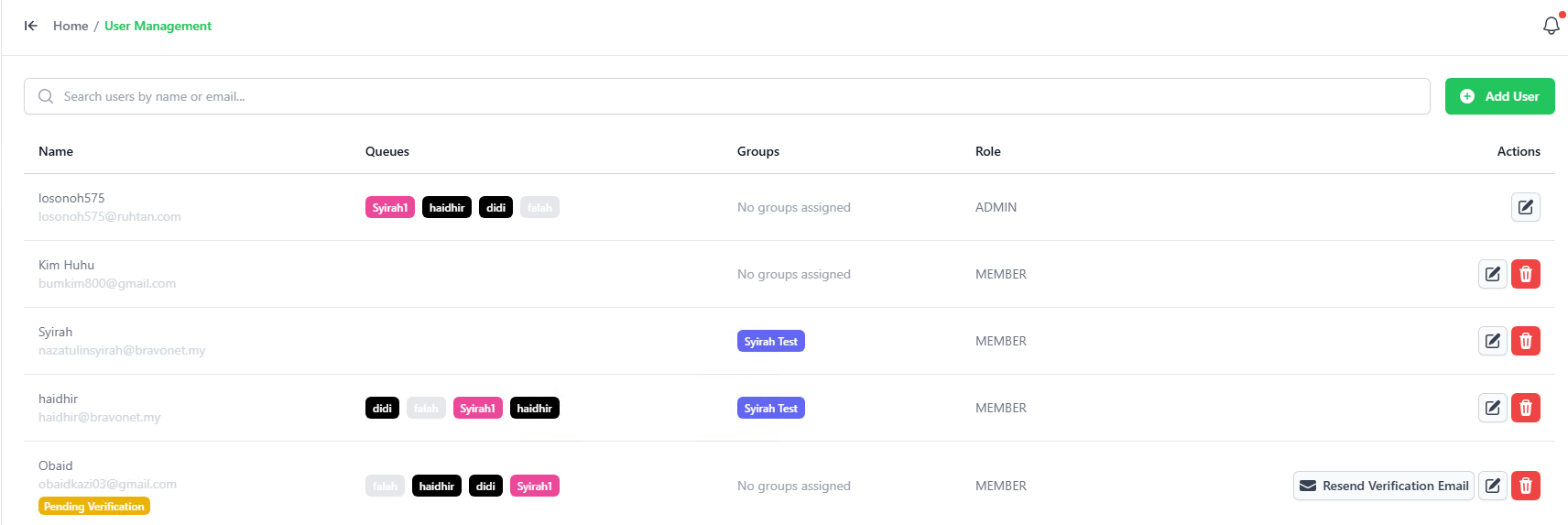
This1.
screen allows Admin usersHow to view,Add create,a editNew and delete system users.
- User
ClickGoonto the“ADDUserUSER”Management page.- Click the green + Add User button
onin thetoptop-rightright-handcorner.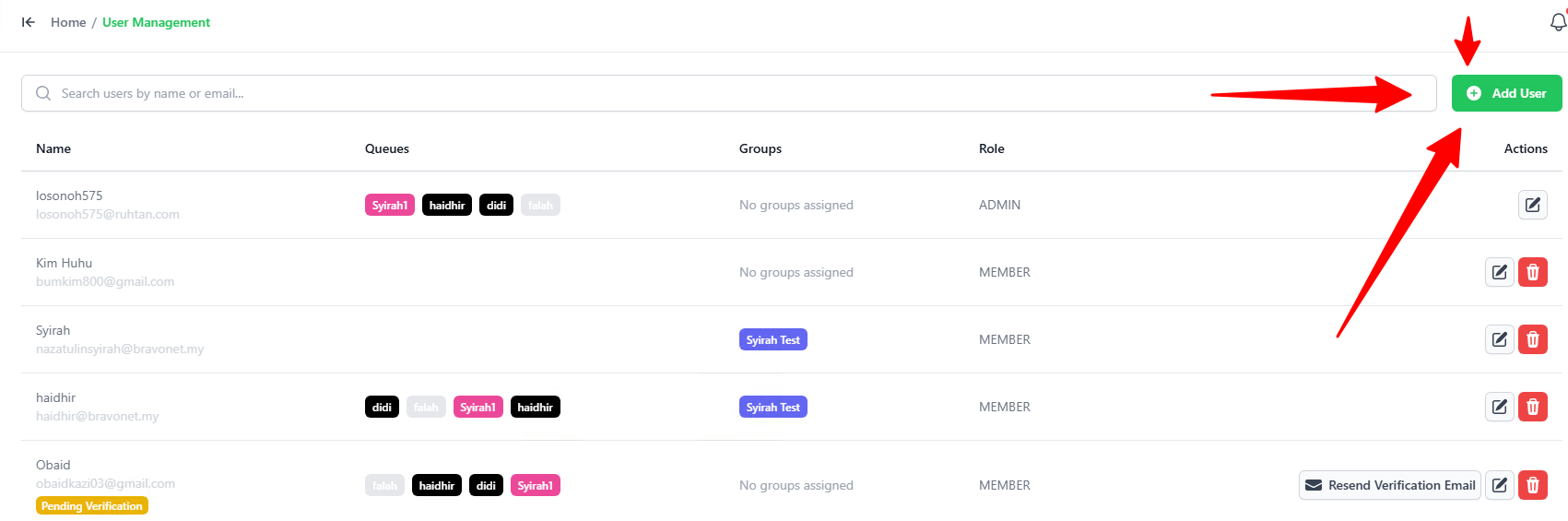
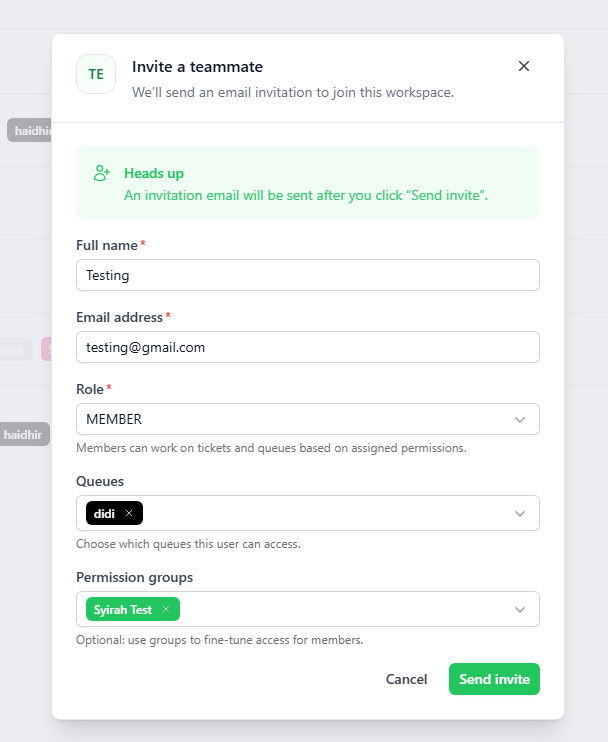
- Full name: Enter the
usernamenewanduser'skey-inname. - Email
aaddress:temporaryEnterpasswordtheir email address. - Role: Select their role (ADMIN or MEMBER).
- Queues: Choose the chat queues this user can access (you can select more than one).
- Permission groups: Select the permission level for the user.
Users may change - Click the
passwordgreenafterSendtheyinviteloginbutton.- Note:
toThethe system. Useruser will receive an emailnotification with links for theminvitation tologinlog in and set up their profile.
- Note:
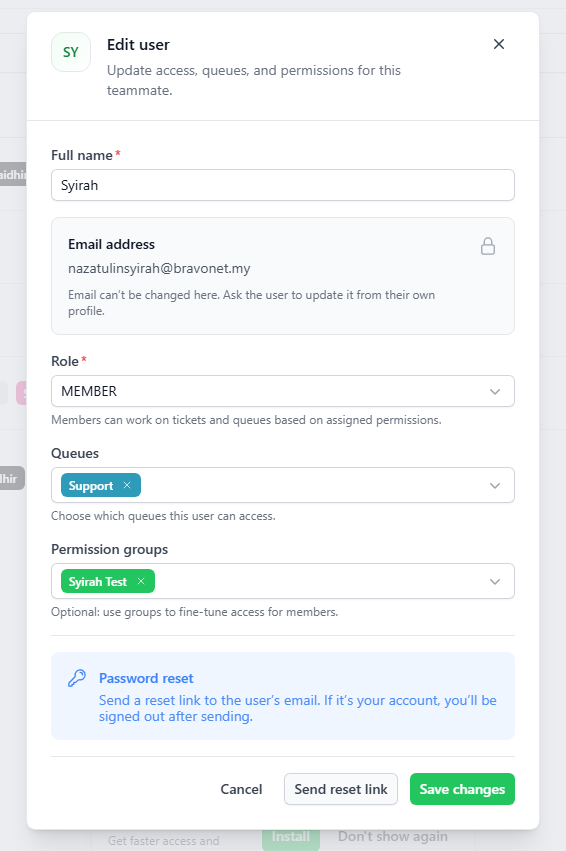
- Click the Pencil icon next to the
system.user you want to edit. - Update their Name, Role, Queues, or Permission groups.
- Note: You cannot change a user's email address here. The user must update their email from their own profile
is the user role, which is Admin or User.
- Note: You cannot change a user's email address here. The user must update their email from their own profile
Assign chat Queues that the user can view and access. You may assign more than one Queue for a user.Assign the permissions that the user can access. You may assign more than one Queue for a user.You may also set the default WA Account that the user will use when managing tickets.
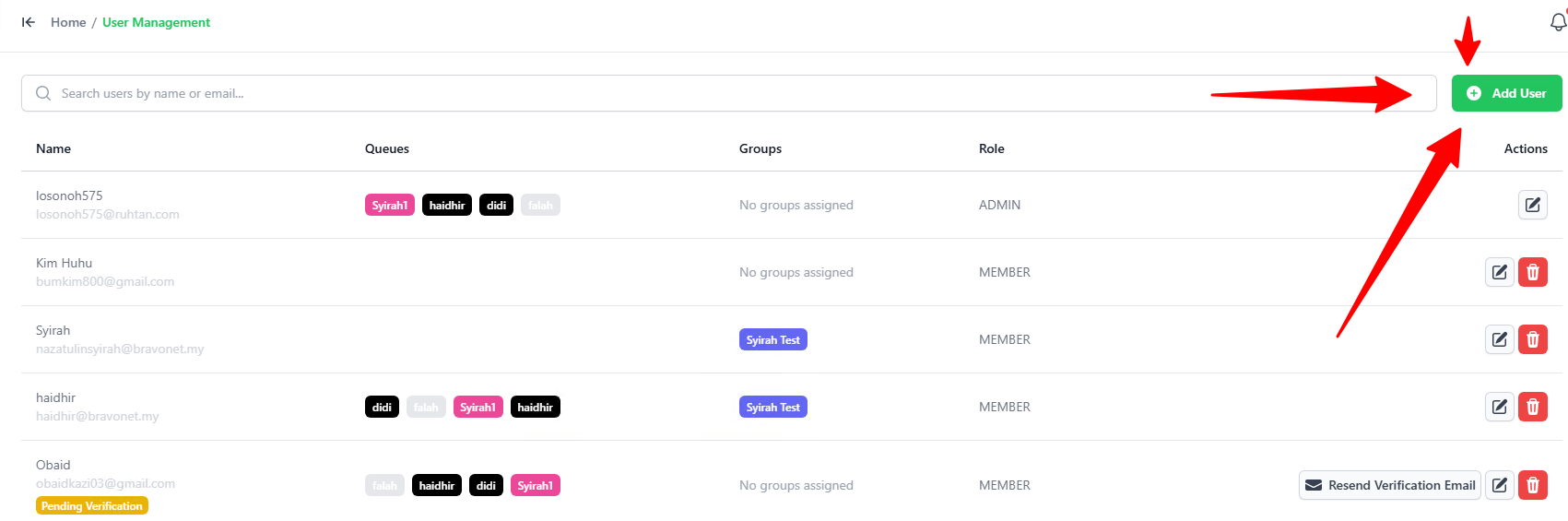
2. corner to createInviting a newTeammate
When user.the Invite a teammate popup opens:
3. Editing a User

We can edit the user profile by clicking the “pencil” icon.
4. What the User Sees
inin, tothey thewill system, he/she canonly see the queuetickets and queues that you assigned onto them.topbottom right hand sideleft of the screen,screen asat perall the below screenshot.