7. Users
https://drive.google.com/file/d/1WAJjQtdmpfpKPvaF37gG2vv1SKuS62da/view?usp=sharing
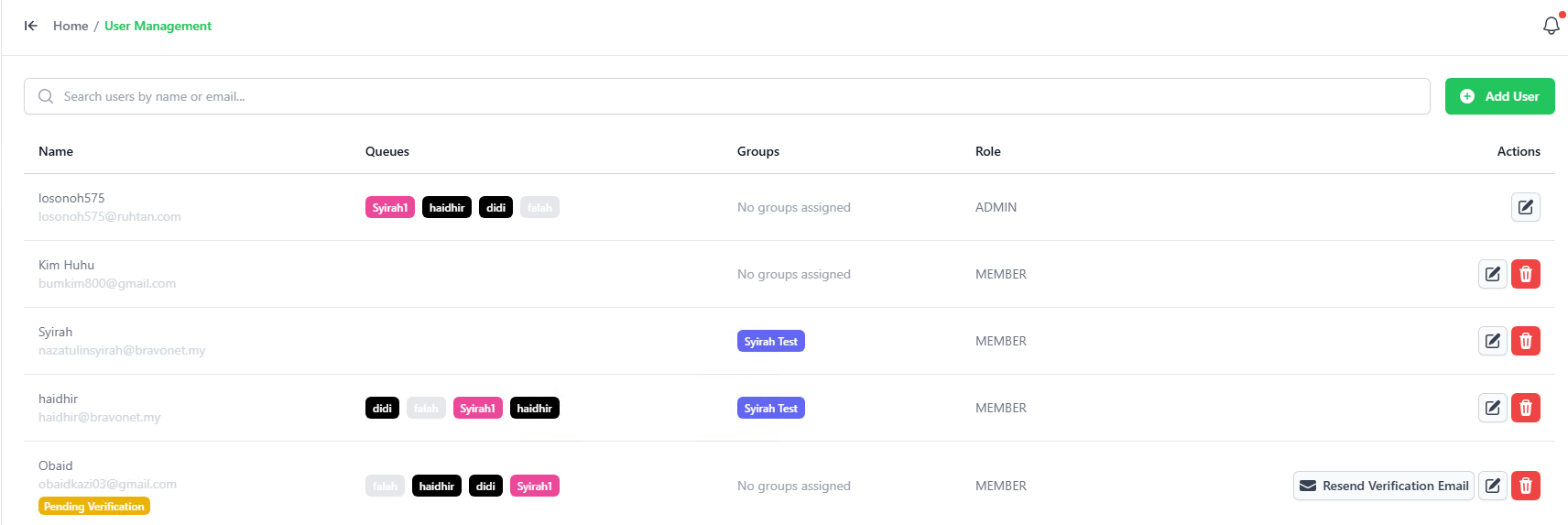
This screen allows Admin users to view, create, edit and delete system users.
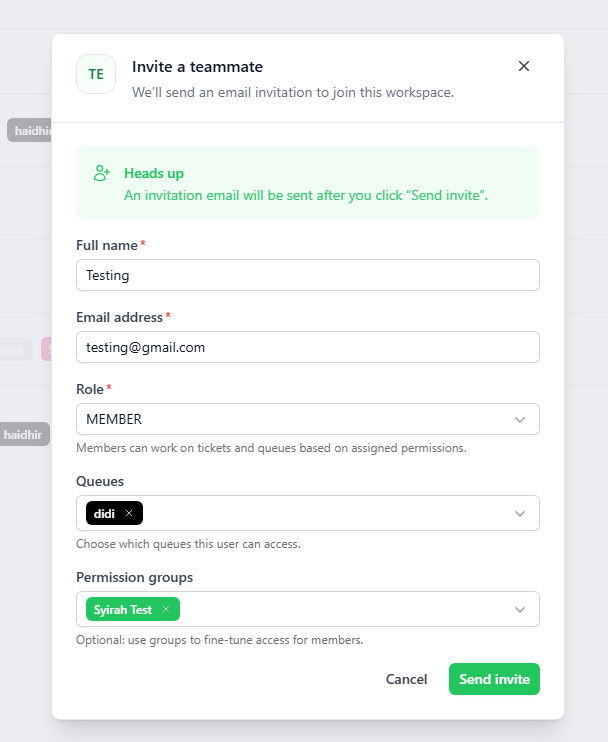
- Click on the “ADD USER” button on the top right-hand corner to create a new user.
- Enter the username and key-in a temporary password for the user. Users may change the password after they login to the system.
- User will receive an email notification with links for them to login to the system.
- The profile is the user role, which is Admin or User.
- Assign chat Queues that the user can view and access. You may assign more than one Queue for a user.
- Assign the permissions that the user can access. You may assign more than one Queue for a user.
- You may also set the default WA Account that the user will use when managing tickets.
- Click “ADD” when done and the system user is created.
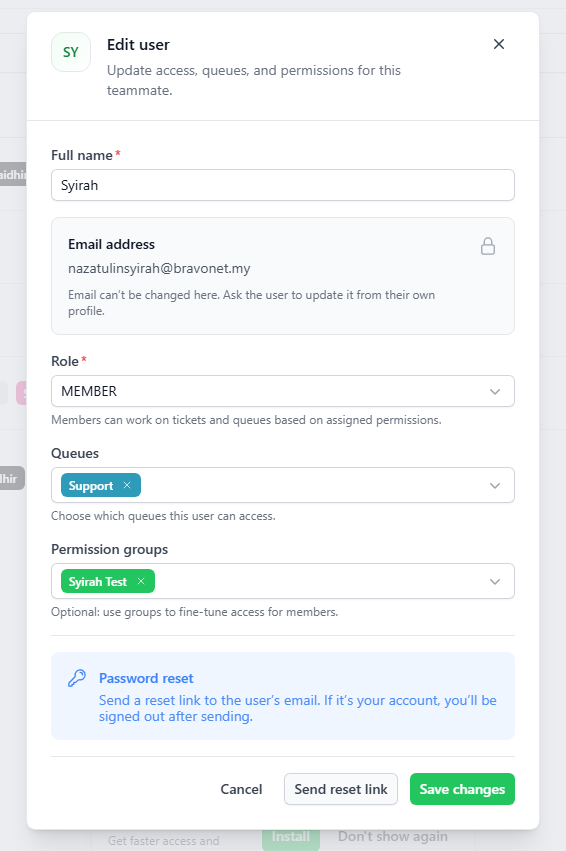
- We can edit the user profile by clicking the “pencil” icon.
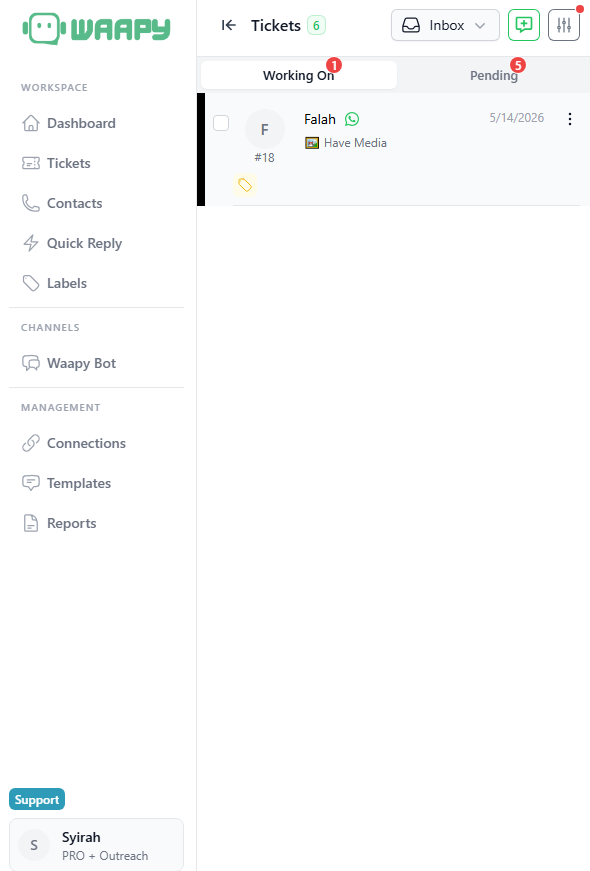
When a user logs in to the system, he/she can see the queue assigned on the top right hand side of the screen, as per the below screenshot.