10. Queues
1. How to Add a New Queue
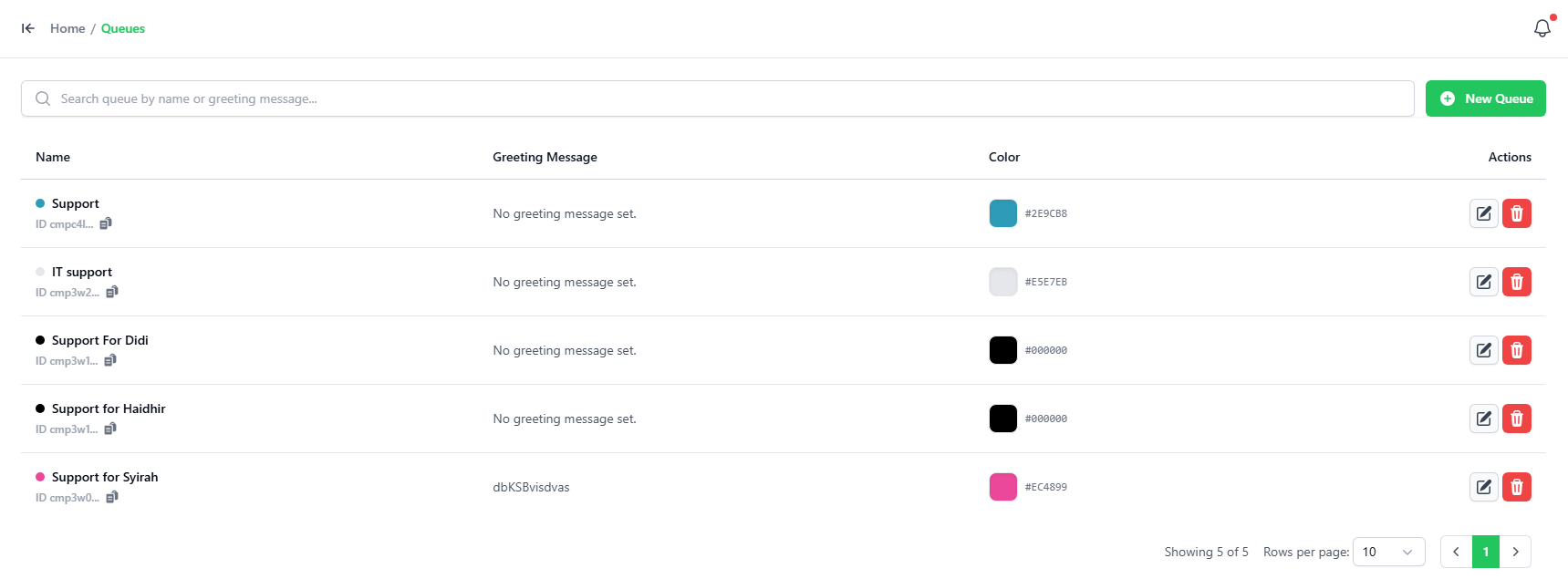
QueuesGoareto thegroupingQueuesof chat tickets. You may group your tickets based on service category, department or branches.tab.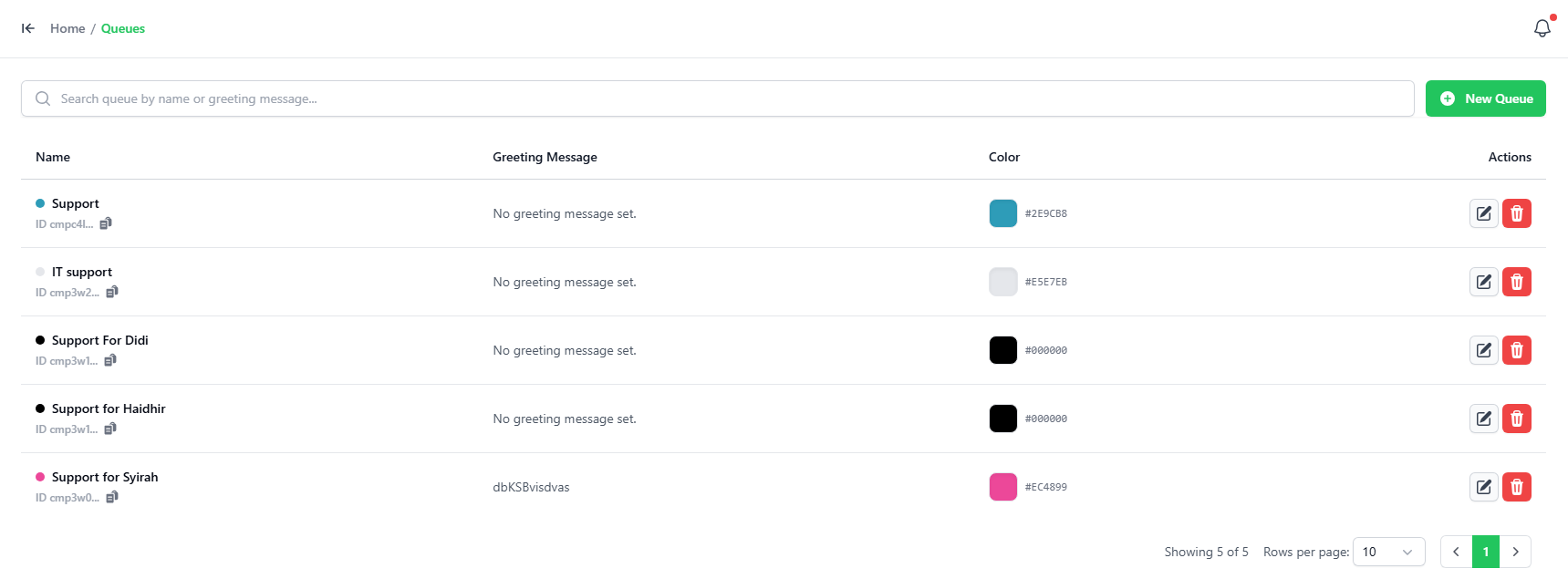
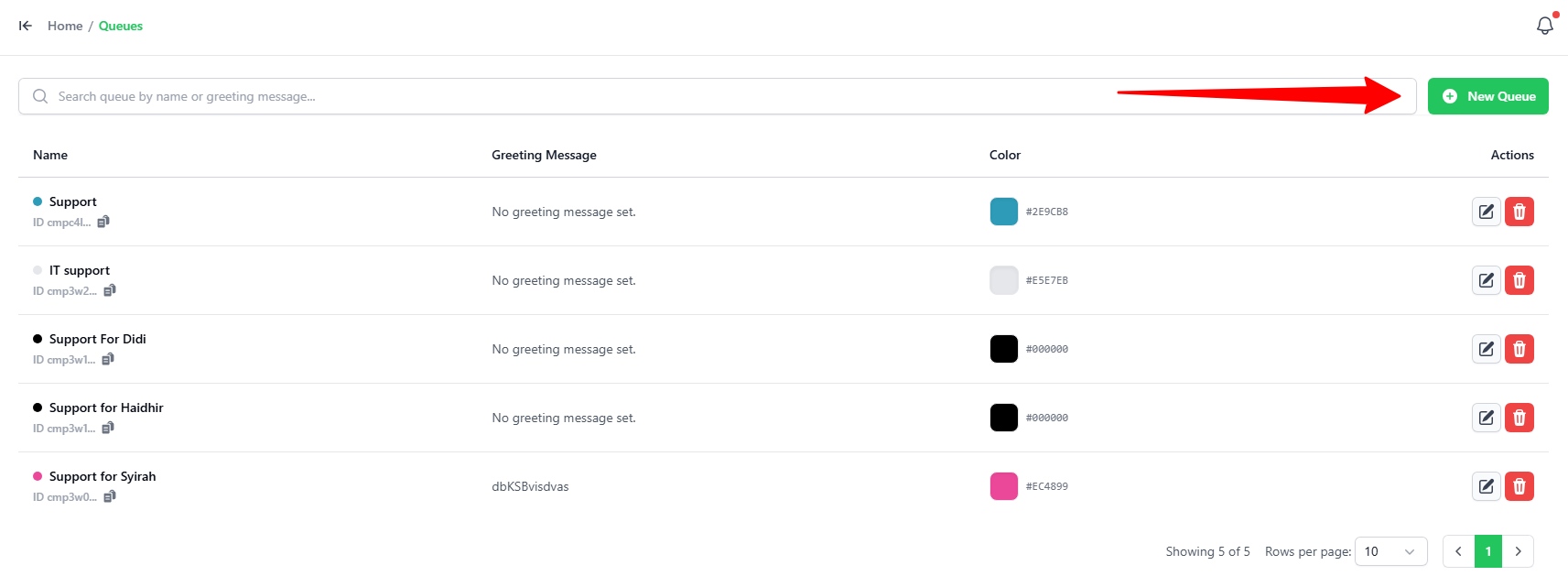
To add chat queue, click onClick the“NEWgreenQUEUE”+ New Queue buttononin the top-right corner.Key-in
2. Setting Up the nameQueue
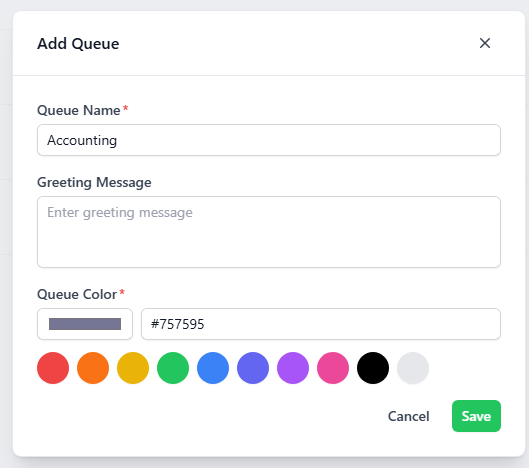
In andthe pickAdd Queue popup, enter these details:
- Queue Name: Enter a
colornameusingfor thecolorgrouppicker(e.g.,andAccounting). - Greeting
setMessage:aTypedefaultanautoautomaticresponsewelcome message. This message is sent automatically tobethesentcustomer when a new ticket is received in this queue (optional). - Queue Color: Pick a color for your queue. You can click one of the
chatpresetqueue.color circles or the color box to choose a custom color. User not assigned to a chat queue cannot viewClick thetickets designated for the queue. Example, when a user is not assigned the right to view chat queue for Horsam branch, the user will not be able to see any ticket assigned to the Horsam branch chat queue.green Save button.