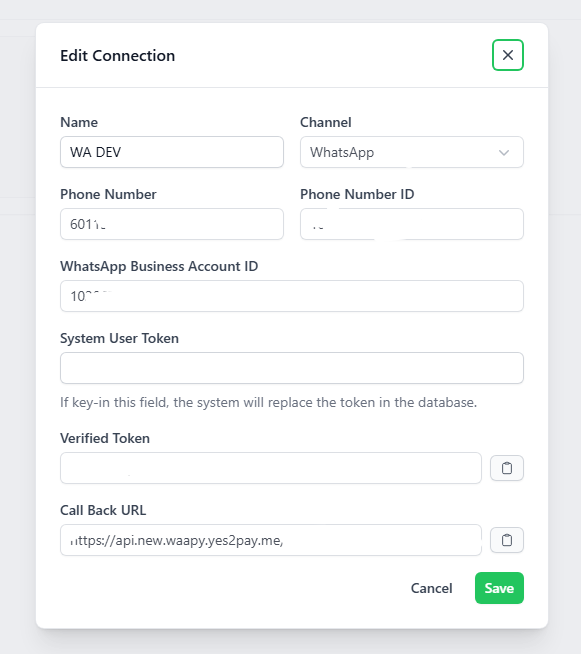
6. Connections
This function is to link the web application to one or more WhatsApp accounts. The platform is designed to work with both WhatsApp Web as well as WhatsApp Business APIs. Please contact us should you need more information on the different systems available in the WhatsApp ecosystem.
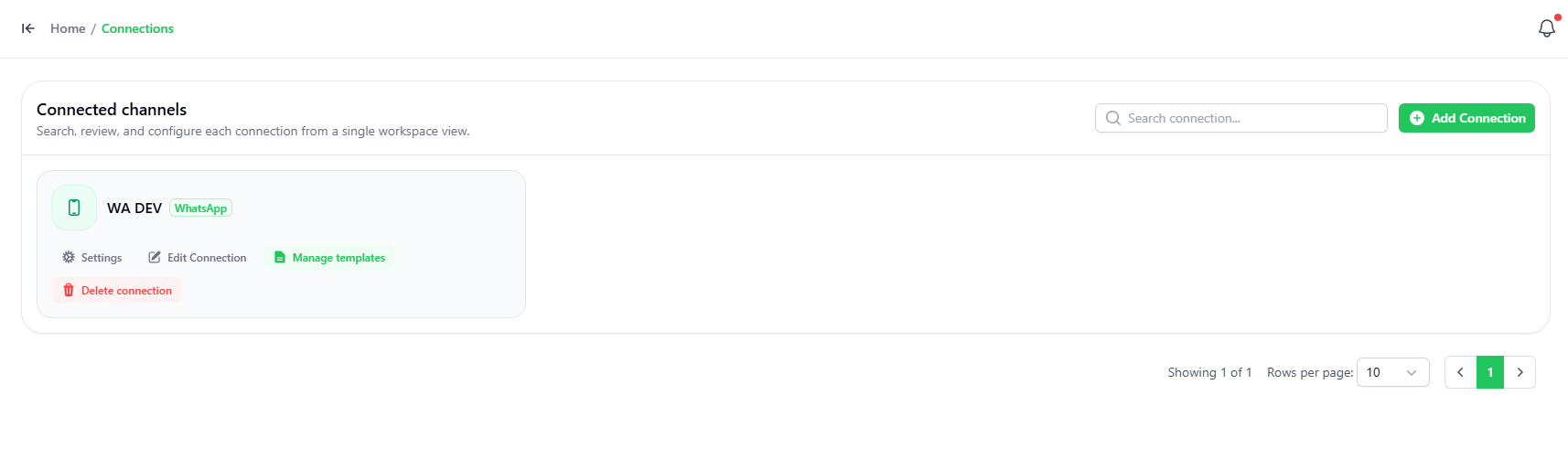
- To add a connection, click the “ADD Connection” button on the top right-hand corner.
- Choose if you want a manual WhatsApp connection, or META Official Connection.
If the chosen connection is the manual WhatsApp Connection, You can see follow the instructions given on the screen here:
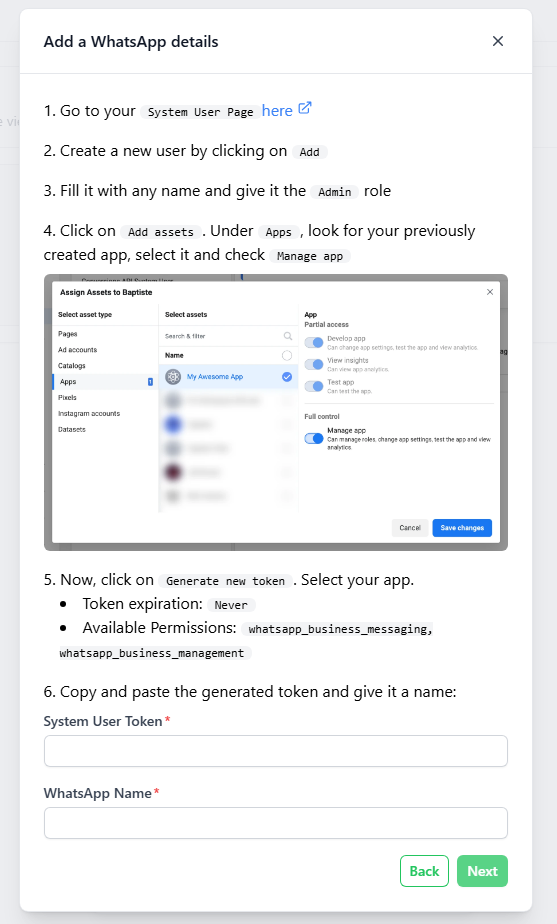
- Enter a name for the connection and set whether the connection will be used as the default connection for the platform.
- Enter a Greeting Message – the message that will be auto sent to a contact when they first chatted with the channel.
- Enter a Farewell Message – the message that will be auto sent to a contact when a ticket is closed / resolved.
- Enter a Break Message - an automated response sent to contacts during a designated break period.
- Enter a Closed Message - an automated response sent to notify the sender that their message was received outside of office hours.
- Then select the chat queue(s) that will be using the connection. You can add more than one queue to a connection.
- Auto-close ticket - A setting automatically closes a support ticket after a specified period of inactivity.