4. Quick Reply
This feature is useful if you would like to preset some common replies that a member of staff can use when handling a ticket. This can be used to standardize commonly used replies such as asking customer to wait while an appointment is being made, thank you message after a ticket is closed or to provide standard advise like the need for a new skin test after 6 months, etc.
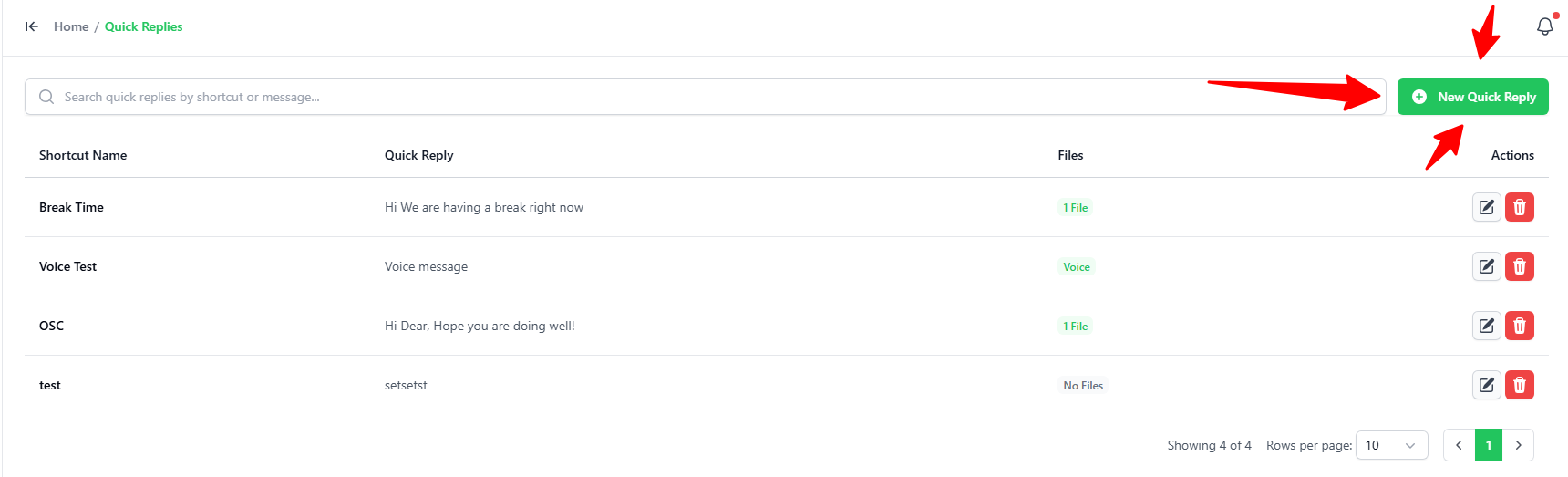
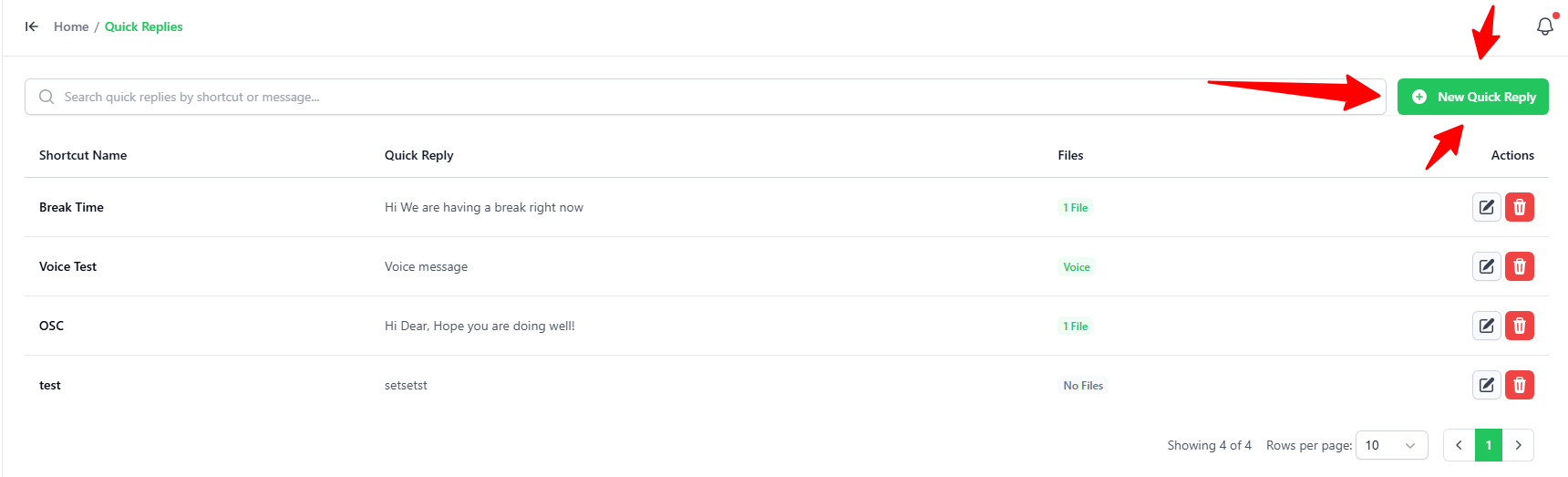
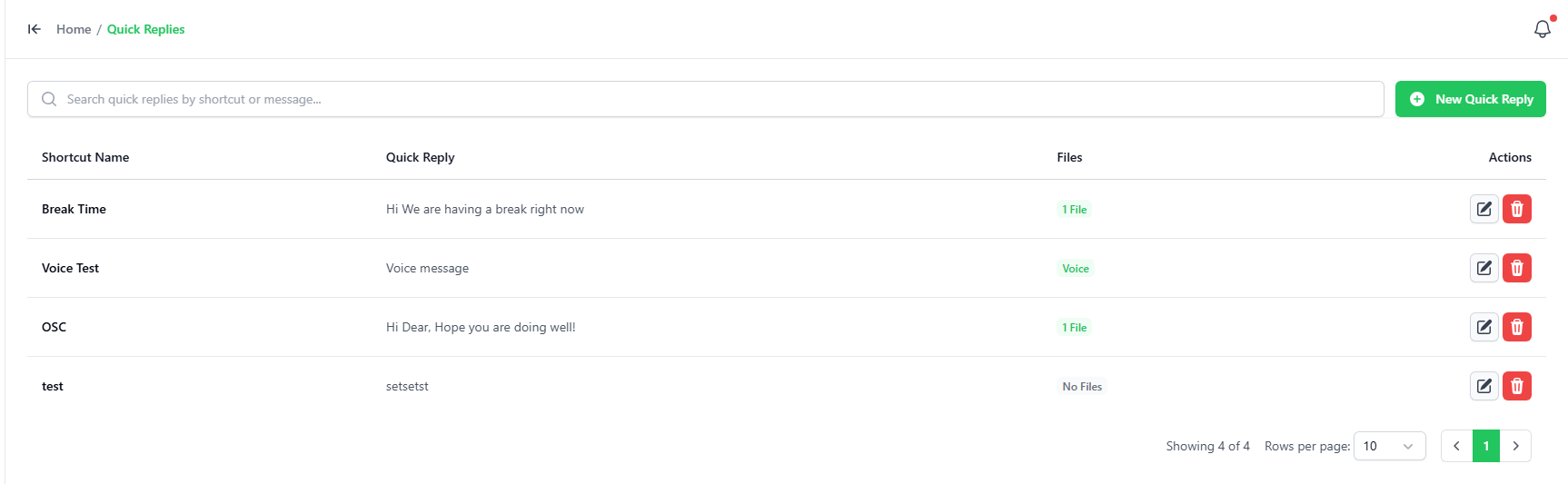
To1.addHownewto Add a QuickAnswer,ReplyGo
clickto the Quick Replies tab.Click the green + New Quick Reply button in the top-right corner.
2. Filling Out the Quick Reply Details
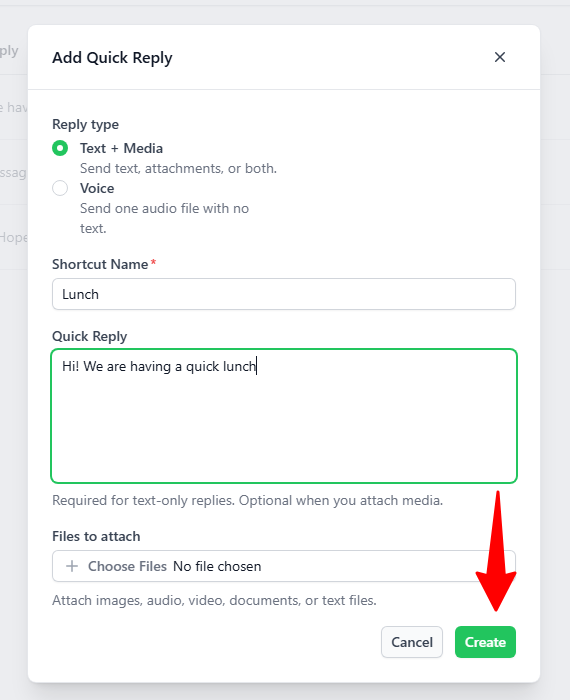
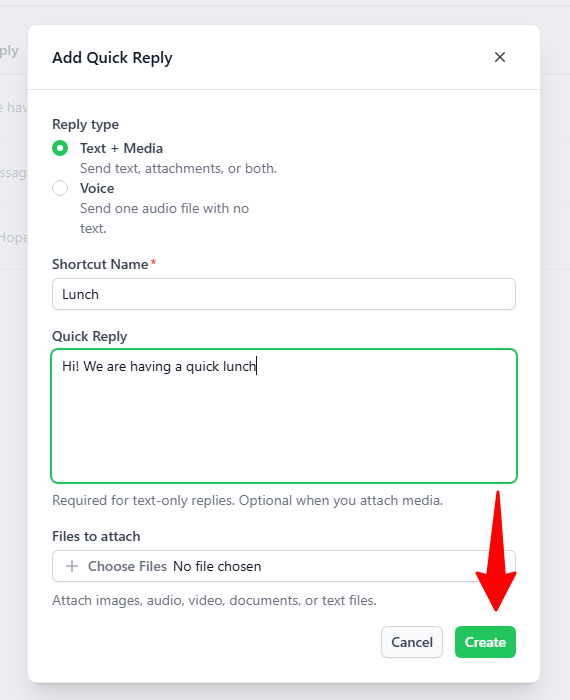
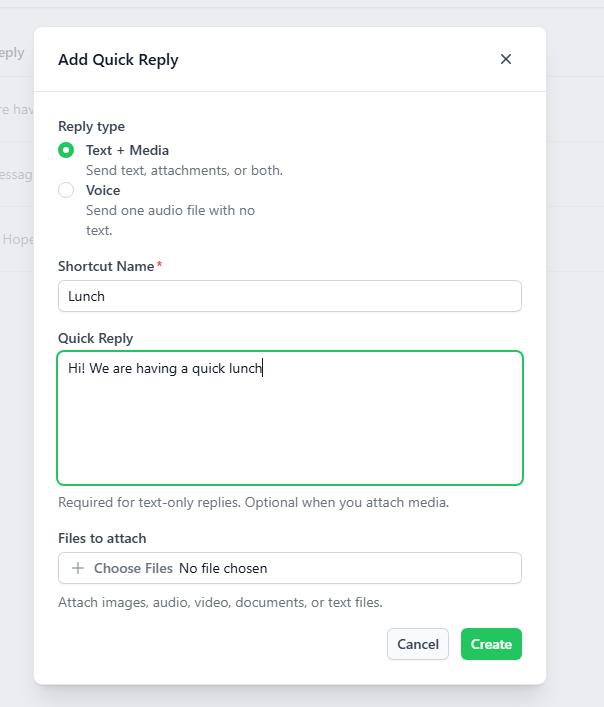
In the Add Quick Reply popup, enter these details:
- Reply Type: Select Text + Media (to send text and/or files) or Voice (to send a voice recording file).
- Shortcut Name: Type a short word or keyword (like Lunch or Greeting). This is what you will type to find the reply.
- Quick Reply Text: Type the message you want to save.
- Files to attach: (Optional) Click Choose Files to attach files like images, audio, video, or documents.
- Click the green Create button.
3. How to Use Quick Replies in a Chat
Open any customer chat.
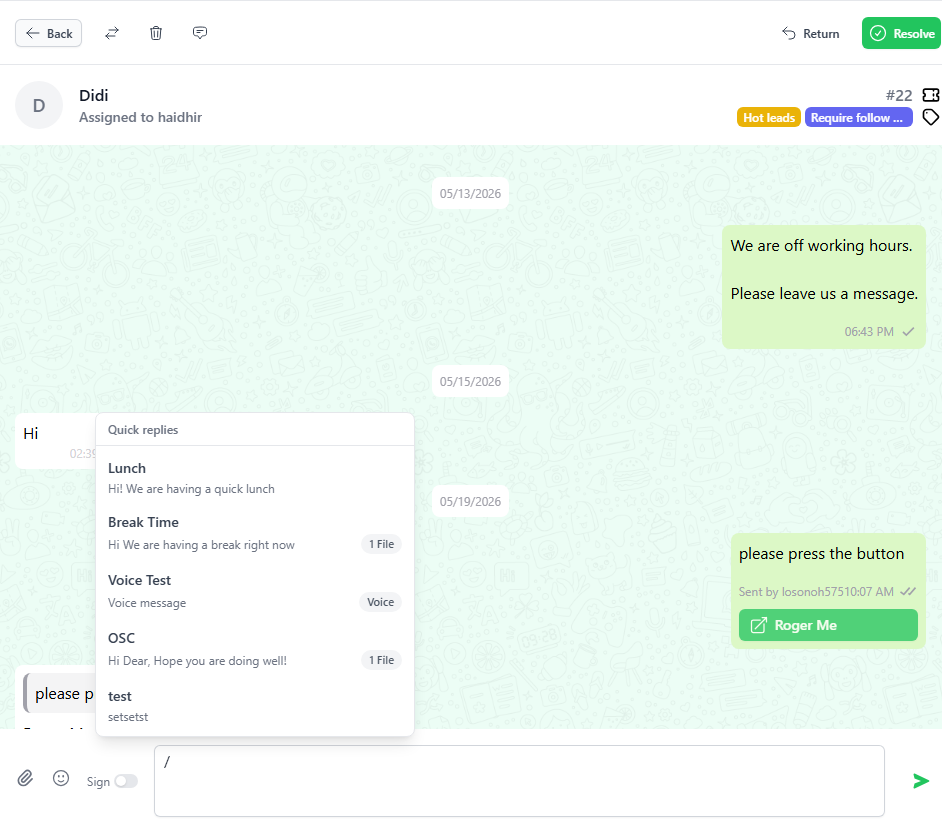
- Click the text box at the bottom and type a slash: /
- A list of your quick replies will pop up.
- Click on the
“ADDoneQUICKyouREPLY”wantbuttontoonuse, or keep typing thetopshortcutrightnamecorner.to search for it.
Enter the keywords and the correspondingThe messageandwillclickautomatically“ADD”.fillYouintocanyourattachtextthe files on it too.box.
To use QUICK ANSWER, just type “/” on the chat windows to display the list of available quick answer and choose the desired quick answer to add to the chat.