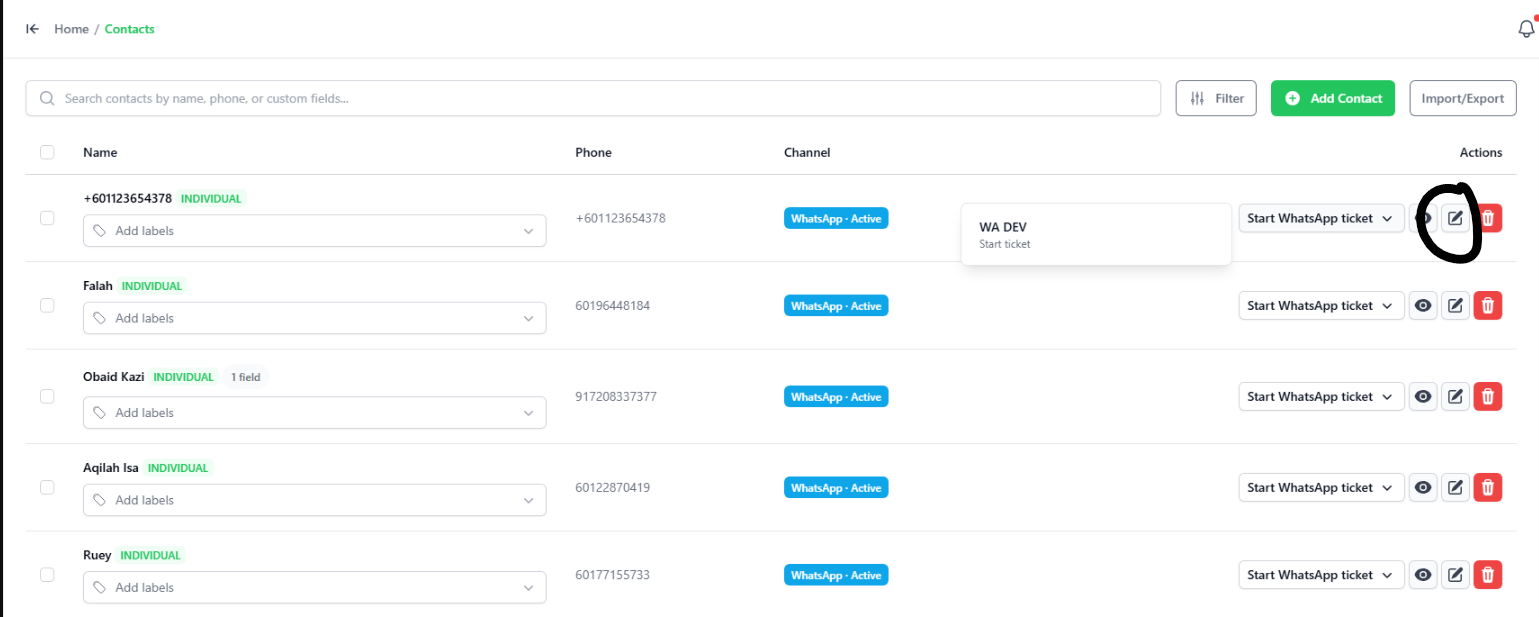
3. Contacts
1.3.1 How to Add Contacts
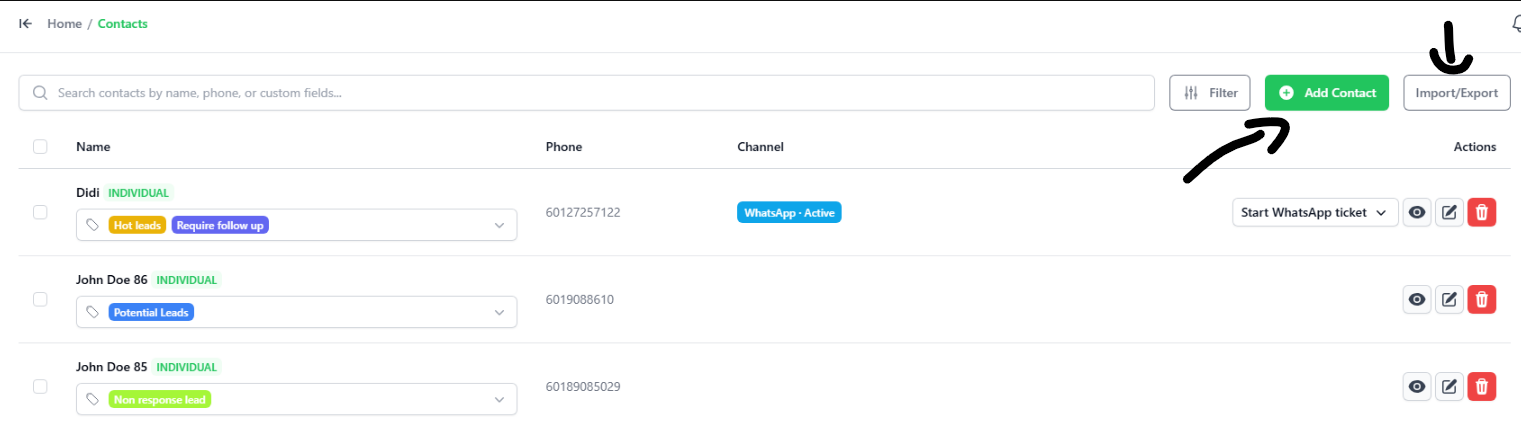
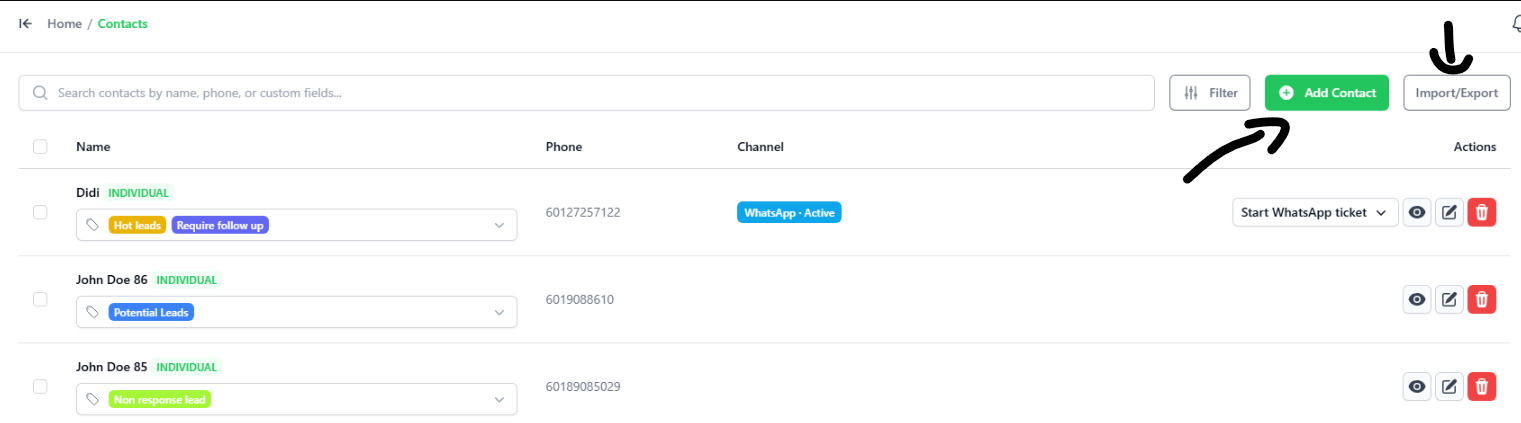
You can add contacts in two ways:
- Manually: Click the green + Add Contact button to type in their details.
- Import/Export: Import many contacts at once using a file, or download your contact list.
2.3.2 Importing Contacts from a File
To upload a list of contacts:
- Click the Import/Export button at the top-right.
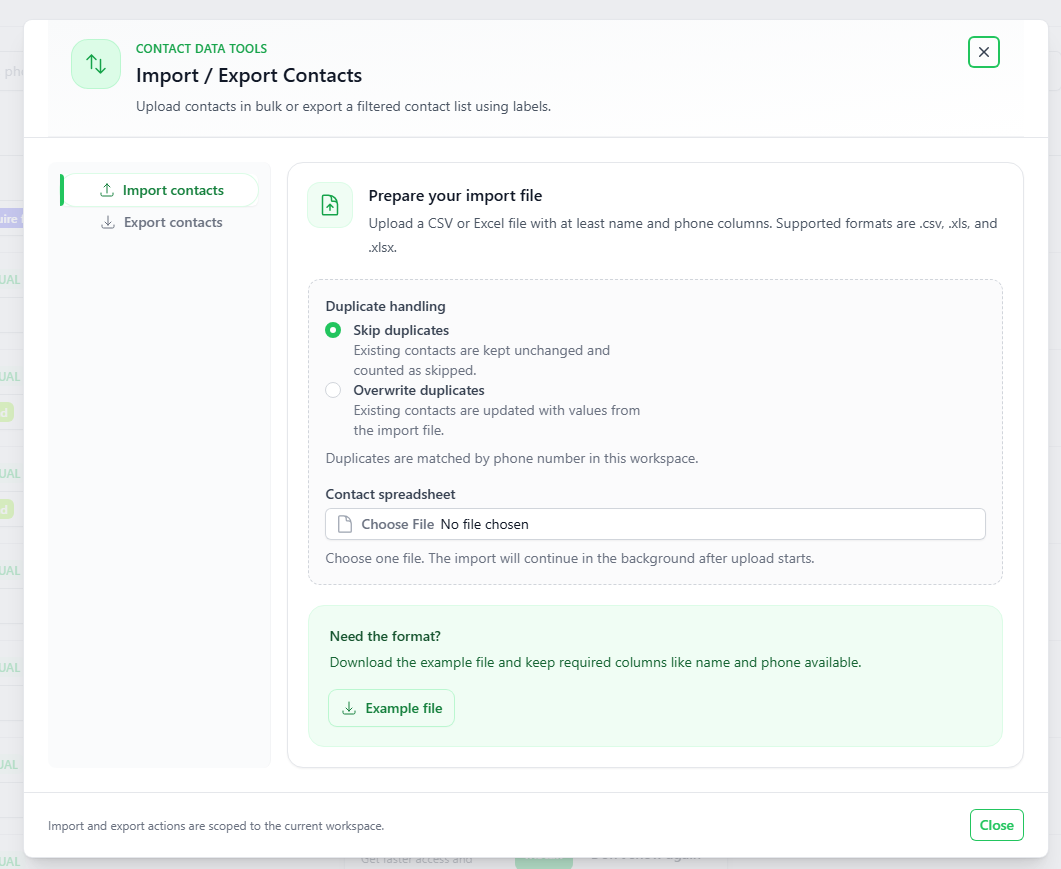
- Click Import contacts.
- Choose how to handle duplicates:
- Skip duplicates: Keep existing contacts and skip matching ones in the file.
- Overwrite duplicates: Update existing contacts with the new info from the file.
- Click Choose File to upload your CSV or Excel (.xls, .xlsx) file.
- Tip: If you need a template, click the green Example file button to download a sample spreadsheet.
3.3 Searching and Starting a Chat
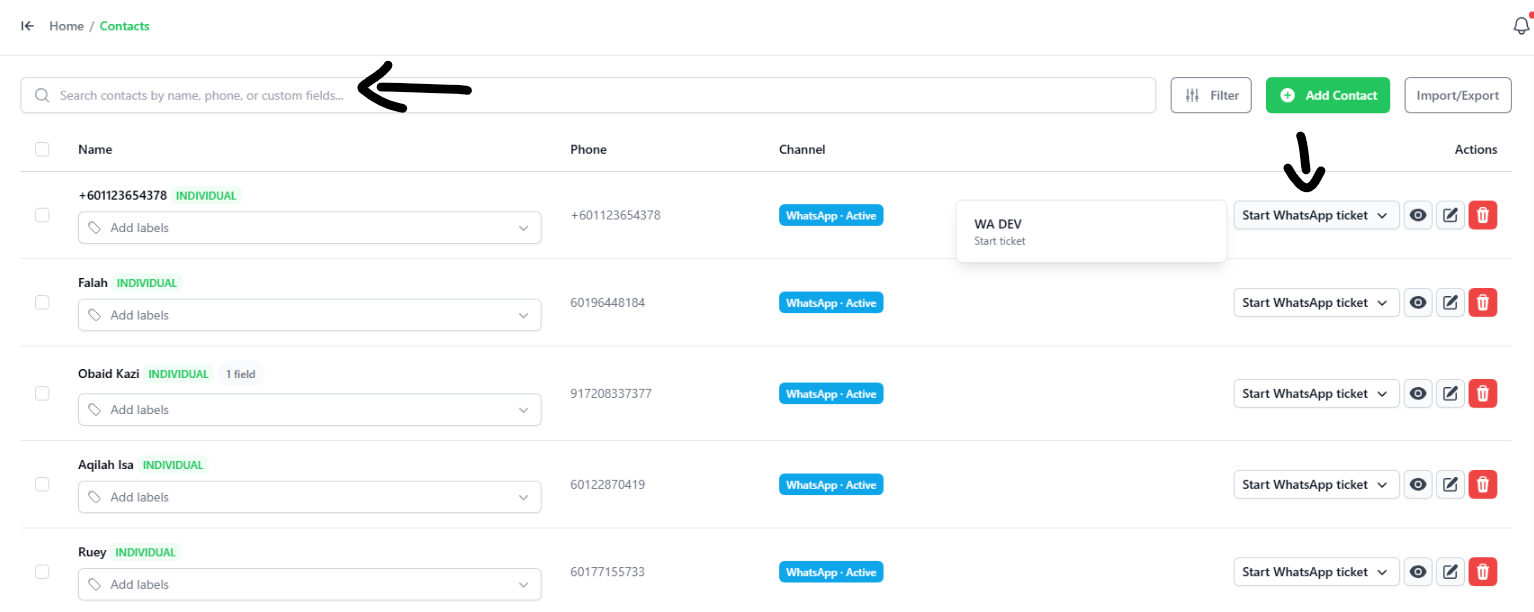
- Search: Use the search bar at the top to type a contact's name or phone number.
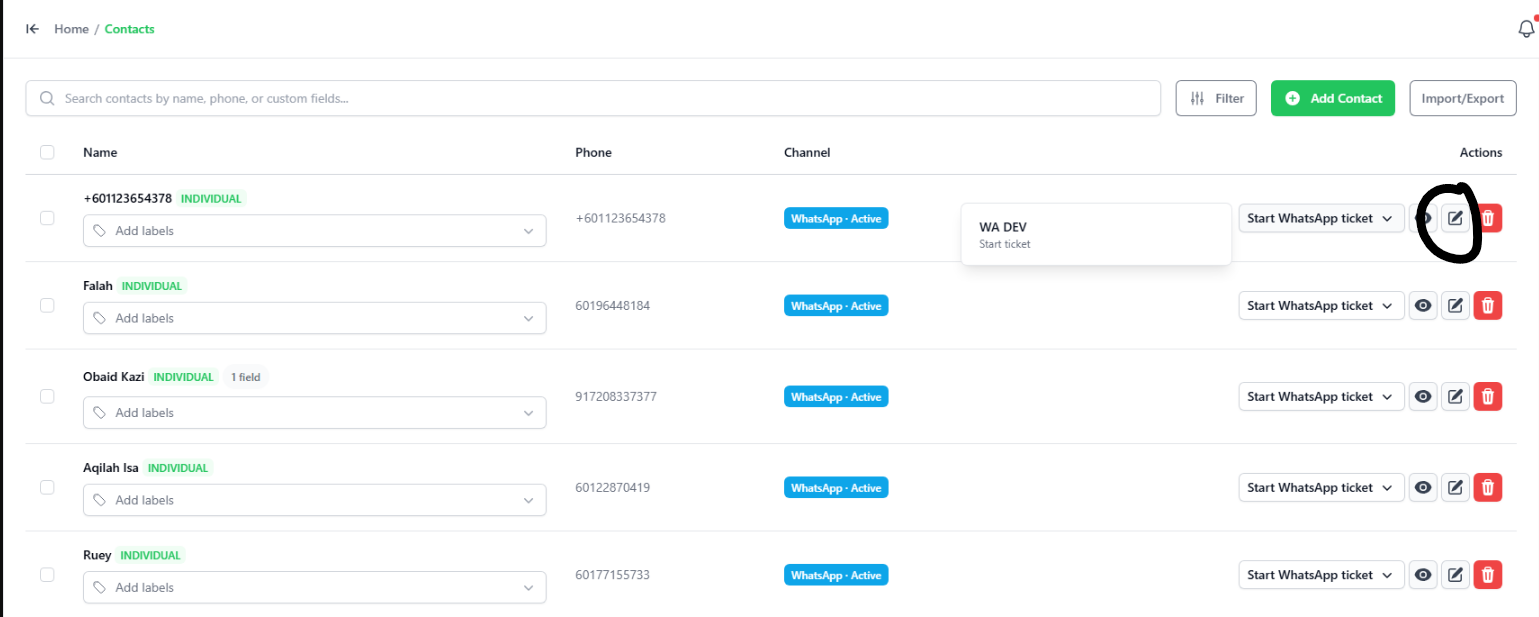
- Start a Chat: Find the contact in the list, then click the Start WhatsApp ticket button under the Actions column. This opens a new chat with them.
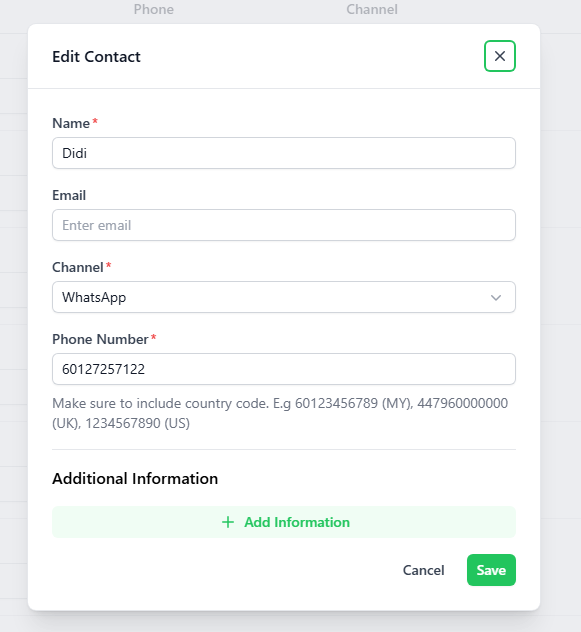
4.3.4 Editing Contact Info
- Click the Pencil icon next to the contact you want to change.
- Update their Name, Email, or Phone Number.
- Note: You cannot edit group contacts.
- Click the green Save button.
⚠️ Important (Country Code): Always put the country code first when adding or editing phone numbers.
- Example (Malaysia): start with
60(like60123456789). - Do not put
+in front.