3. Contacts
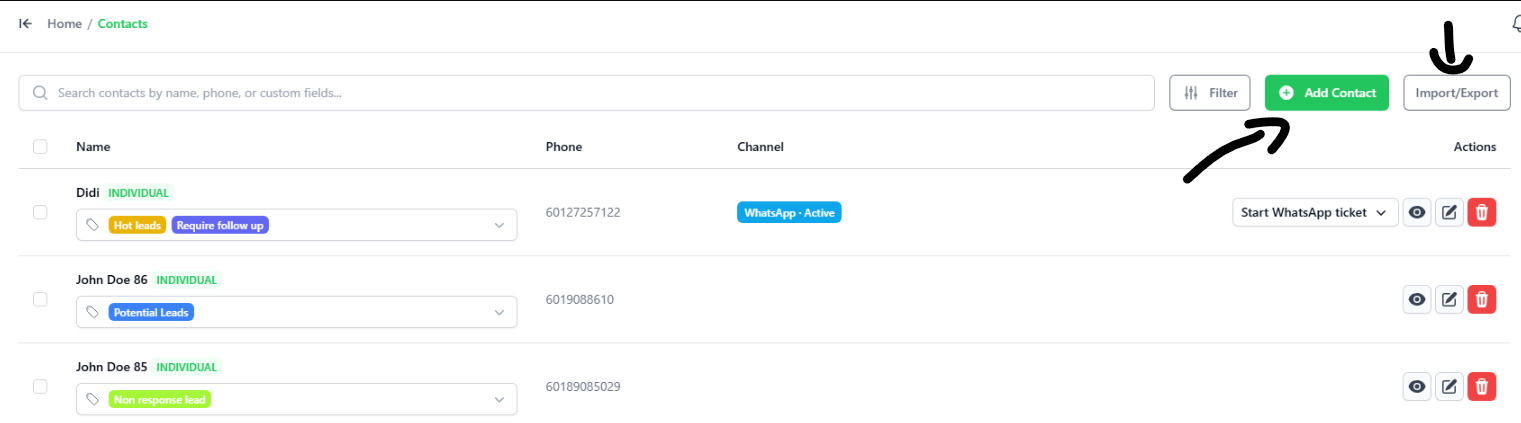
1. How to Add Contacts
You can add contacts in two ways:
- Manually
This:isClick theusergreeninterface+ Add Contact button tomanagetype in their details. - Import/Export: Import many contacts
onat once using a file, or download your contact list.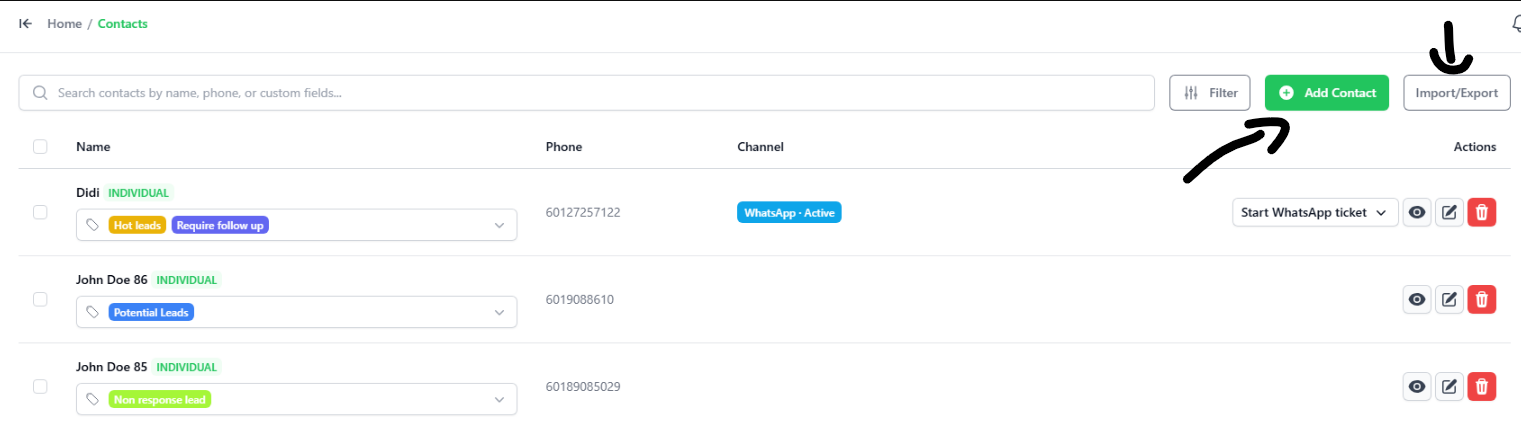
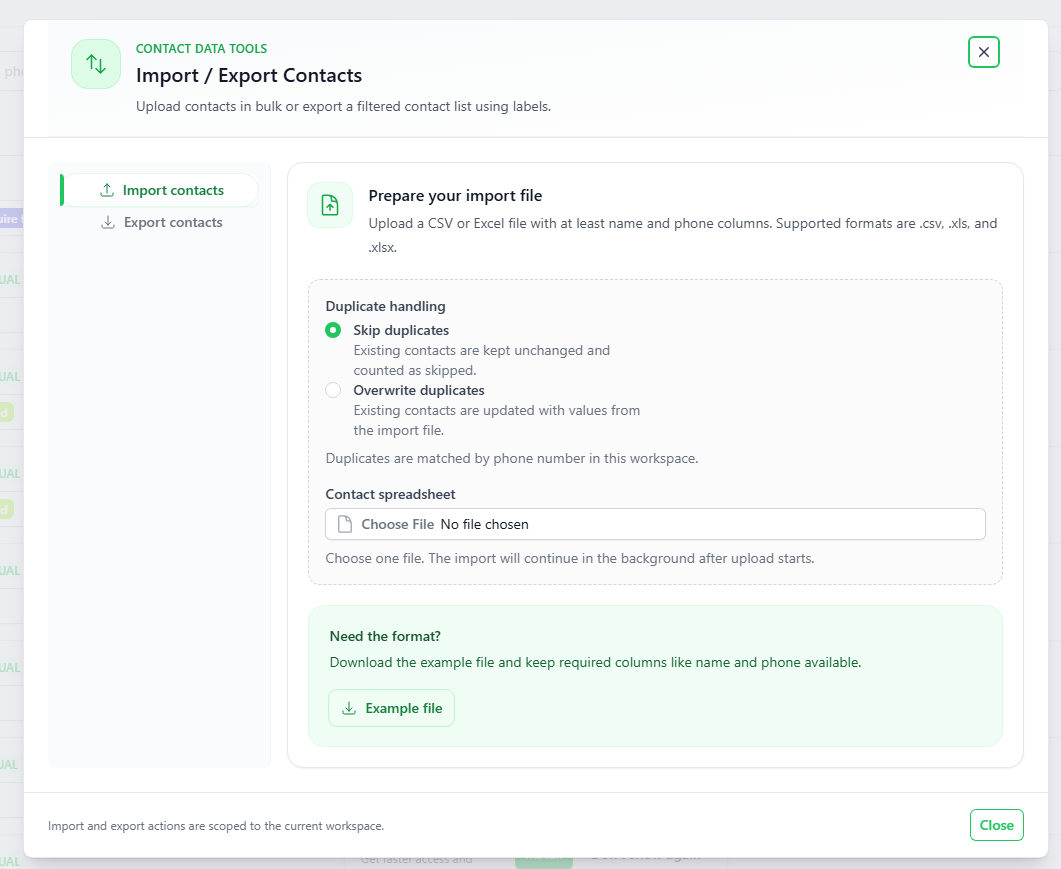
2. Importing Contacts from a File
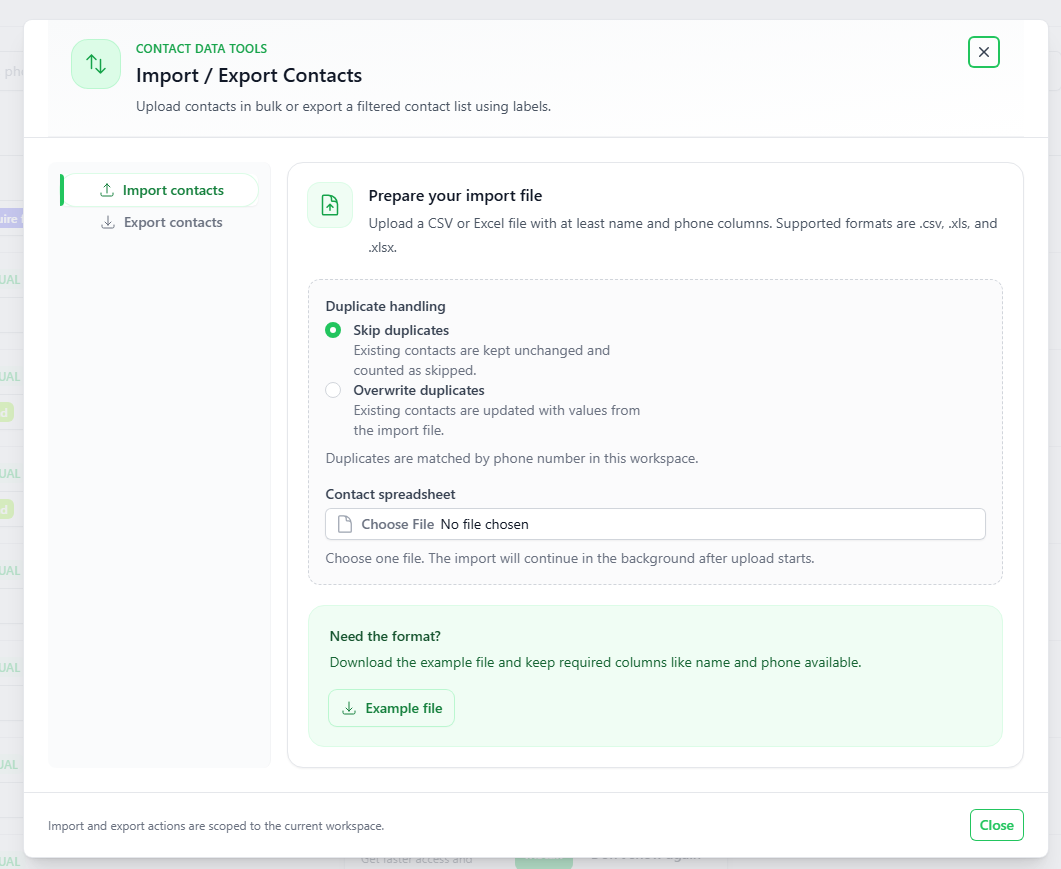
To upload a list of contacts:
- Click the
platform.Import/ExportYoubuttonmayataddthecontacttop-right. - Click
by:Import contacts. - Choose how to handle duplicates:
IMPORTSkip/ EXPORTduplicates:–Keepsync allexisting contacts and skip matching ones in the file.- Overwrite duplicates: Update existing contacts with the new info from the
WhatsAppfile.
- Click
accountChoose File tothisuploadwebyourapplicationCSV orexportExcel (.xls, .xlsx) file. - Tip: If you need a template, click the
contact out.green AddExample file–manually add a contact using the user interface.
This is the user interfacebutton to manage contacts on the platform. You may add contact by:
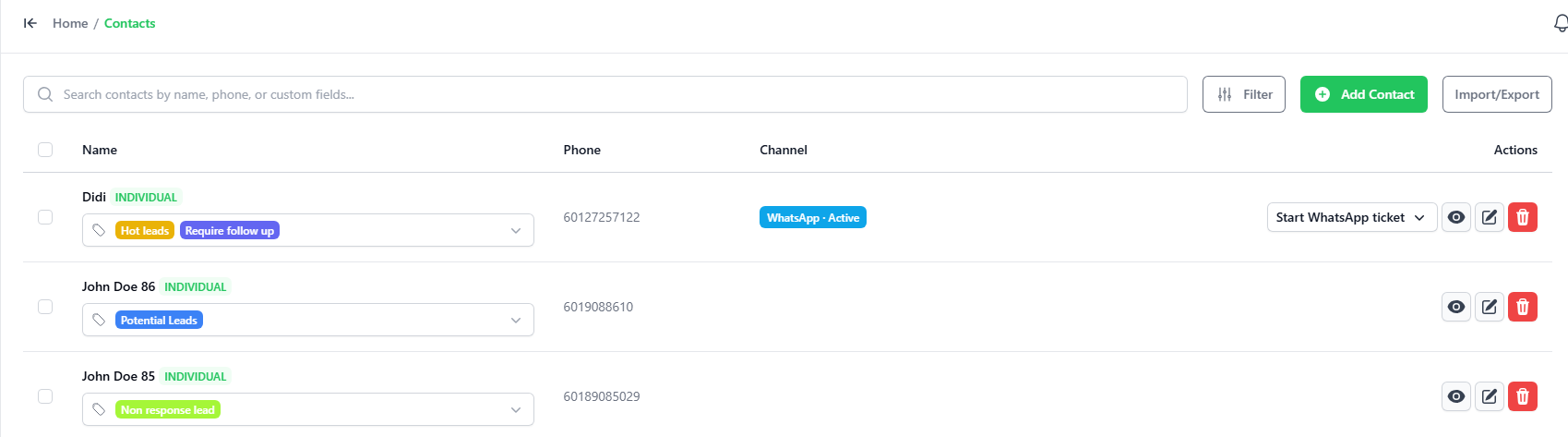
There is a import method, it is imported by file
You may download a sample importspreadsheet.
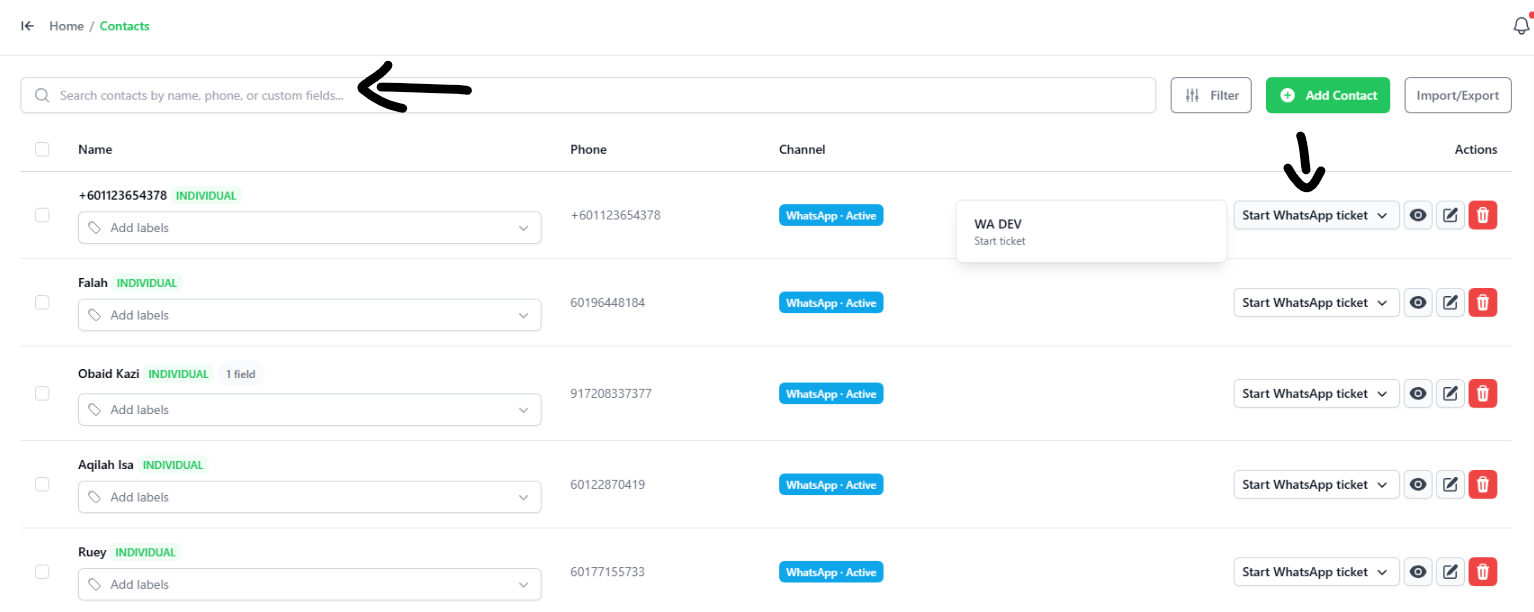
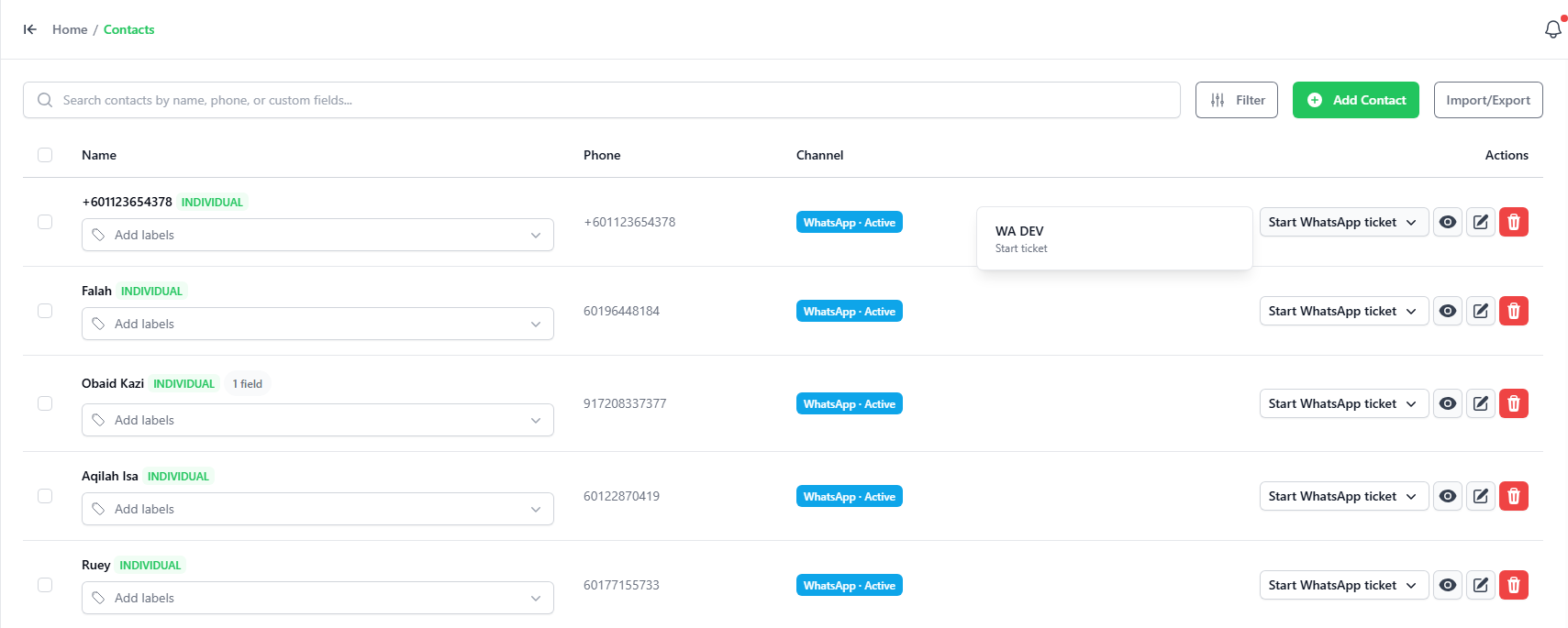
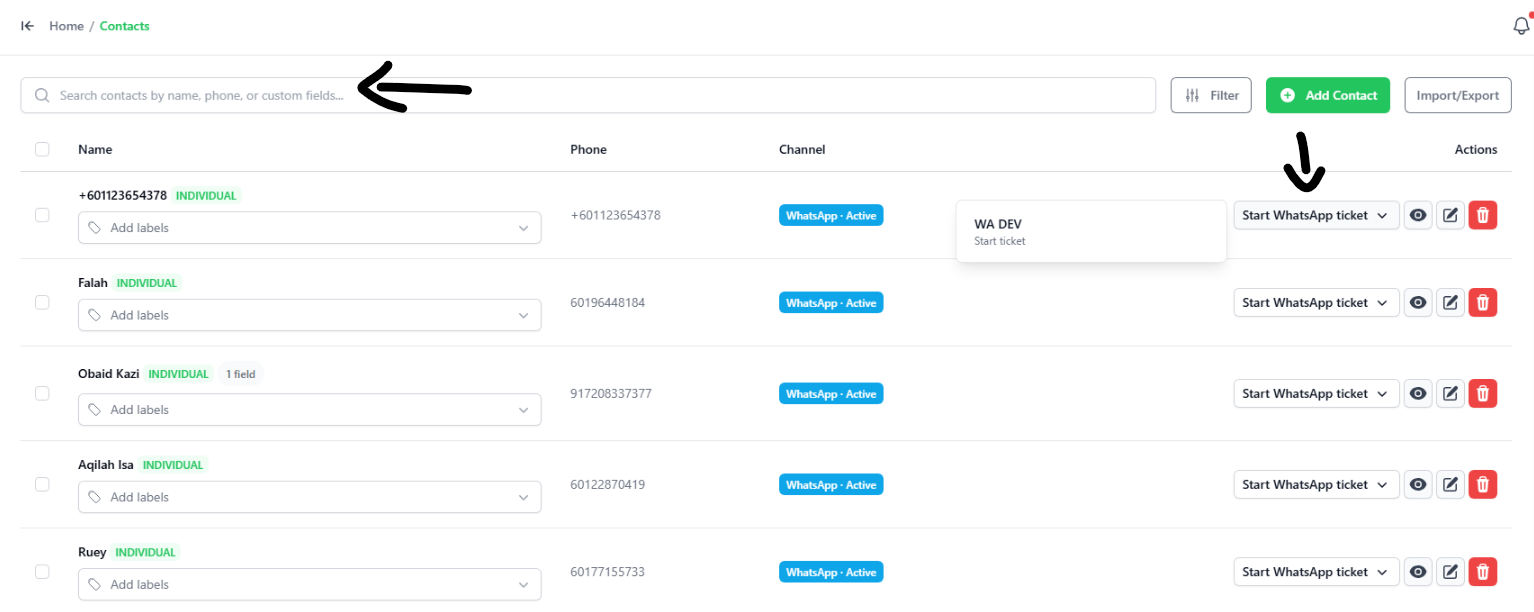
3. fileSearching whenand clickedStarting ona Chat
- Search: Use the
IMPORT FILE button.You maysearchforbar at the top to type acontactcontact'susingname or phone number.- Start a Chat: Find the
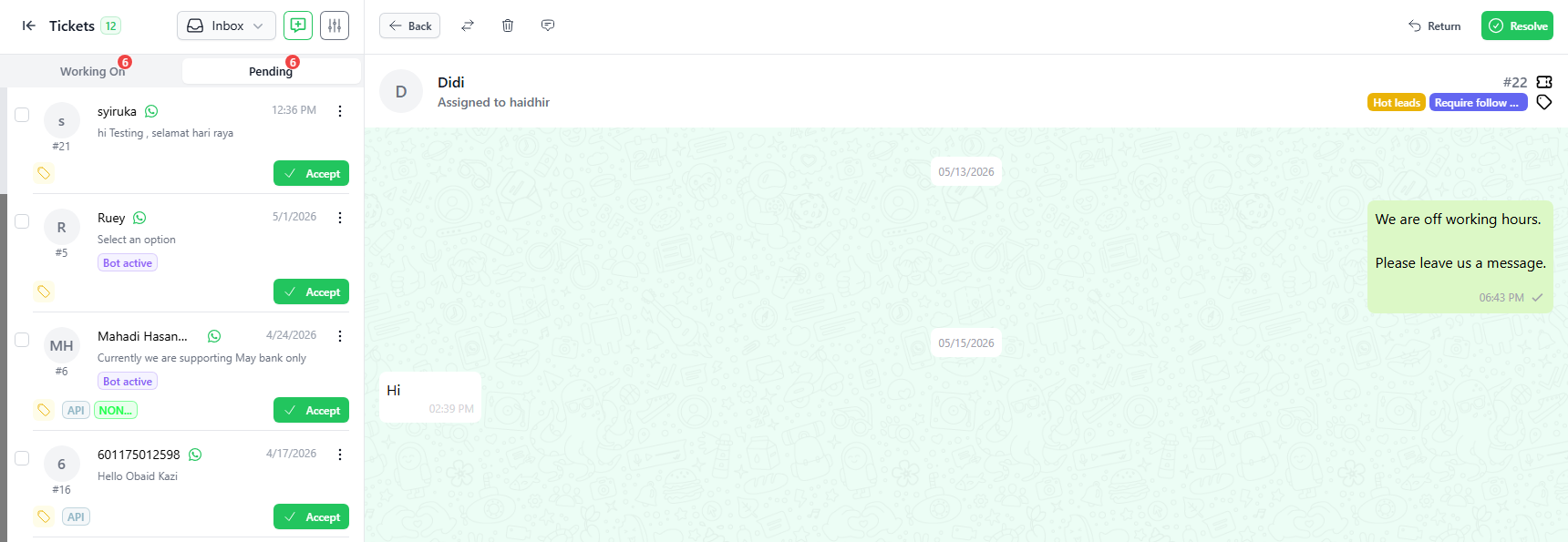
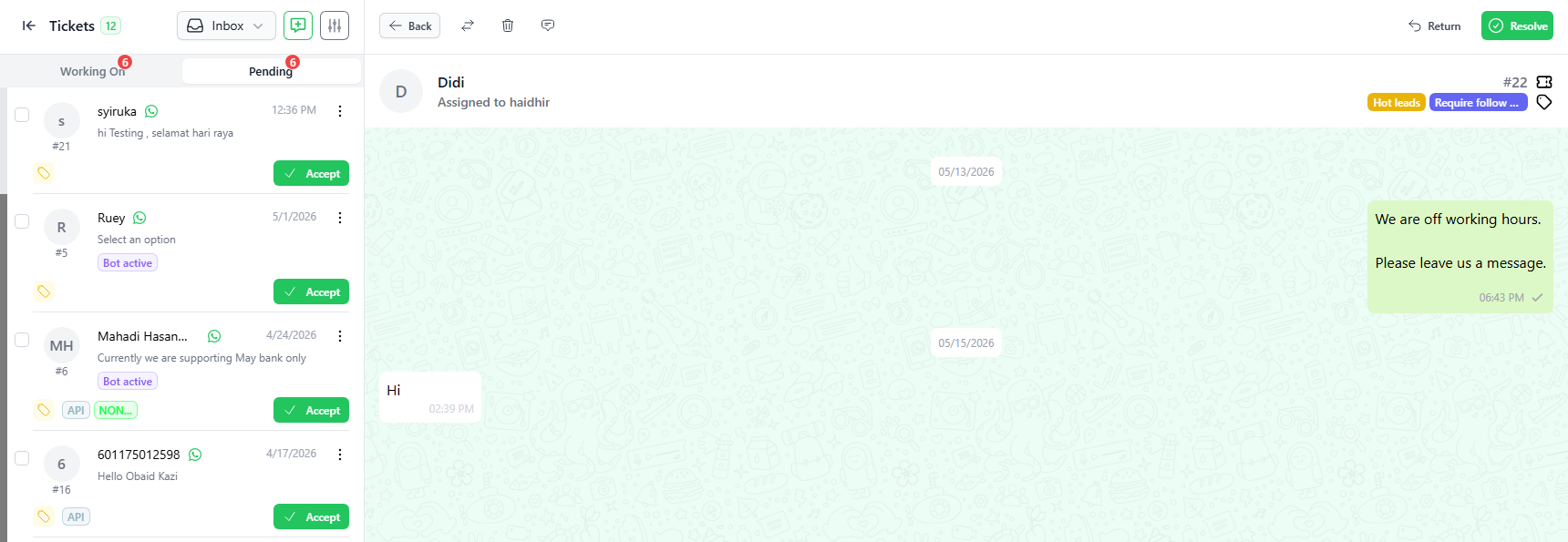
“Search”contactfunction Clicking onin theStartslist, then click the Start WhatsAppTicketticket buttononunder theActionActionscolumncolumn.willThislaunchopens a new chat withthe contact.them.
4. Editing Contact Info
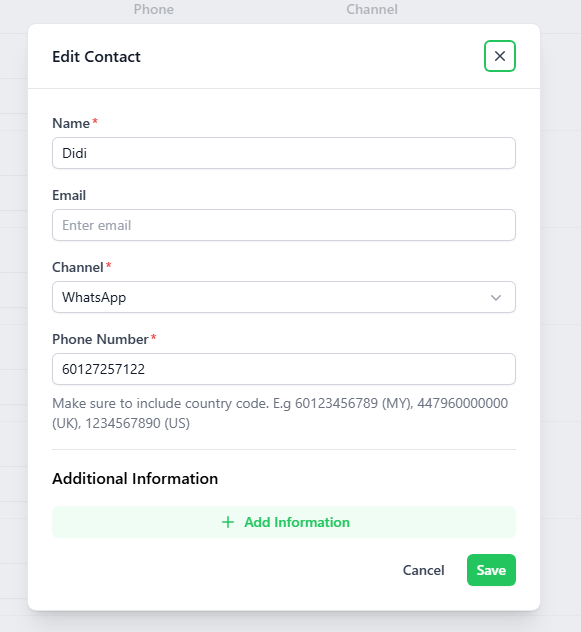
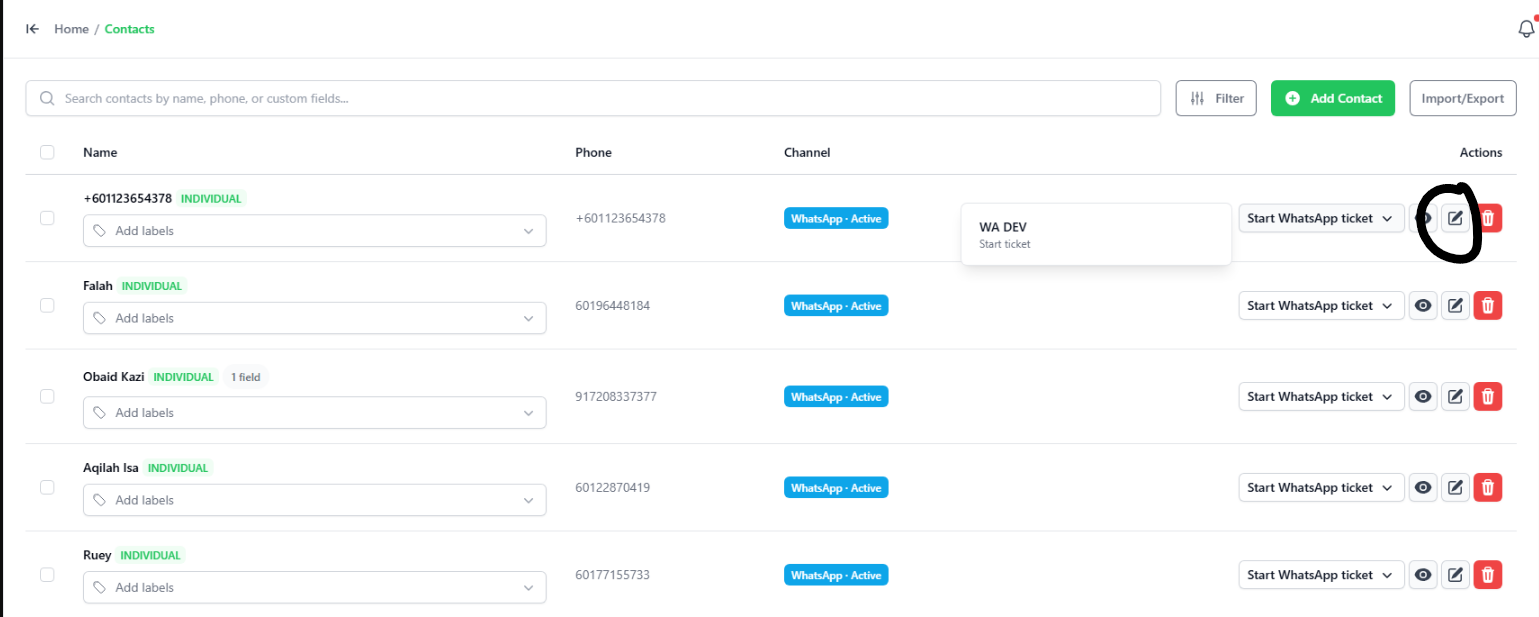
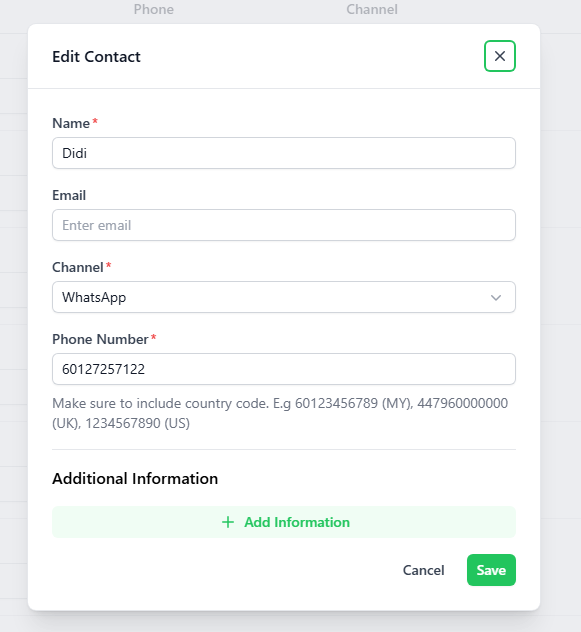
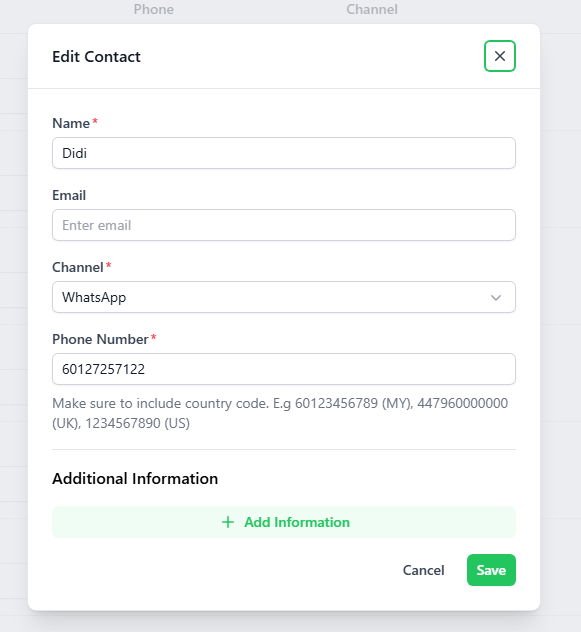
- Click the Pencil icon next to the contact you want to change.
- Update their Name, Email, or Phone Number.
- Note: You cannot edit group contacts.
- Click the green Save button.
⚠️ Important (Country Code): Always put the country code first when adding or editing phone numbers.
- Example (Malaysia): start with
60(like60123456789). - Do not put
+in front.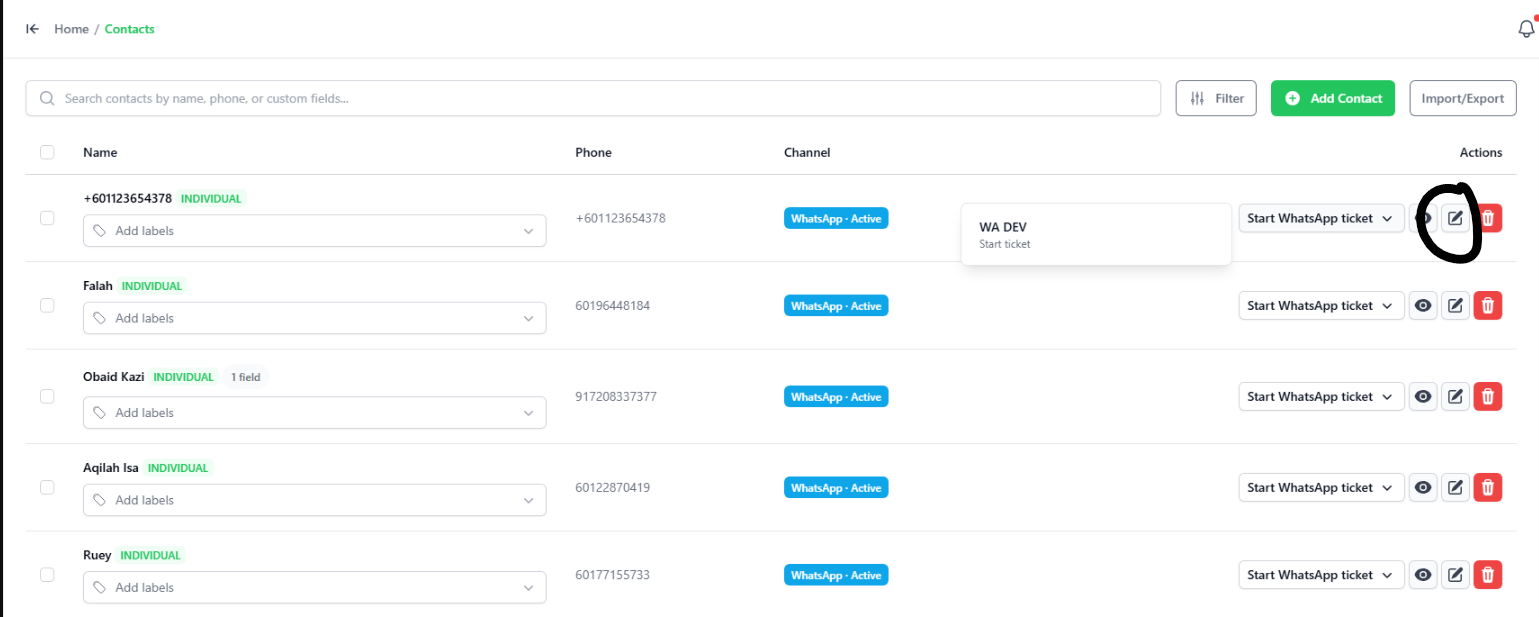
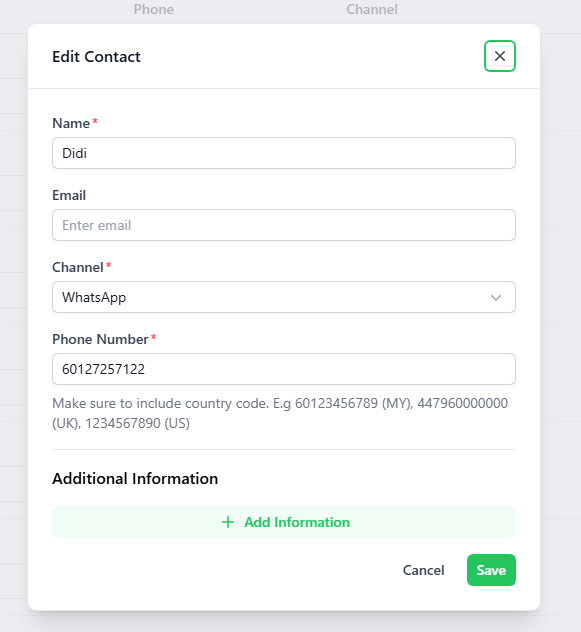
You may add additional information to a contact by using the Edit function, the “pencil” icon. However, you can't edit the group contact.Alert :Please start with country code in front. Example ,Malaysia : 60