
2. Tickets
1. Finding Your Chats
Chats are sorted into simple categories:
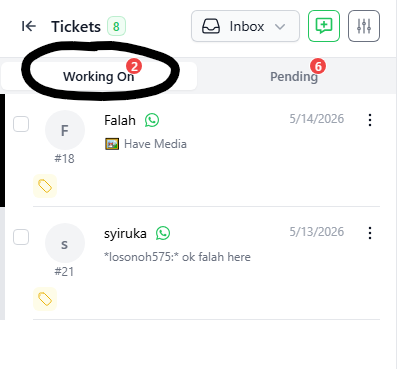
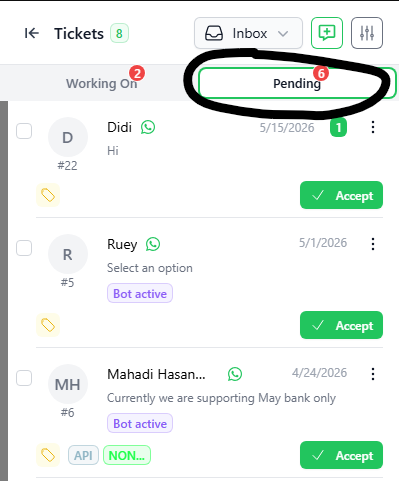
- Inbox: Your open chats. It has two parts:
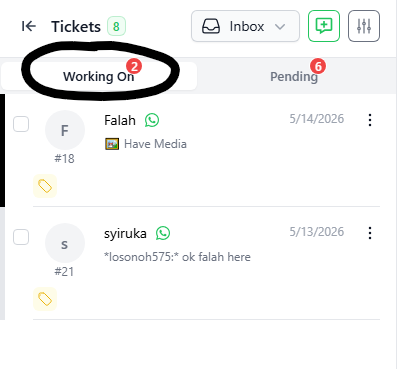
- Working On: Chats that a staff member is already talking to.
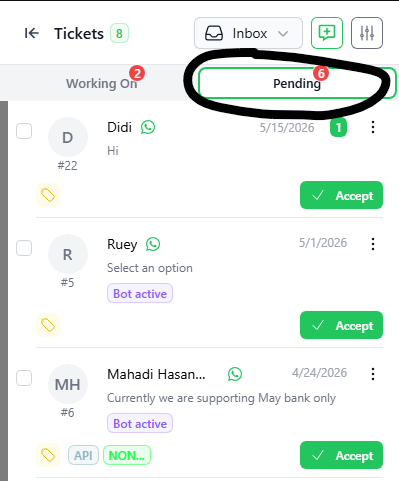
- Pending: New chats waiting for someone to answer.
- Resolved: Chats that are finished and closed.
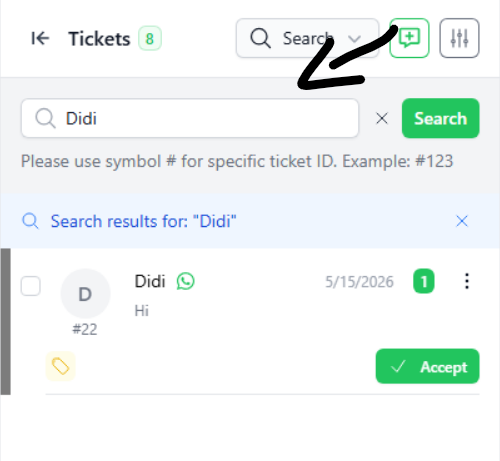
2. Searching for a Chat
- Click the Search box at the top.
- Type a name or keyword and click the green Search button.
- Tip: Type
#and the number (like#22) to find a specific chat ID
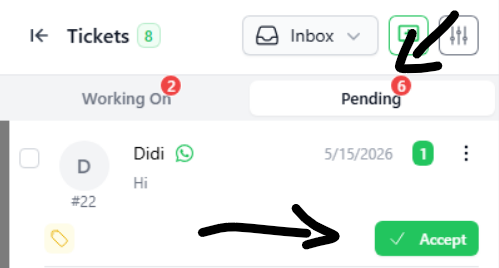
3. Answering a New Chat
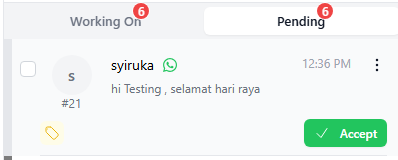
All new chats start in the Pending tab.
- Click the Pending tab.
- Find the chat you want to answer.
- Click the green Accept button.
- This moves the chat to the Working On tab and opens the chat screen.
4. Chatting with Customers
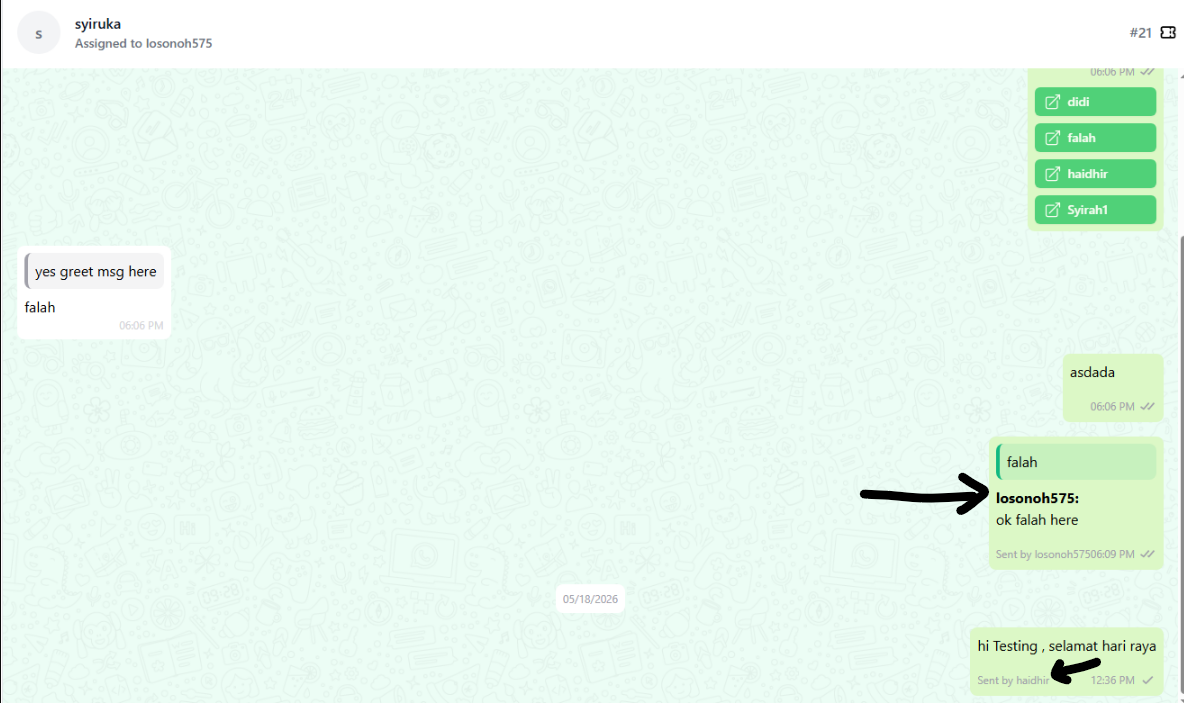
ClickChat Screen: Type your messages here.- Your Name in Chat (Sign): If turned on, the system adds your name to your messages.
- More than One Staff: If other staff join the chat, their names will also show up next to their messages. Active staff names are shown in green boxes on the
“ACCEPT”right.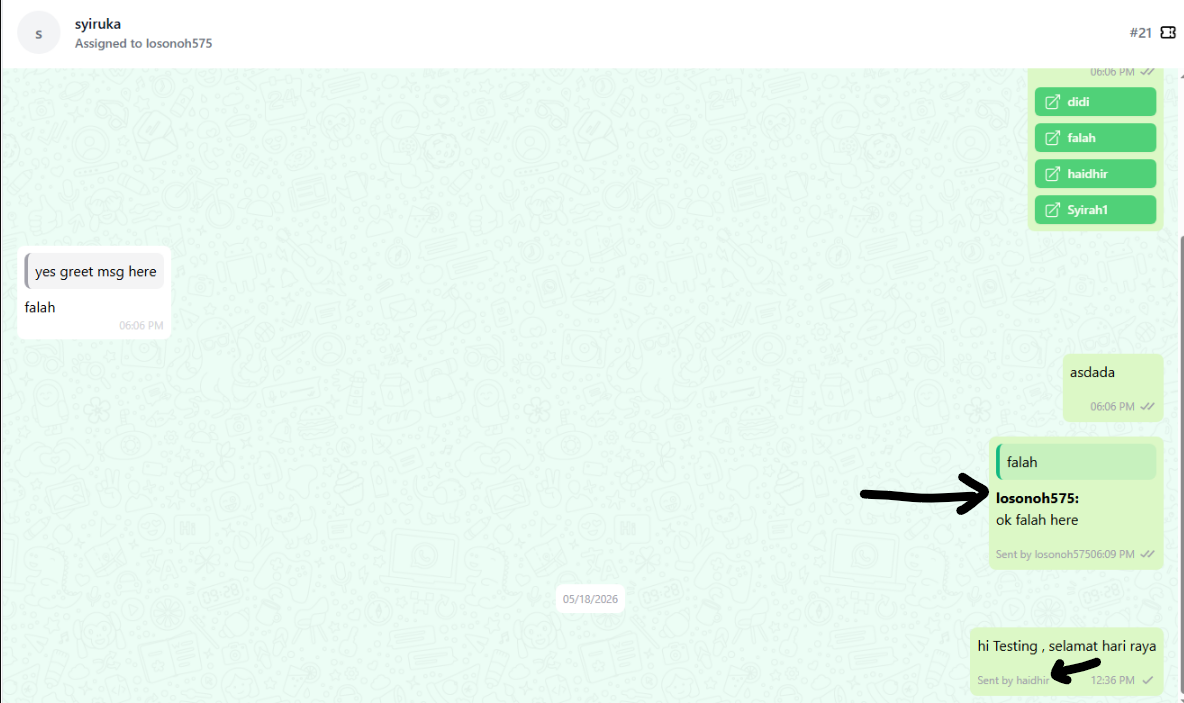
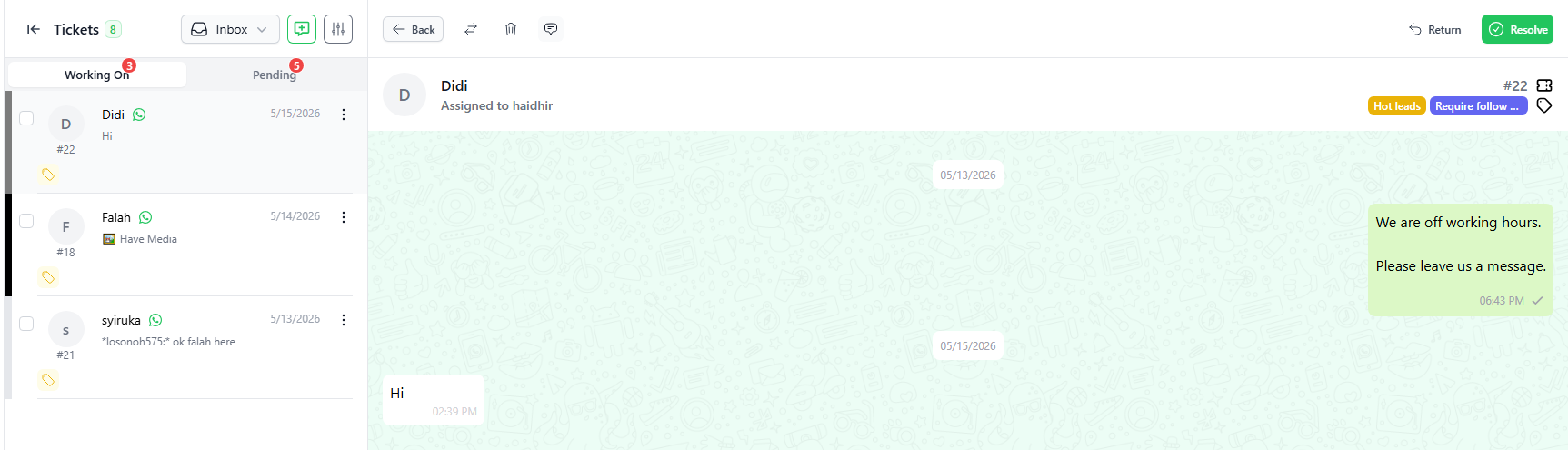
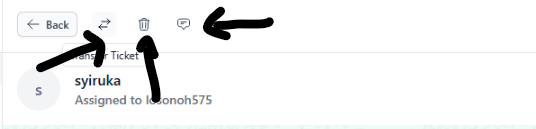
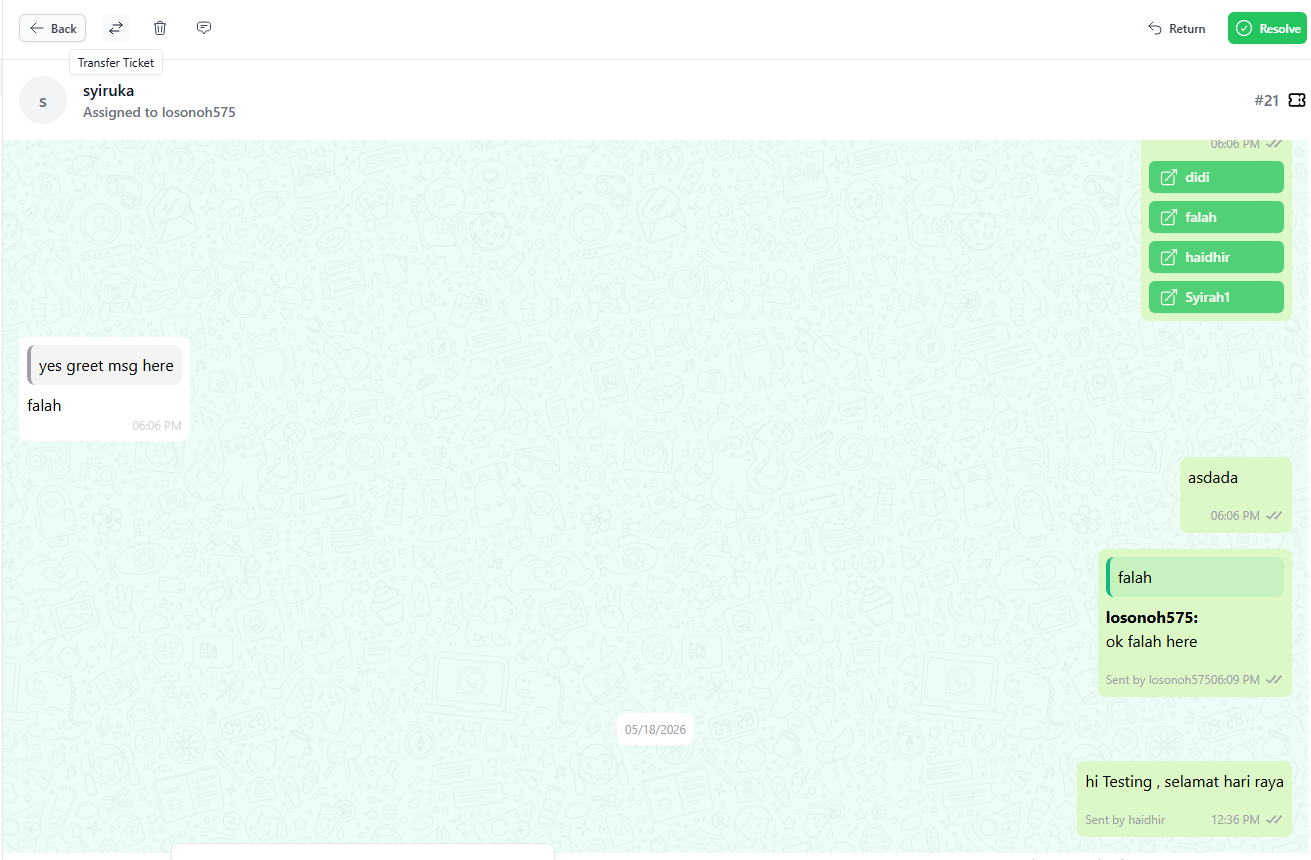
5. buttonButtons to acceptat the ticketTop-Left andof the full chat window will be opened as per the below screenshot.Chat
The ticket will be moved from the “PENDINGArrow (← Back)”:tabGo back to the“main list.WORKINGArrowsON(-⇄)”:tab.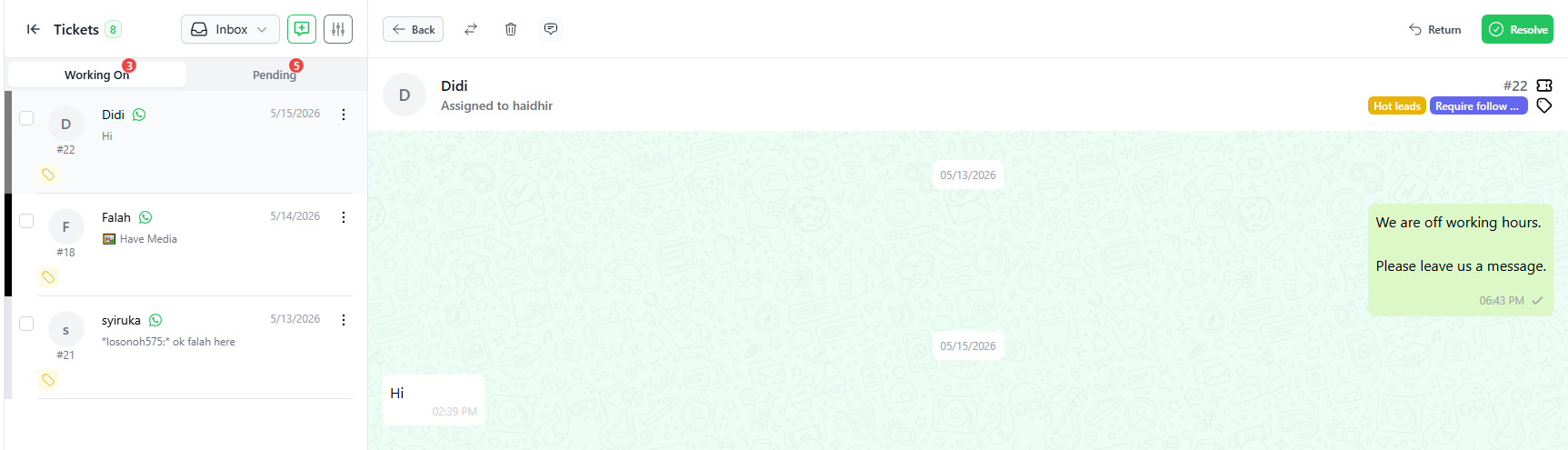
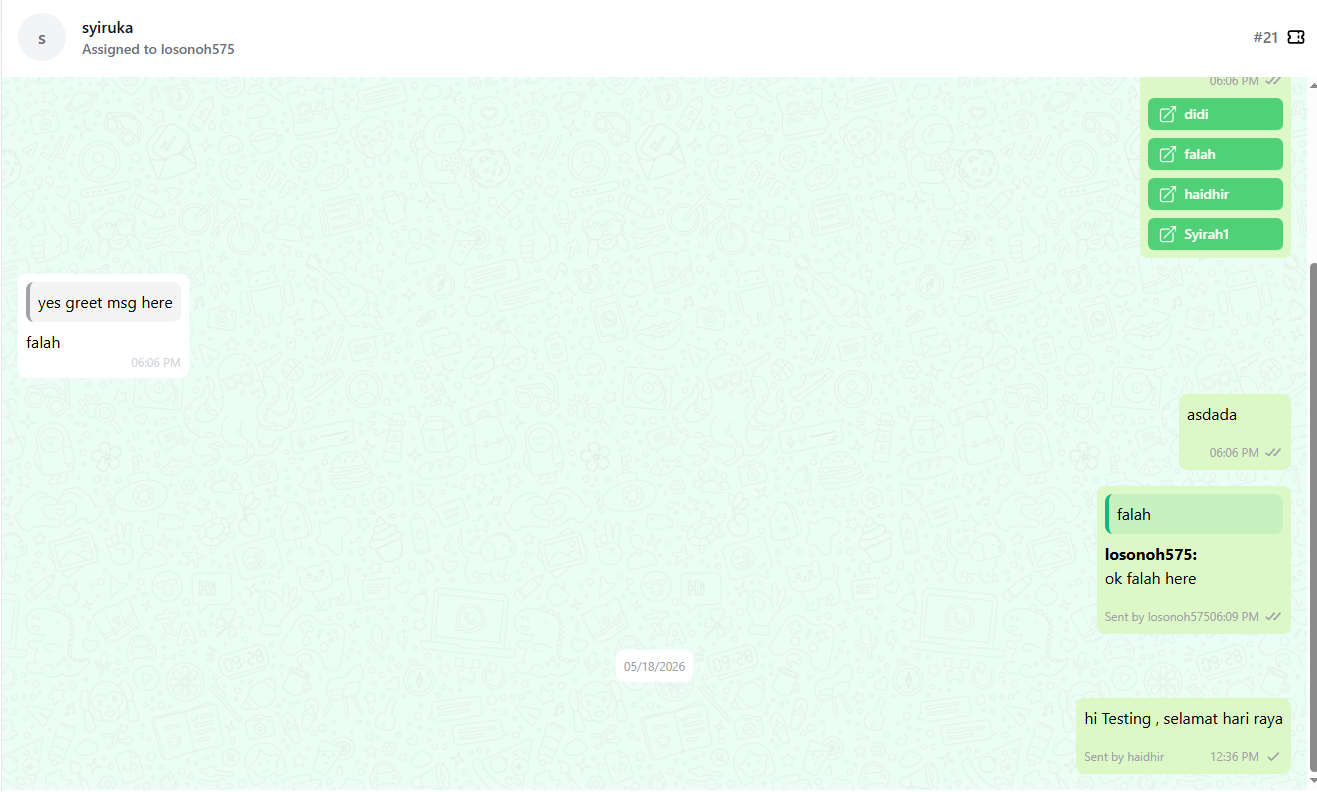
The user may chat with the contact and all chat will be displayed inTransfer the chatwindow.to another staff member.IfTrash (🗑): Delete the“Sign”chat.- Bubble
function(💬):is switched on, the user’s name will be displayed inMark the chatwhenas unread.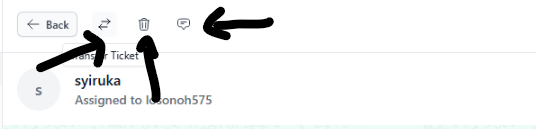
6. How to Transfer a Chat
If you need another person or team to handle the user replies to a customer.chat:
As you can see fromClick thescreenshot below, if more than one user/staff attends to a ticket, the system will display more than one name in the chat history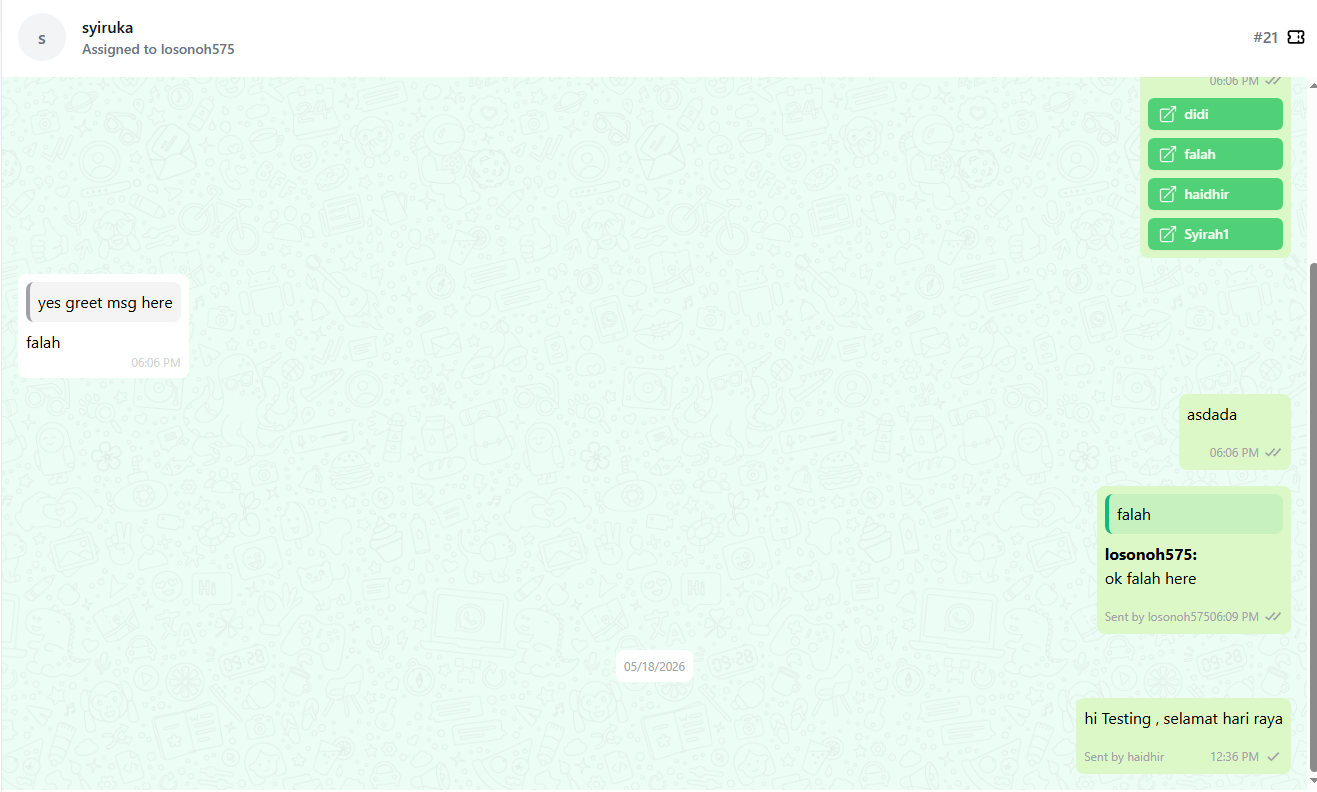
An open ticket can be transferred to another user by using theTransferfunction. Click on the “(-⇄”)onbutton at the top-left corner of the chat window.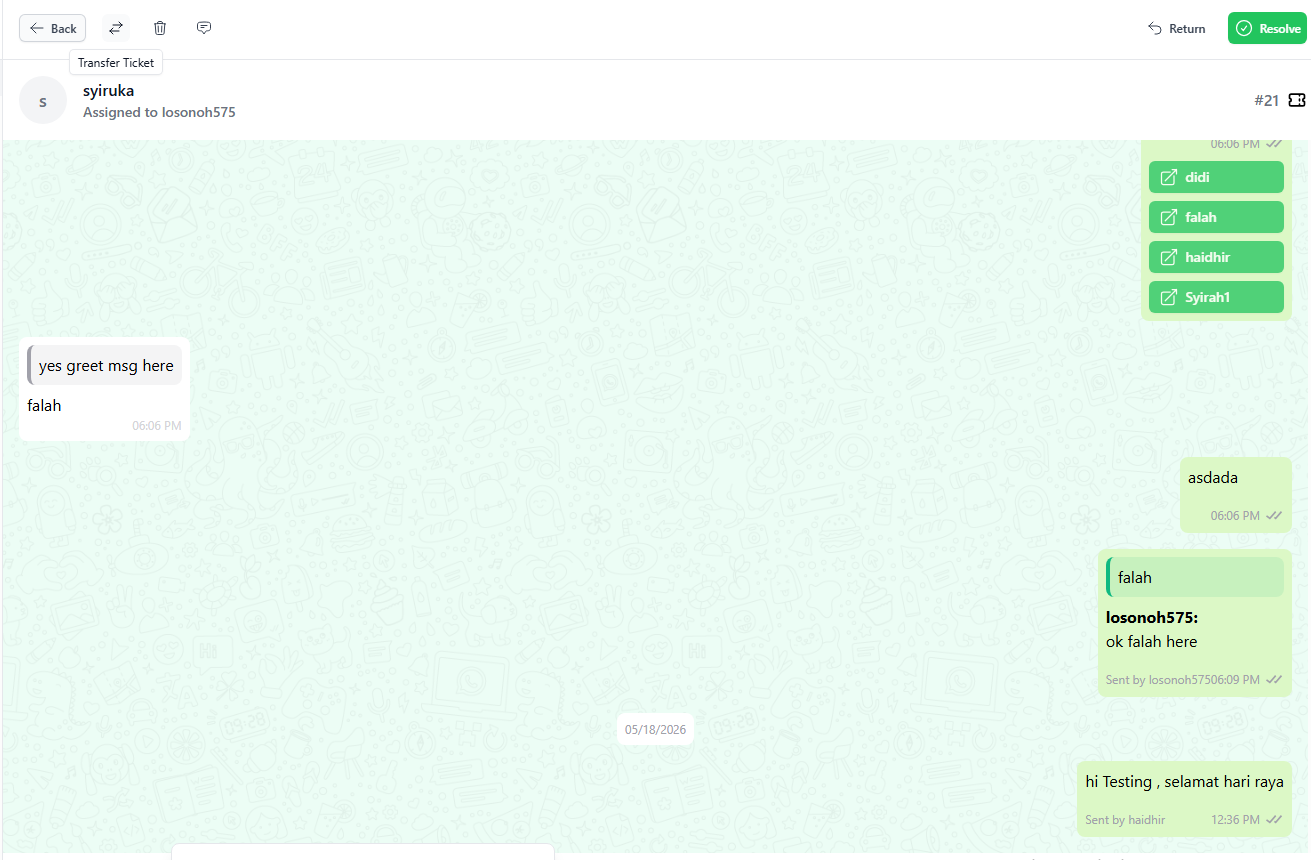
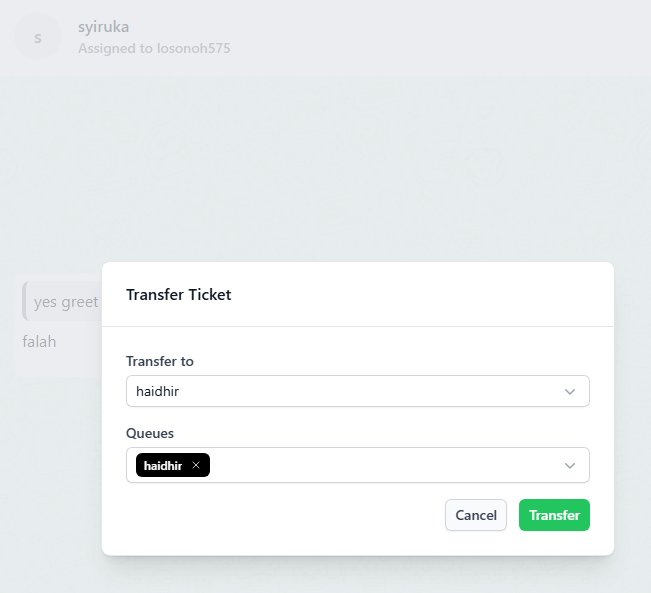
7. Giving a Chat Back
If you accepted a chat by mistake or need someone else to whomtake over:
- Click the
ticketReturnisbuttontoatbetheassigned and click “TRANSFER”.top-right. YouThismayputstransfertheachatticketbackfrominonethequeuePending list for others toanotherpickqueue during the transferup.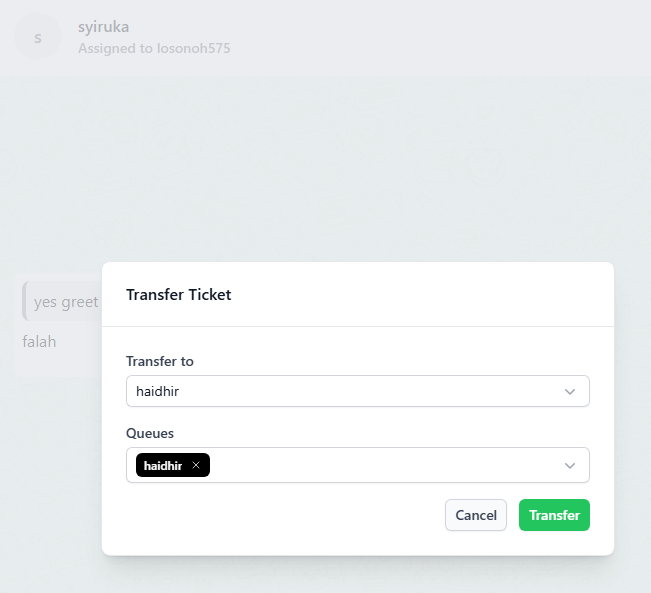
- Clicking on the “RETURN” button will return the ticket to the open “PENDING” for other available users to pick-up the ticket


8. Closing a Chat
When the conversation is finished:
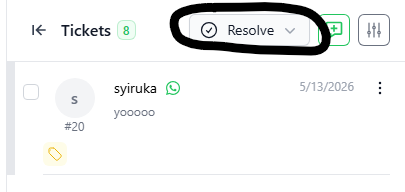
- Click the green Resolve button at the top-right.
- This closes the chat and moves it to the Resolved section.

