2. Tickets
1. Finding Your Chats
Chats are sorted into simple categories:
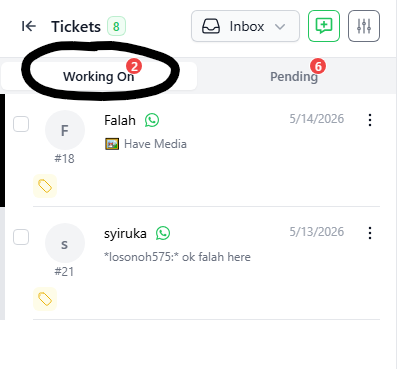
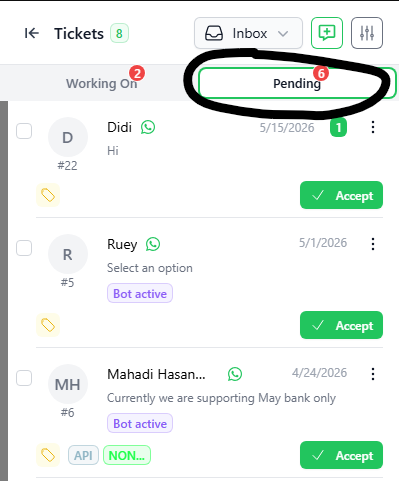
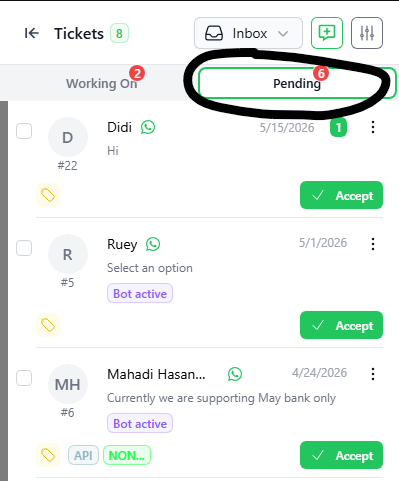
- Inbox: Your open chats. It has two parts:
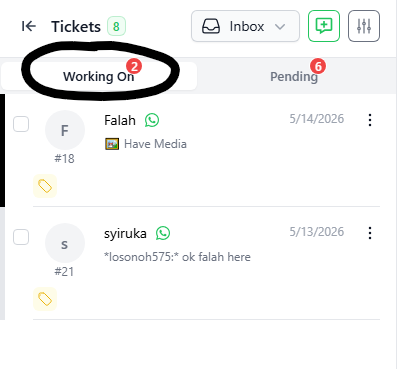
- Working On: Chats that a staff member is already talking to.
- Pending: New chats waiting for someone to answer.
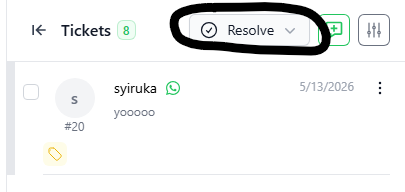
- Resolved: Chats that are finished and closed.
2. Searching for a Chat
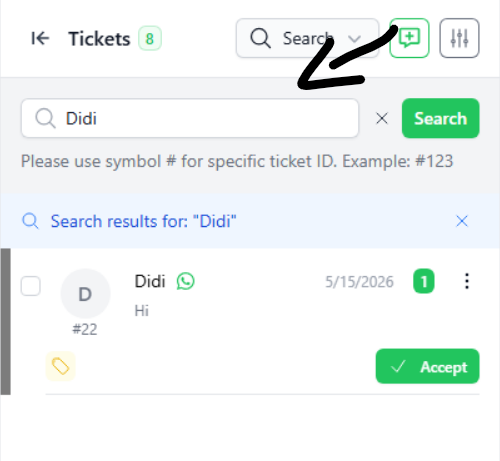
- Click the Search box at the top.
- Type a name or keyword and click the green Search button.
- Tip: Type
#and the number (like#22) to find a specific chat ID
3. Answering a New Chat
All new chats start in the Pending tab.
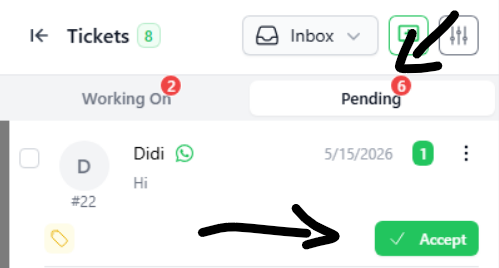
- Click the Pending tab.
- Find the chat you want to answer.
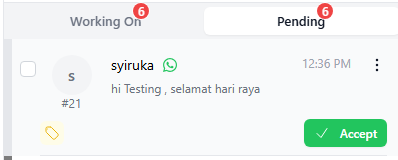
- Click the green Accept button.
- This moves the chat to the Working On tab and opens the chat screen.
- Click on the “ACCEPT” button to accept the ticket and the full chat window will be opened as per the below screenshot.
- The ticket will be moved from the “PENDING” tab to the “WORKING ON” tab.
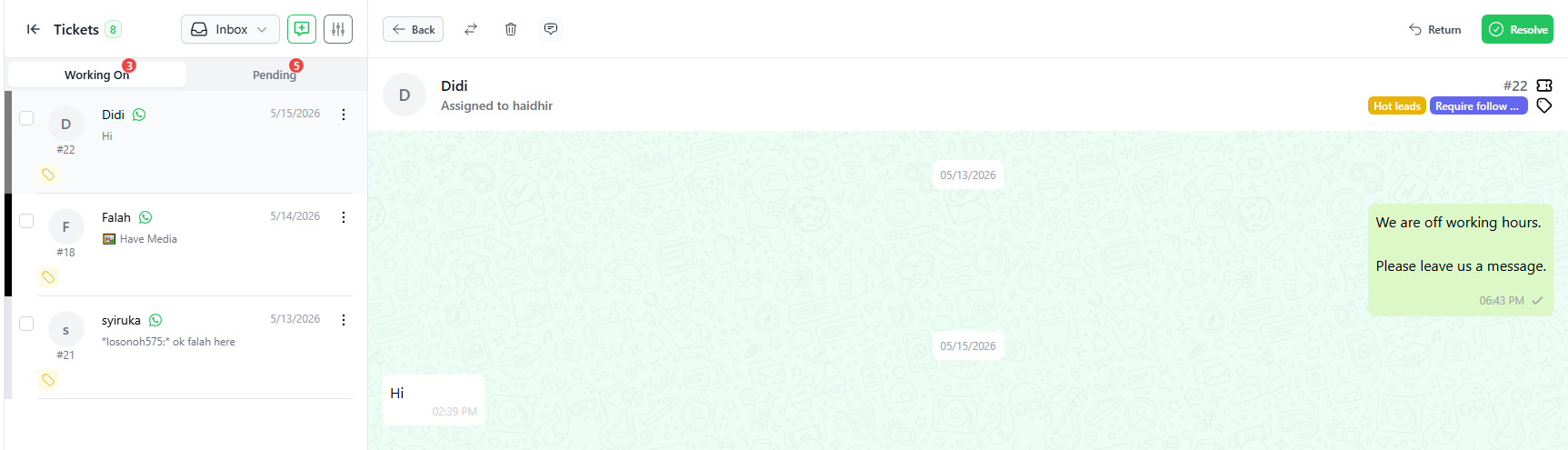
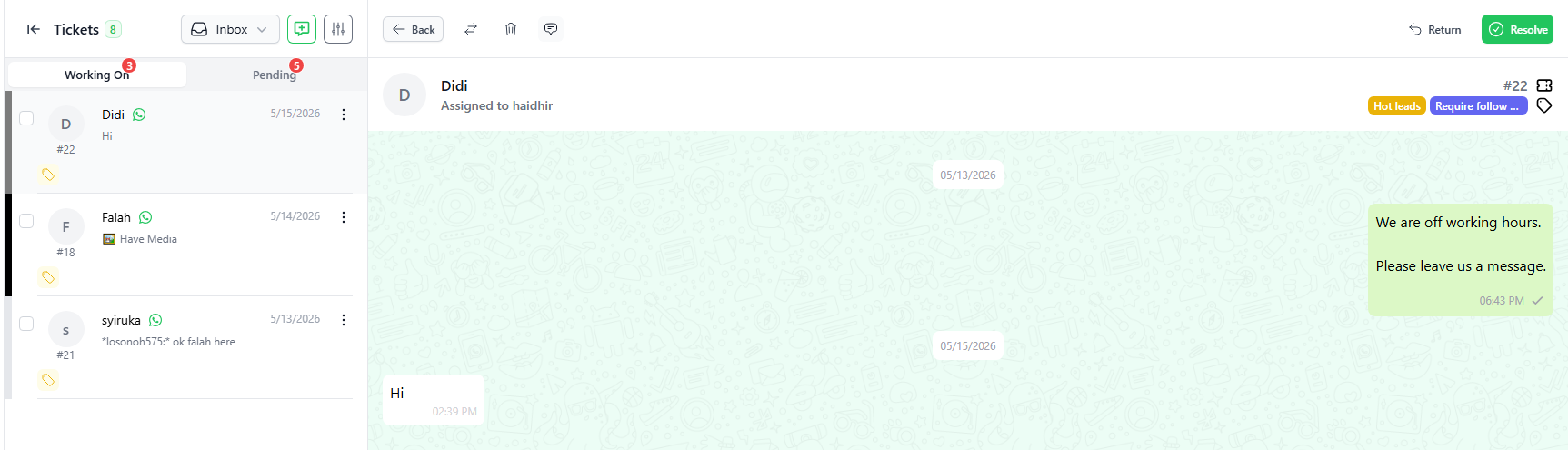
- The user may chat with the contact and all chat will be displayed in the chat window.
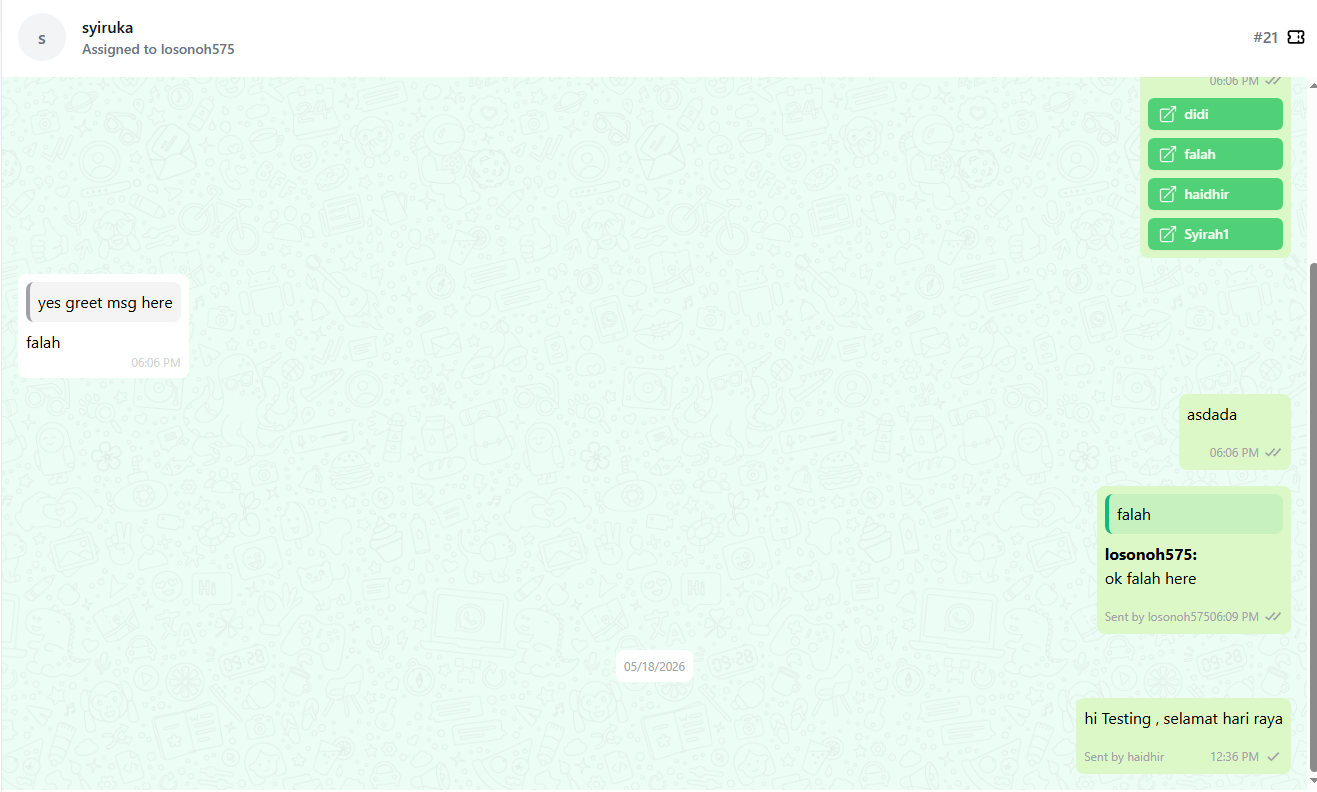
- If the “Sign” function is switched on, the user’s name will be displayed in the chat when the user replies to a customer.
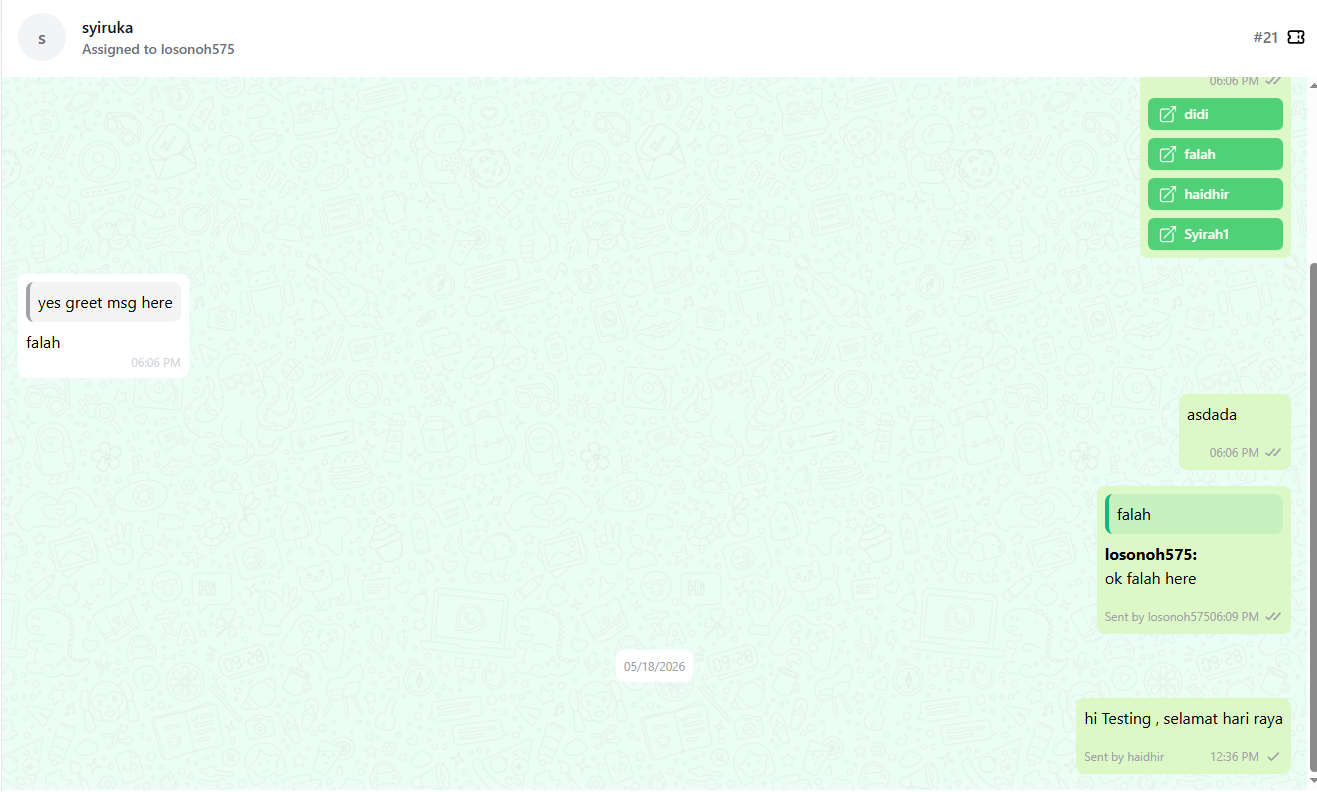
- As you can see from the screenshot below, if more than one user/staff attends to a ticket, the system will display more than one name in the chat history
- An open ticket can be transferred to another user by using the Transfer function. Click on the “-⇄” on the top-left corner of the chat window.
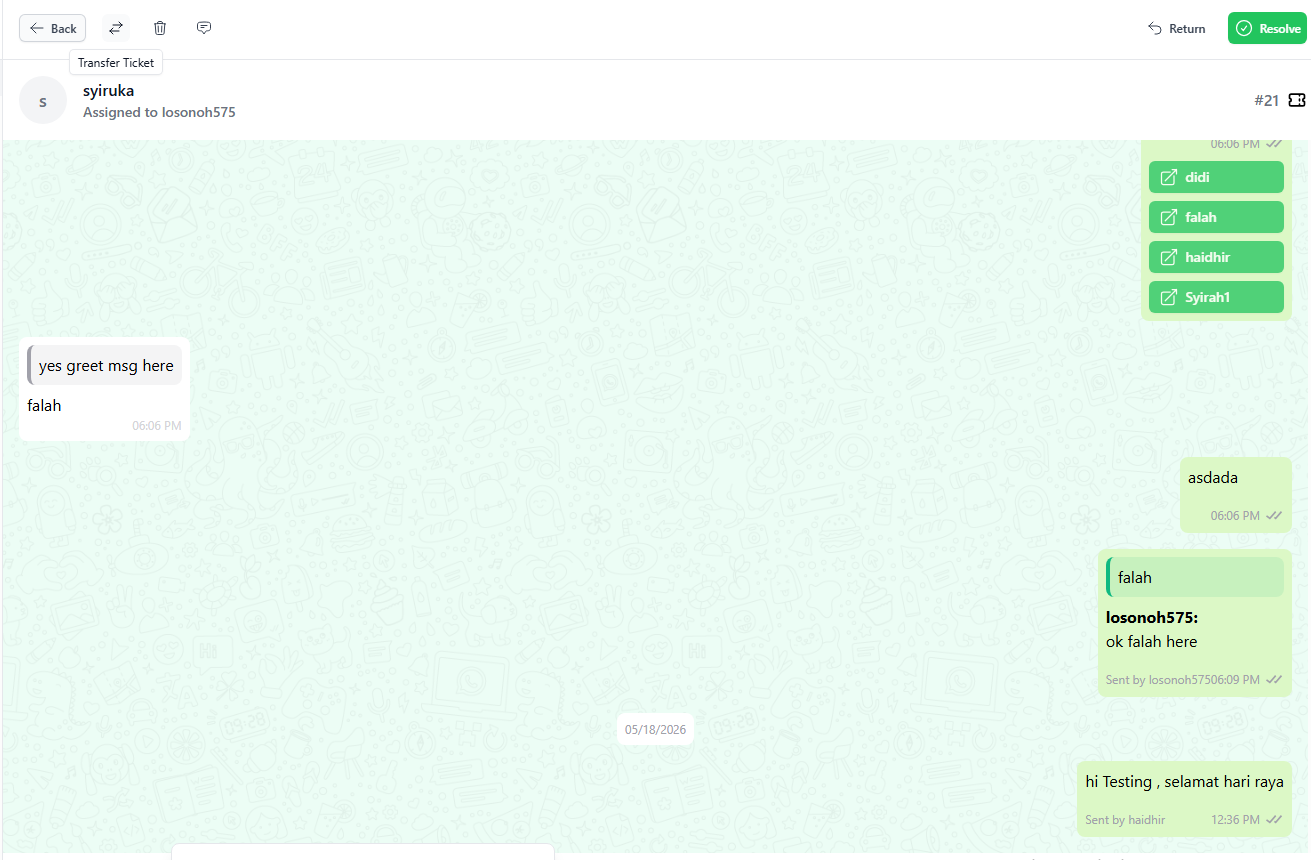
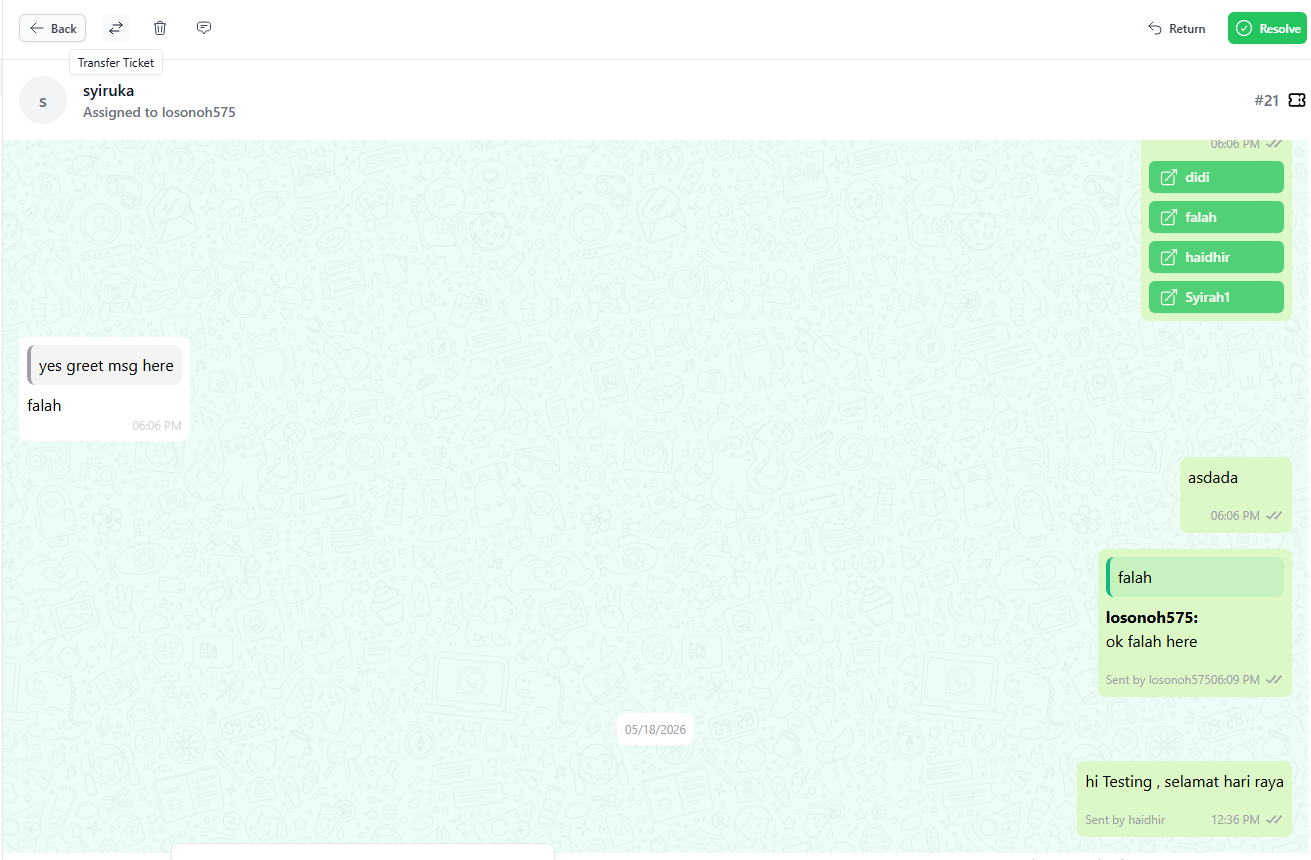
- The delete button (🗑) is used to delete the ticket
- The Mark as unread button (💬) will change the ticket from read status to unread.
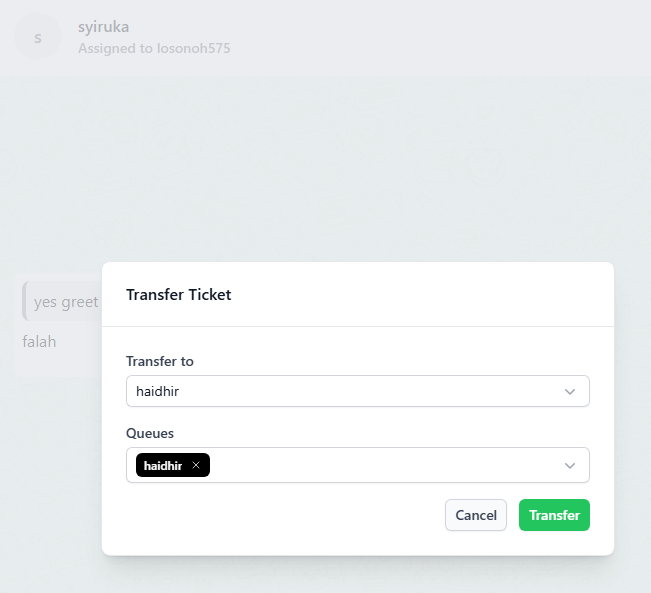
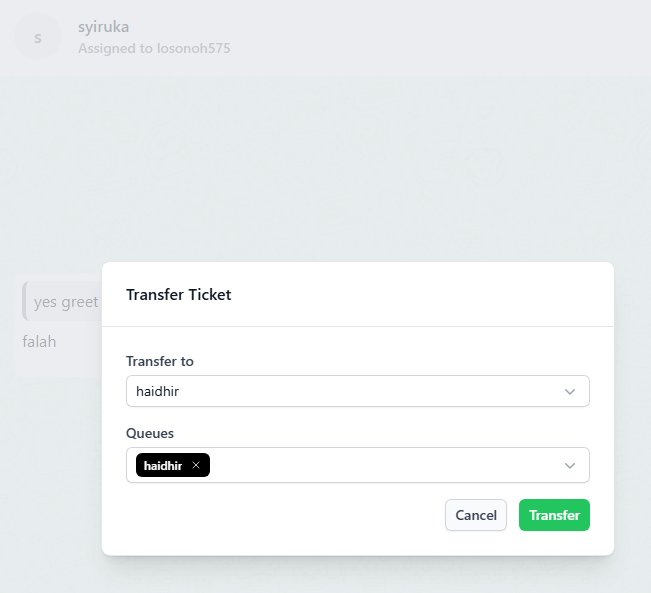
- Type the staff name to search for the staff to whom the ticket is to be assigned and click “TRANSFER”.
- You may transfer a ticket from one queue to another queue during the transfer
- Clicking on the “RETURN” button will return the ticket to the open “PENDING” for other available users to pick-up the ticket