2. Tickets
This is the user interface to view and interact with incoming chats.
Tickets/chats are grouped into 2 major categories:
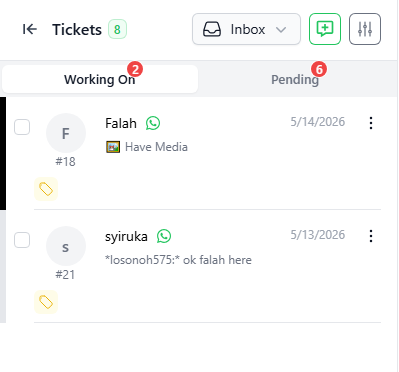
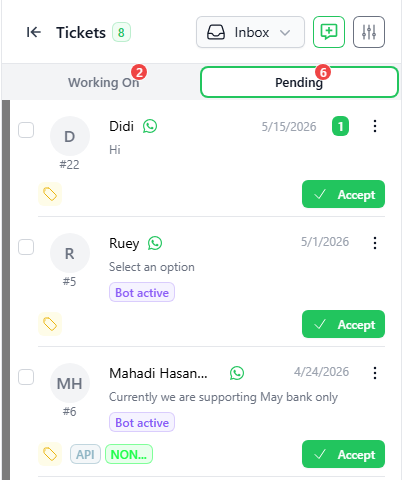
- INBOX – display all new and open tickets. Tickets are subdivided into below categories:
- WORKING ON – open tickets that already have user attending to it.
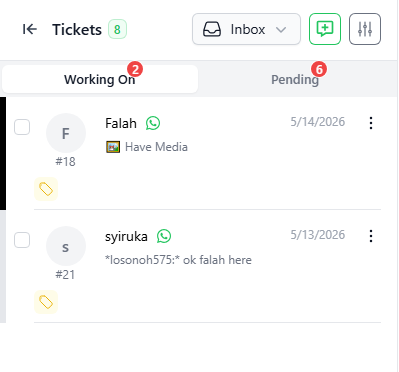
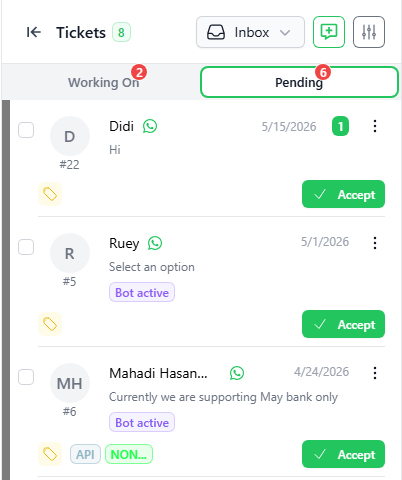
- PENDING– new incoming tickets that have not been assigned to any user.
- WORKING ON – open tickets that already have user attending to it.
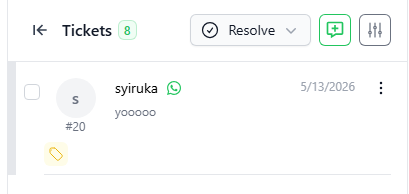
- RESOLVED – display all tickets that are closed/resolved:
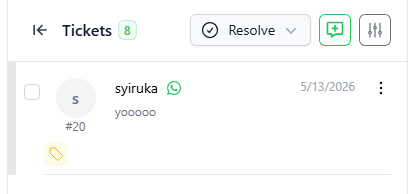
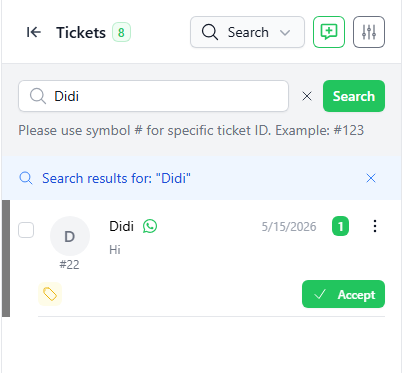
You may search the tickets (both open and closed) by keywords using the SEARCH function.
All new incoming chats/tickets will be displayed on the “Pending” tab inside INBOX.
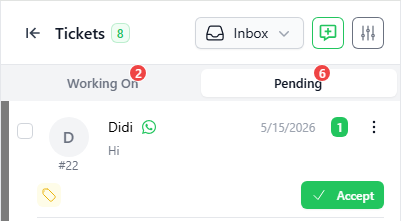
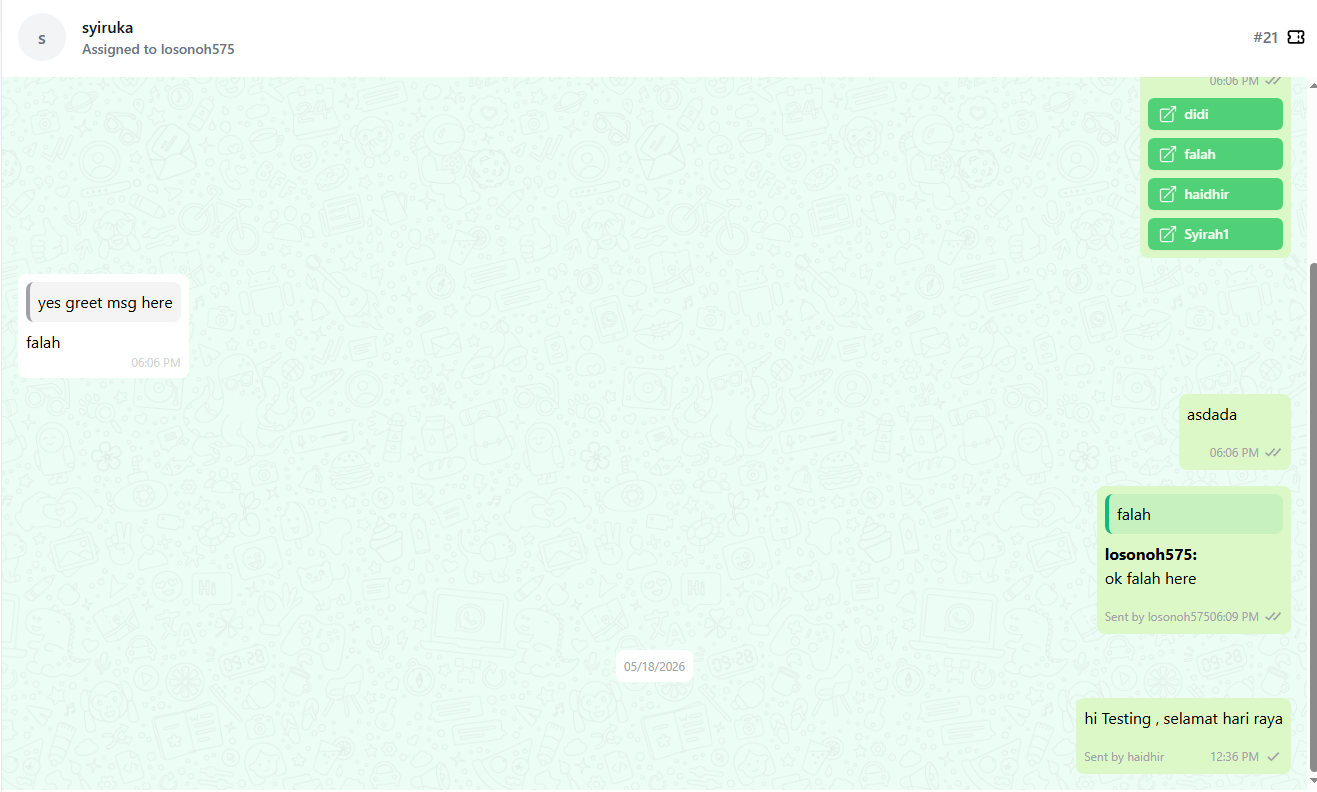
- Click on the “ACCEPT” button to accept the ticket and the full chat window will be opened as per the below screenshot.
- The ticket will be moved from the “PENDING” tab to the “WORKING ON” tab.
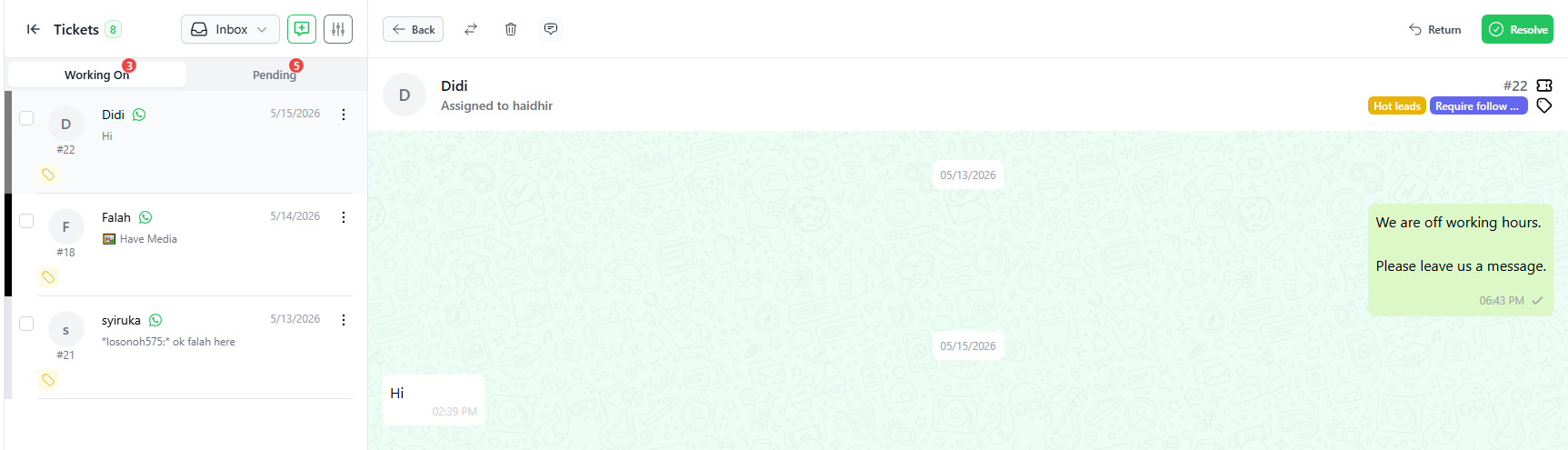
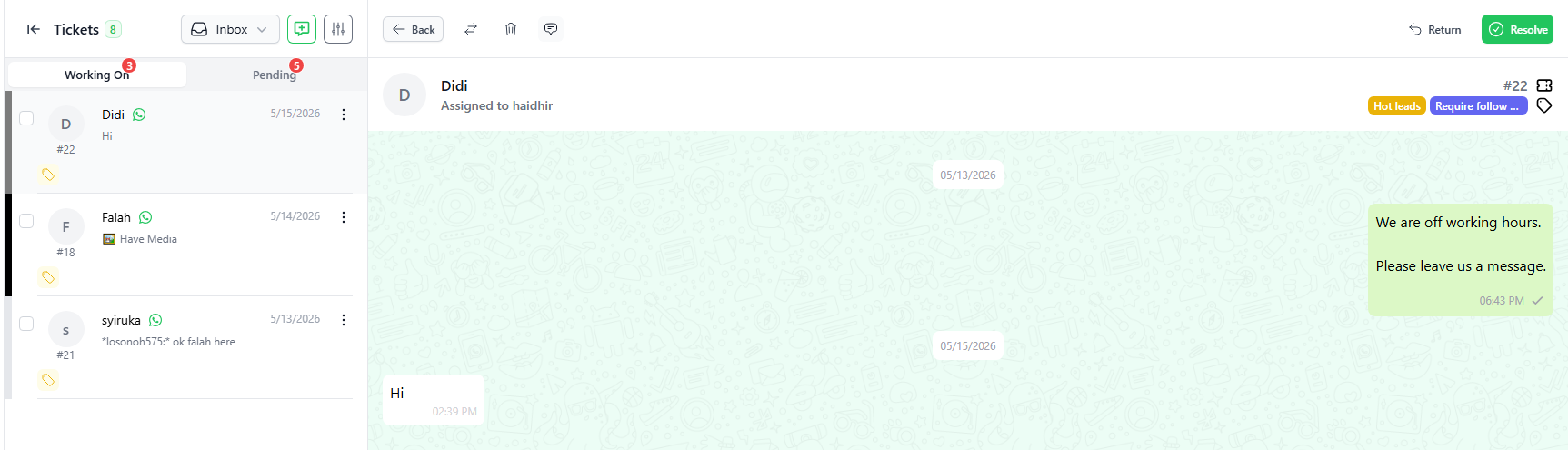
- The user may chat with the contact and all chat will be displayed in the chat window.
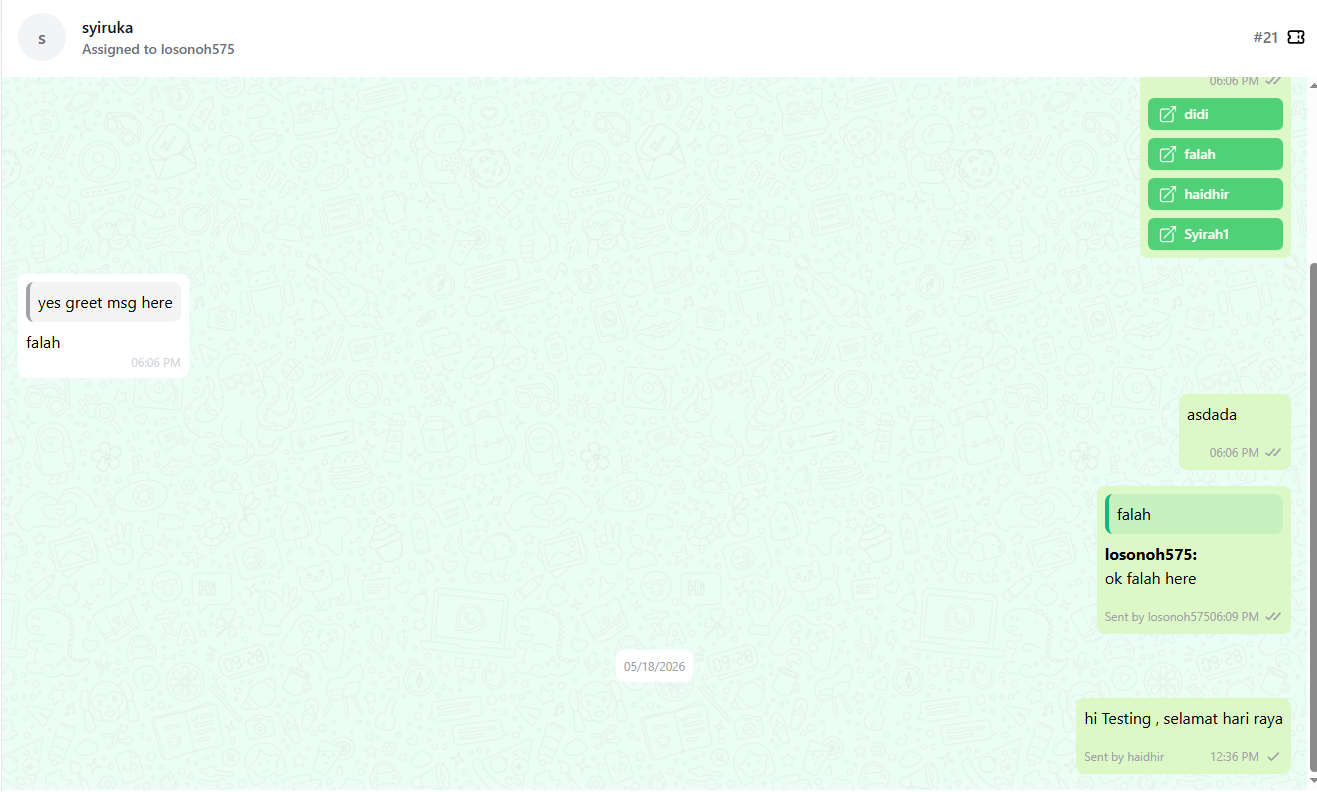
- If the “Sign” function is switched on, the user’s name will be displayed in the chat when the user replies to a customer.
- As you can see from the screenshot below, if more than one user/staff attends to a ticket, the system will display more than one name in the chat history