11. Permissions
1. How to Create a Permission Group
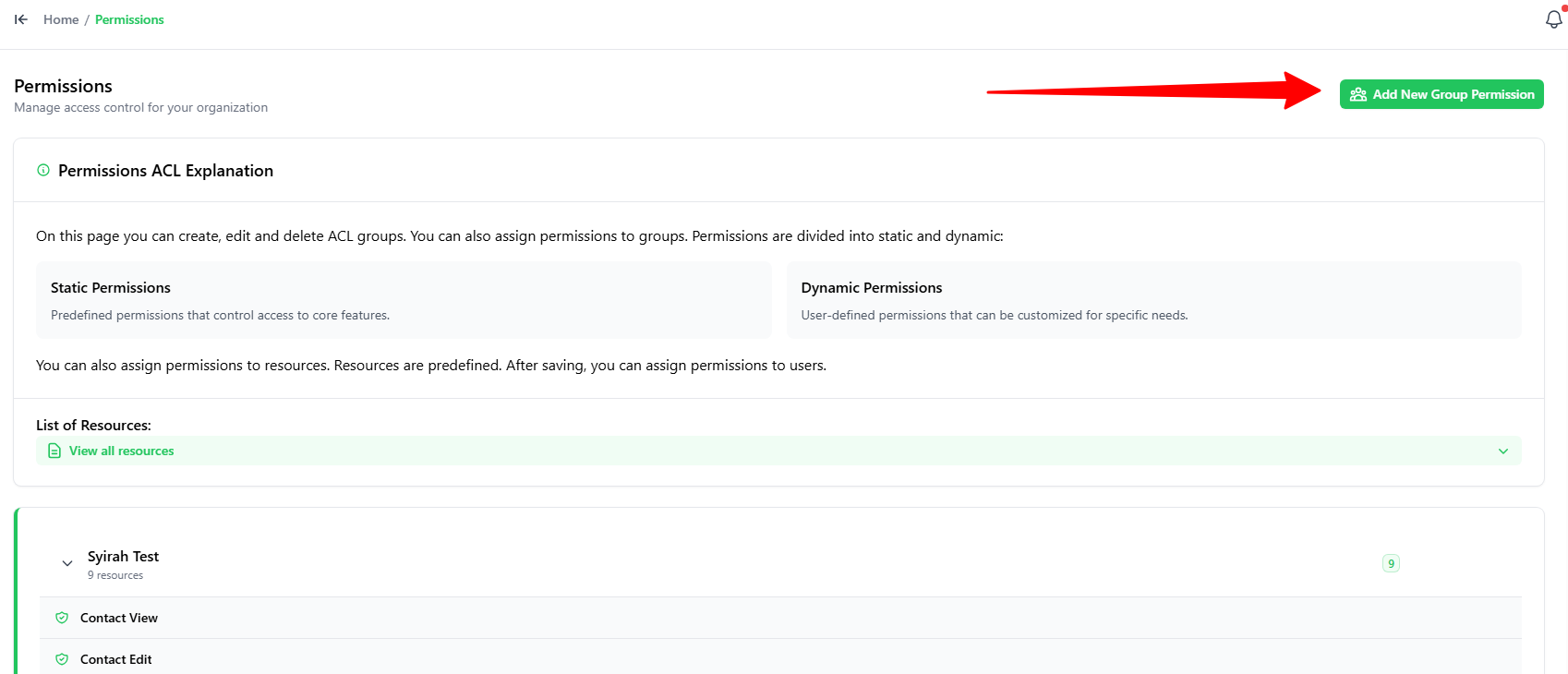
HereGoisto thepermissions’Permissionsuser interface. You can click ontab.- Click the
“green + Add New GroupPermission”Permissiontobuttonaddinathenew permission on it.top-right.
There are several permissions that can be set by the Admin. Below are the permissions:-
Report Log View
Allows users to view report logs and system activity records.
Contact Delete
Allows users to delete contacts from the contact list.
Contact Create
Allows users to add new contacts into the system.
Contact Edit
Allows users to edit or update contact information.
Contact View
Allows users to view the contact list and contact details.
Connection Delete
Allows users to delete WhatsApp or system connections.
Connection Edit
Allows users to edit existing connection settings.
Connection View
Allows users to view available connections and their details.
Tickets Manager Show Same Queues In Working Tab
Allows users to view tickets from the same queue in the Working tab.
Tickets Manager Show Same Queues In Queue Tab
Allows users to view tickets from the same queue in the Queue tab.
- You can add a new permission group by clicking the “ADD NEW GROUP PERMISSION” button.
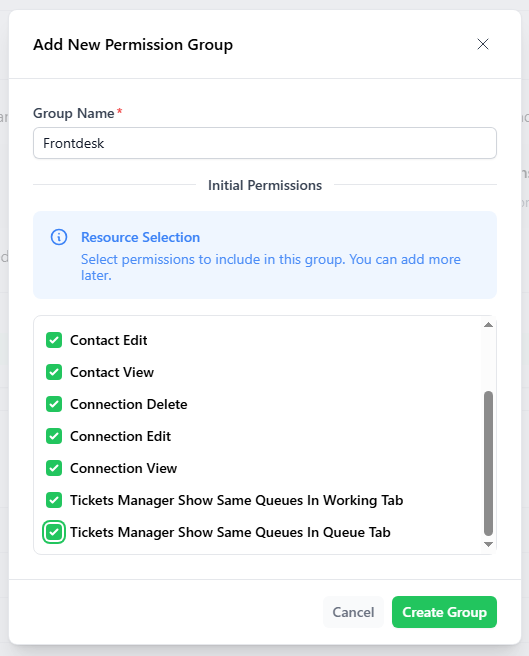
- Then, insert the group name and choose the actions that can be accessed for this permission.
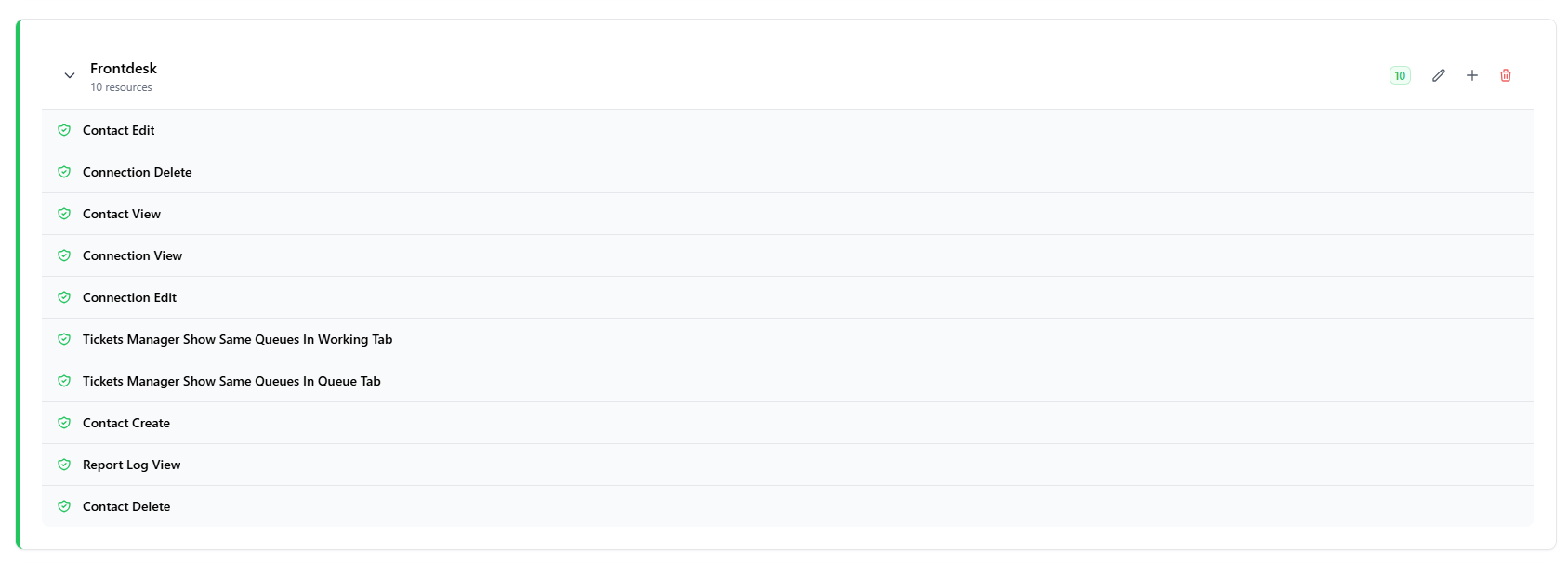
- Click on the down arrows to view the given permissions for this group.