
How to Manage Category Content Using SO Page Builder (OpenCart)
(Ecocana Sports – Category Content Setup)
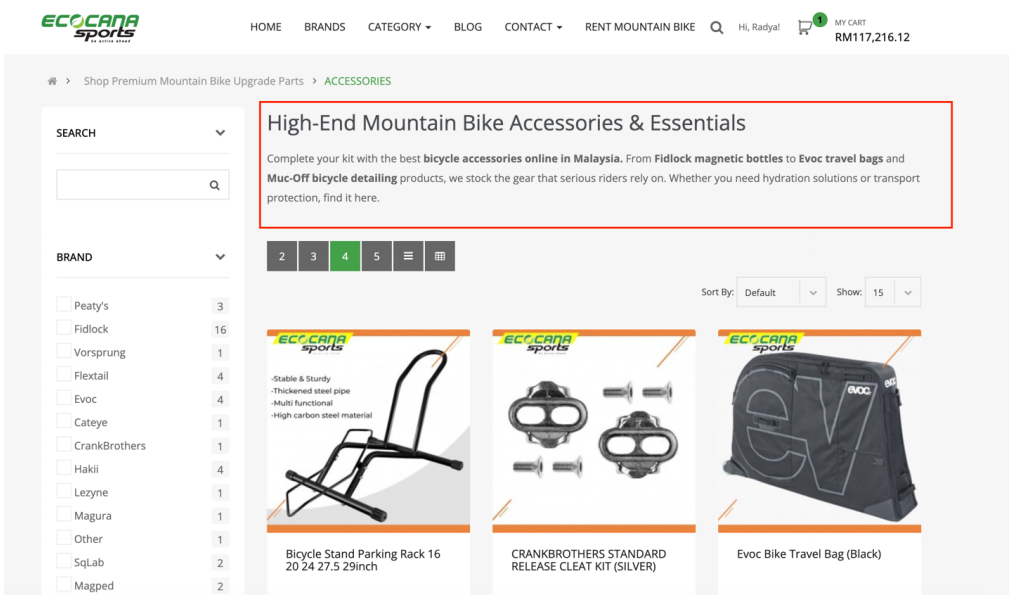
1. Overview
This document explains the current setup and how to manage category content using SO Page Builder in OpenCart Admin.
With this setup:
- There is 1 General Default Builder used as fallback for most categories.
- There is 1 Category-Specific Builder currently configured for Accessories.
- If you want to add content for other categories, you must create a new builder by copying the Accessories builder.
Important rule:
Do NOT delete the General Default Builder because it is tied to the code logic.
2. Current Setup (Deployed)
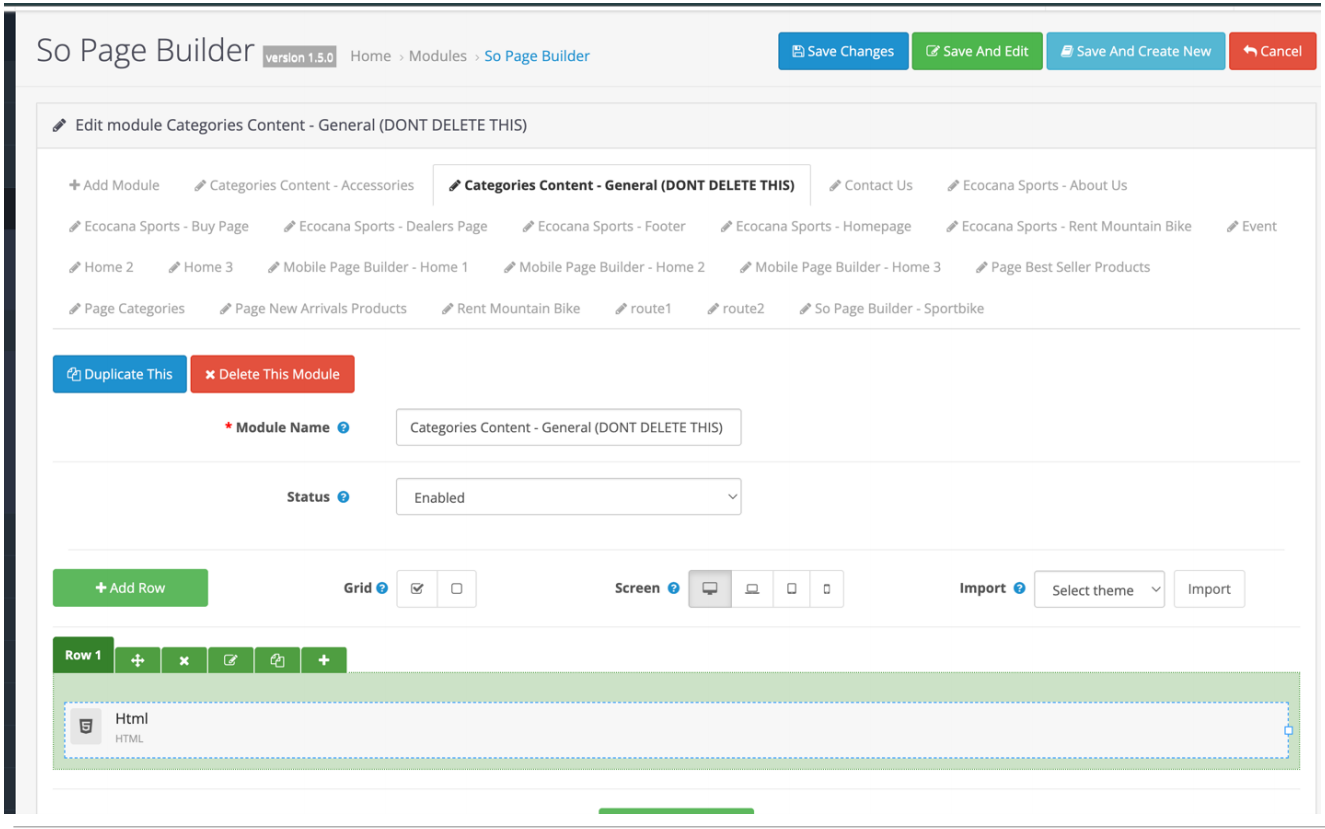
A. General Default Builder (Fallback)
Purpose:
- Used automatically by categories that don’t have their own specific builder.
- The category name is handled dynamically (example shown in img3).
Do not delete this module. (Screenshot below)
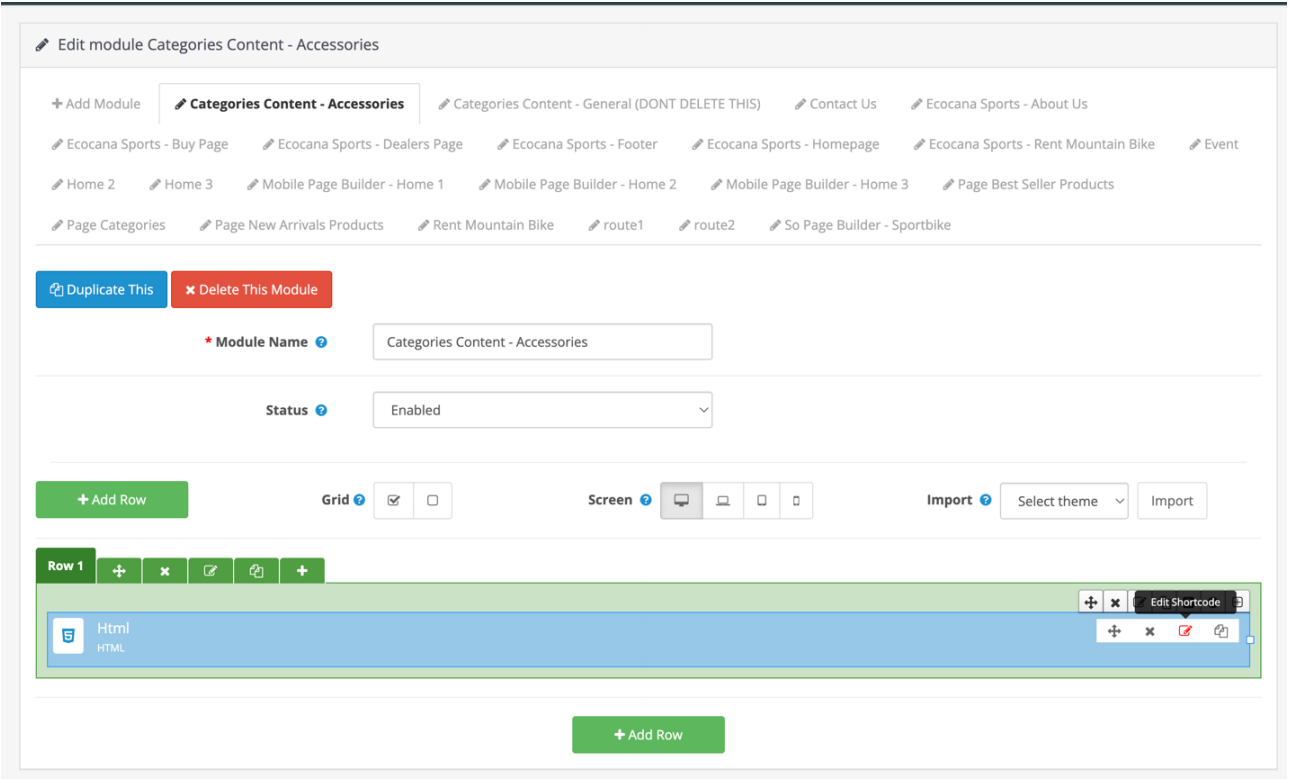
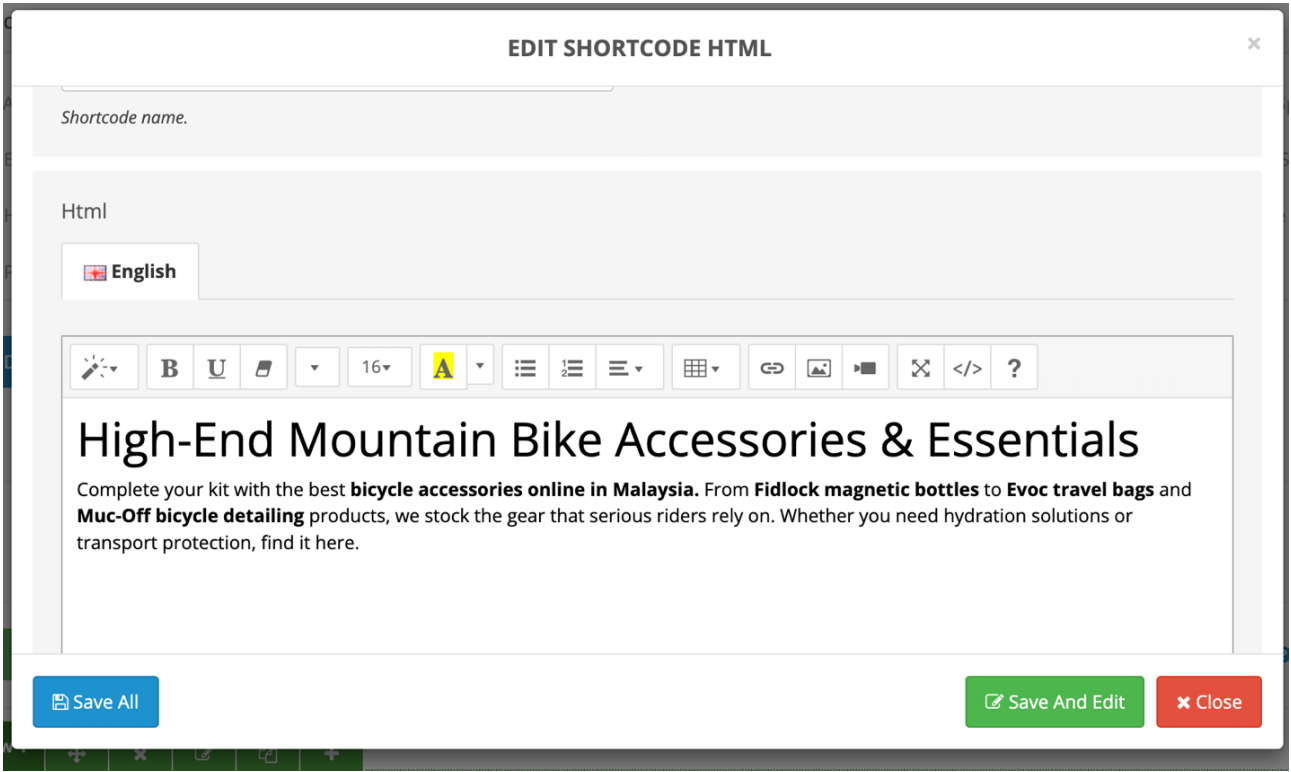
B. Accessories Builder (Category-Specific)
Purpose:
- This builder is used specifically for Accessories category content
PART A
How to Create Content for a New Category (Copy from Accessories Builder)
If you want a specific category to have its own custom content (example: “Bikes”, “Parts”, “Protection Gear”), follow these steps.
Step 1 — Open SO Page Builder List
Go to: Admin panel → Extensions → Extensions → Modules → SO Page Builder
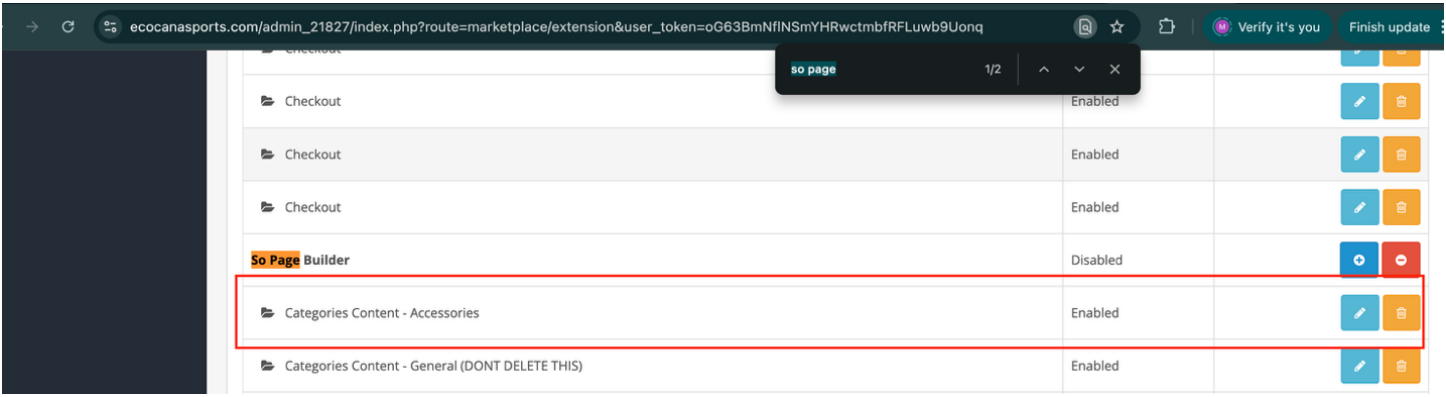
Step 2 — Copy / Duplicate the Accessories Builder
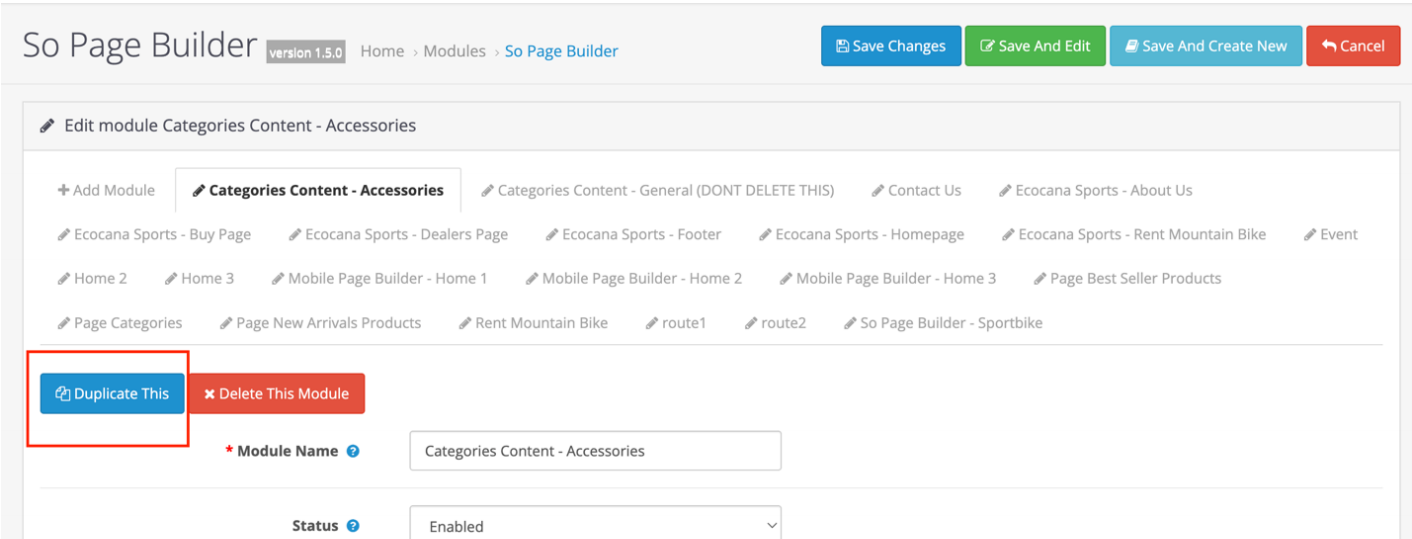
Action (depends on your admin UI):
- Click Copy / Duplicate / Clone (if available)
or
- Create New module and replicate the same rows/modules configuration as Accessories.
Goal: create a new builder with the same structure as Accessories builder. (Screenshot below)
Step 3 — Rename Using the Required Naming Format
Use this naming prefix exactly:
"Categories Content - [category name / subcategory name]"
Examples:
- Categories Content - Bikes
- Categories Content - Parts
- Categories Content - Protection Gear
- Categories Content - Accessories - Helmets
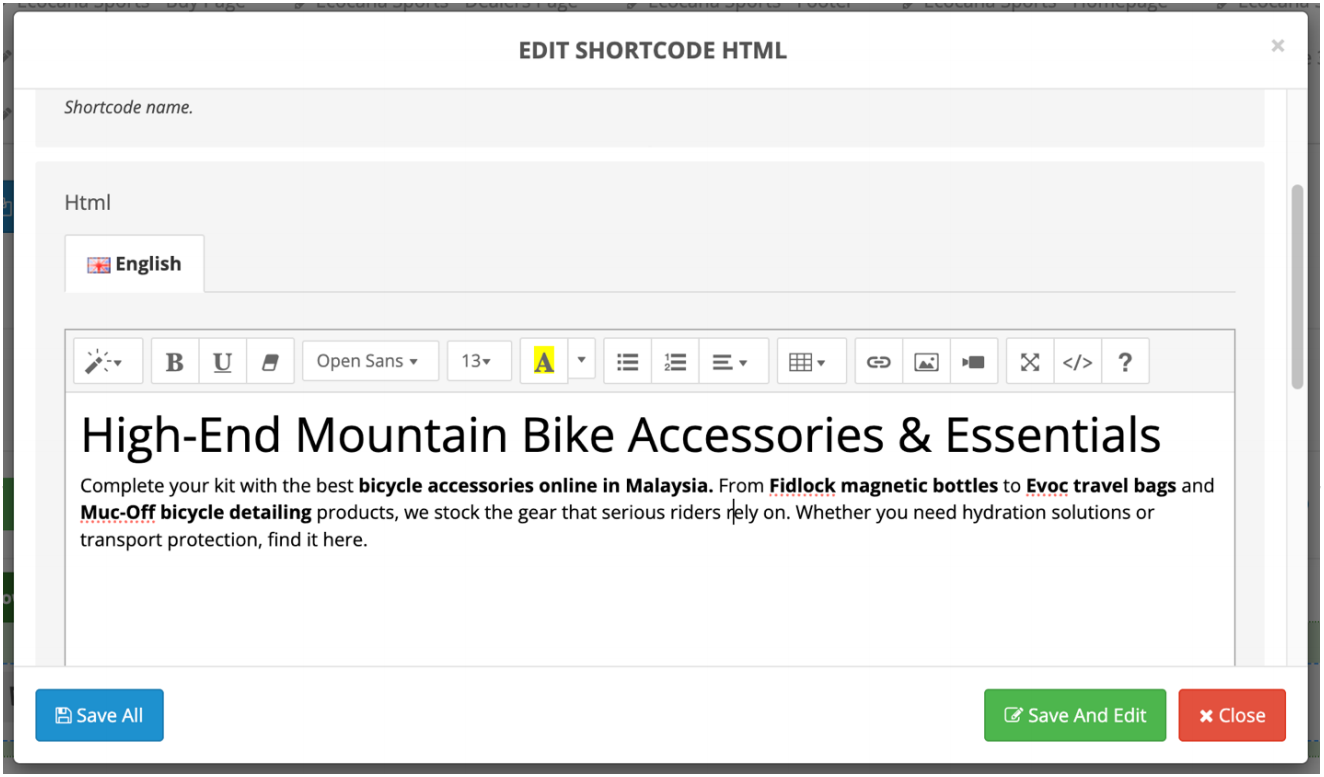
Step 4 — Edit Content Inside the Builder
Open the builder and edit:

Best Practice Rules (Must Follow)
1) Never Delete General Default Builder
- The General Default builder (module_id=379) is tied to the code.
- Deleting it may cause category pages to lose content or break layout.
2) Always Copy From Accessories Builder for New Category Content
- Accessories builder is the safe baseline structure.
- Copying ensures consistent layout and avoids missing modules.
3) Use Consistent Naming Format
Always use:
Categories Content - [category name / subcategory name]
This keeps the admin clean and prevents misconfiguration.
Notes / Quick Reference
- General Default Builder (DO NOT DELETE): module_id=379
- Accessories Builder: module_id=378
- New Category Builder: copy from Accessories
- Naming format: Categories Content - [category name / subcategory name]