
How to Edit Rental Page Using SO Builder (OpenCart)
1. Overview
This document explains how to edit the Rental Page using SO Builder Page in OpenCart admin.
This page contains:
PART A - How to Change Rental Page Name (Title & URL)
If you want to change the Rental Page name (for example: from “Rent Mountain Bike” to “Bike Rentals”), follow these steps:

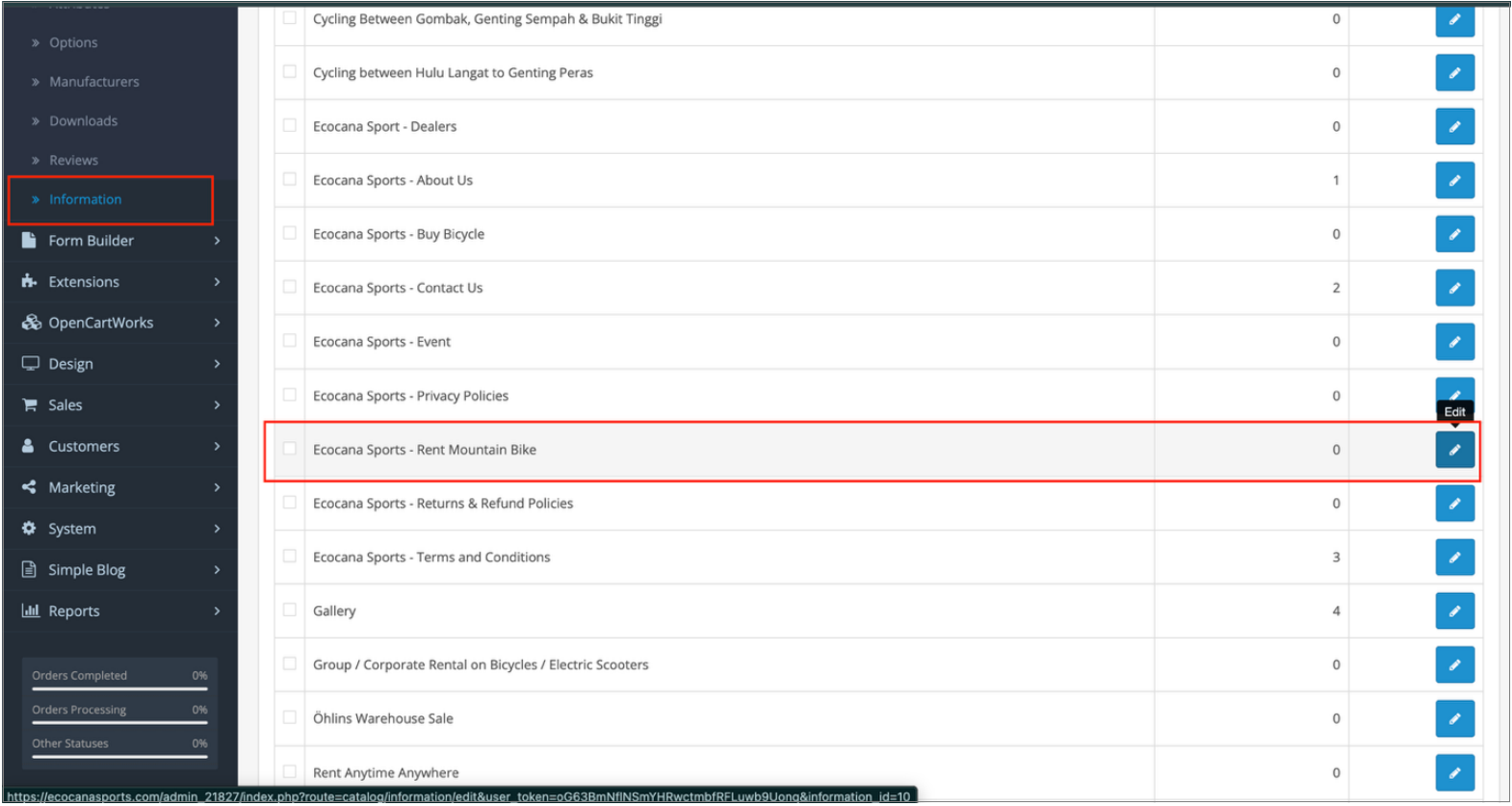
Step 1 – Go to Information Page
- Go to: Catalog → Information
Step 2 – Edit Rental Page
- Find the Rental Page
- Click Edit
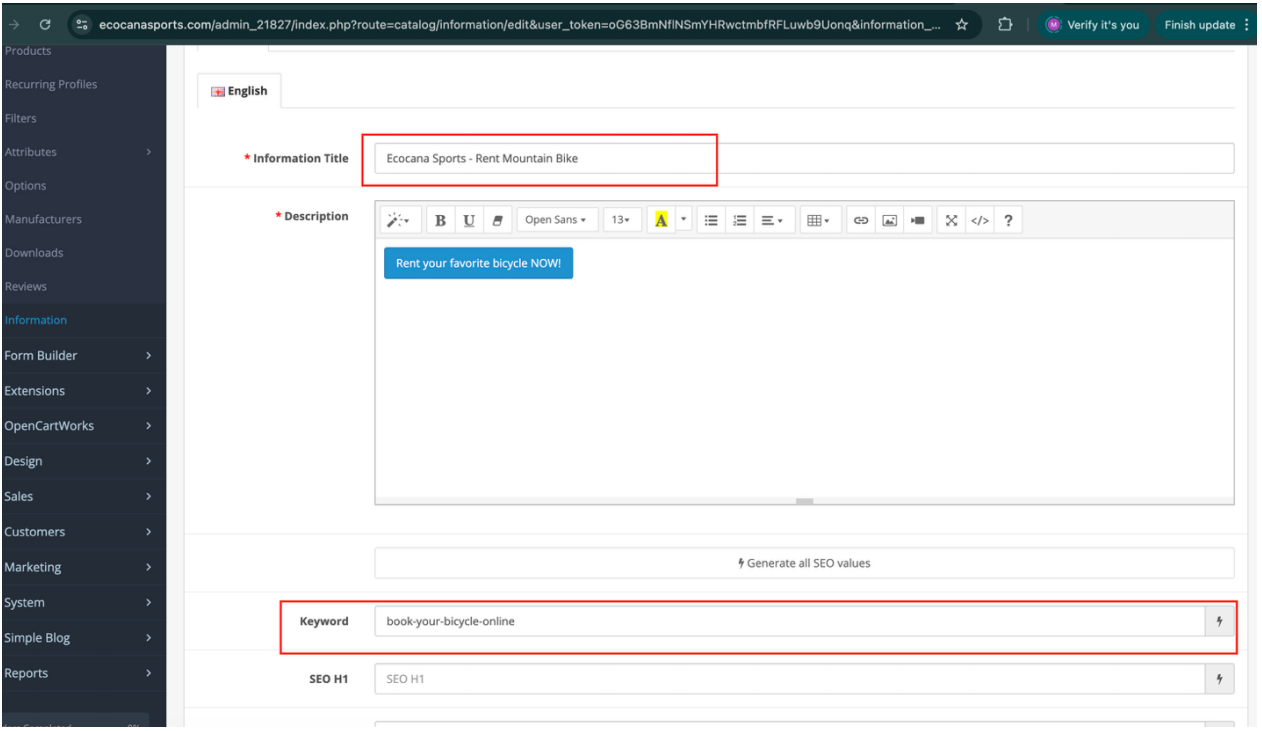
Step 3 – Change Page Title
- In the General tab:
- Change Information Title (this is the page name)
Example:
From: Rent Mountain Bike
To: Bike Rentals
Step 4 – Change URL (Optional)
- Go to the Data tab:
- Change the SEO URL if you want to update the page link
Example:
From: rent-mountain-bike
To: bike-rentals
2. Click Save.
PART B - How to Change Header Menu Name (SO Mega Menu)

If you want to change the Rental menu name in the header navigation bar, follow these steps:
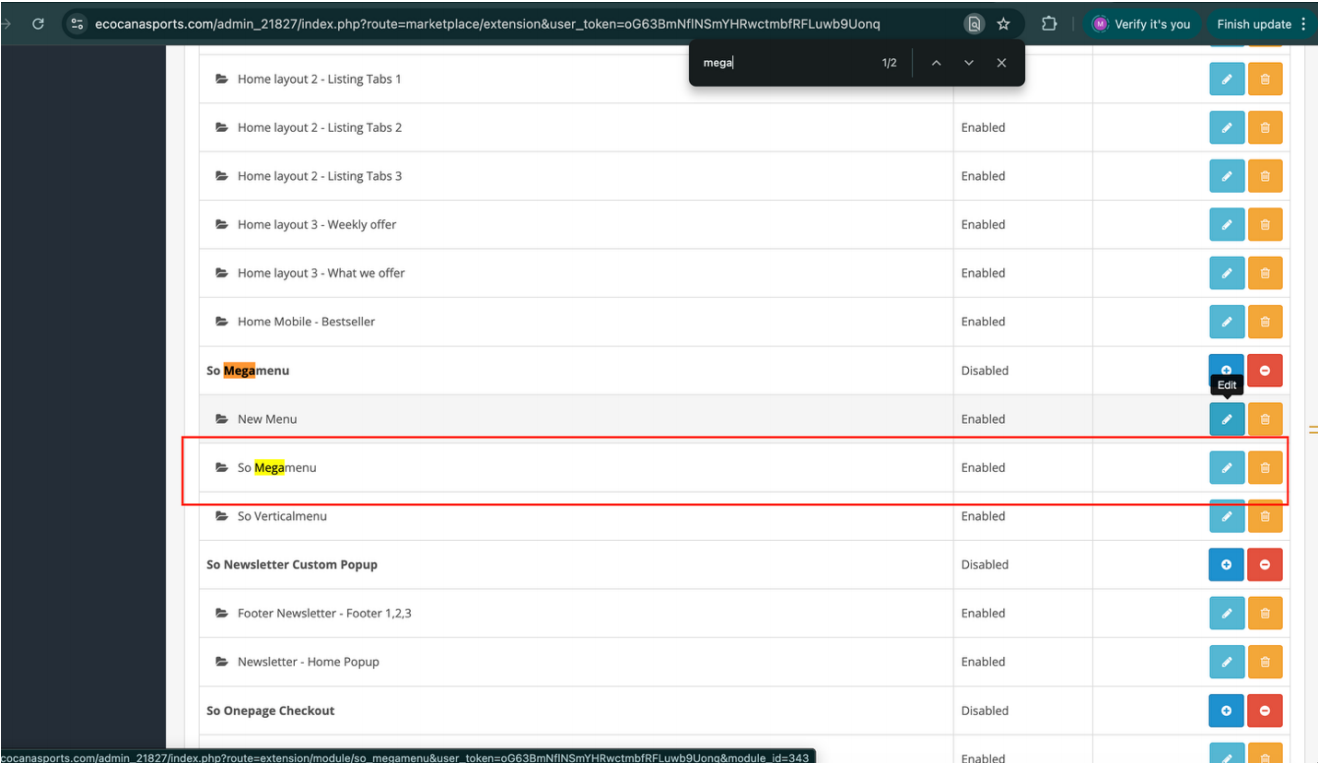
Step 1 – Open SO Mega Menu
Go to: Admin → Extensions → Extensions → Modules → SO Mega Menu
Step 2 – Edit Menu Item
- Click Edit
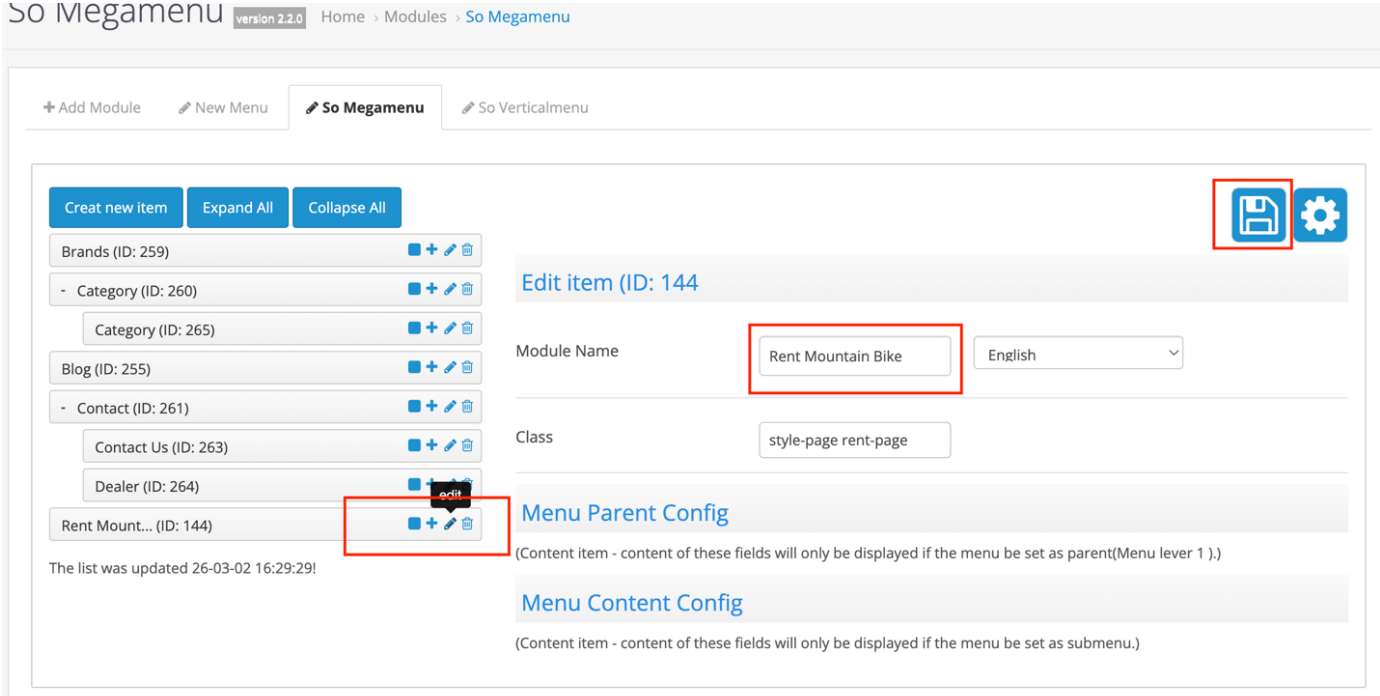
- Find the menu item (example: Rental)
- Click Edit on that menu item
Step 3 – Change Menu Title
- Update the Module Name.
- Click Save.
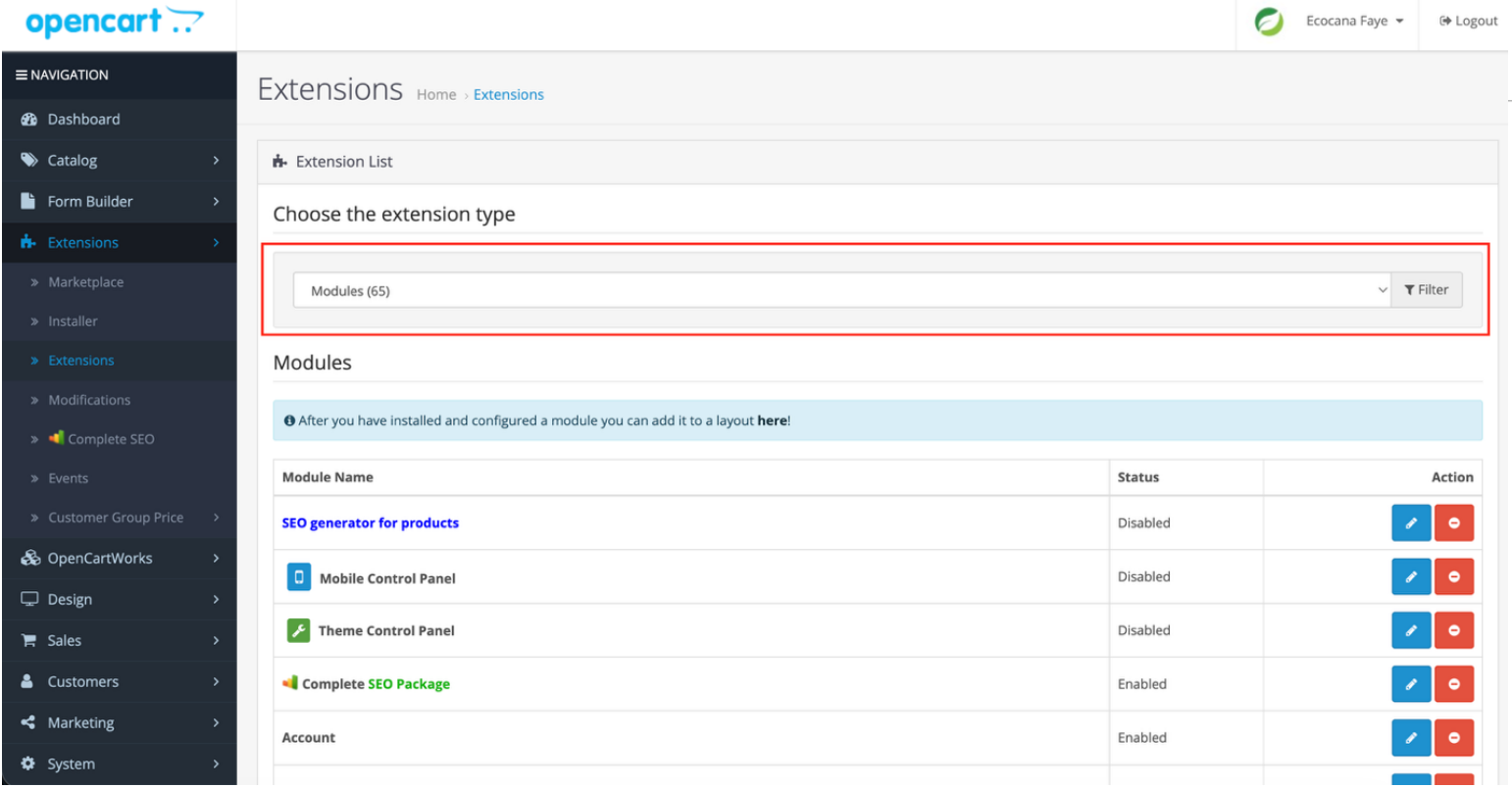
PART C - How to Access SO Builder Page
Step 2 – Open SO Builder Page
Go to: Extensions → Extensions → Modules → SO Builder Page
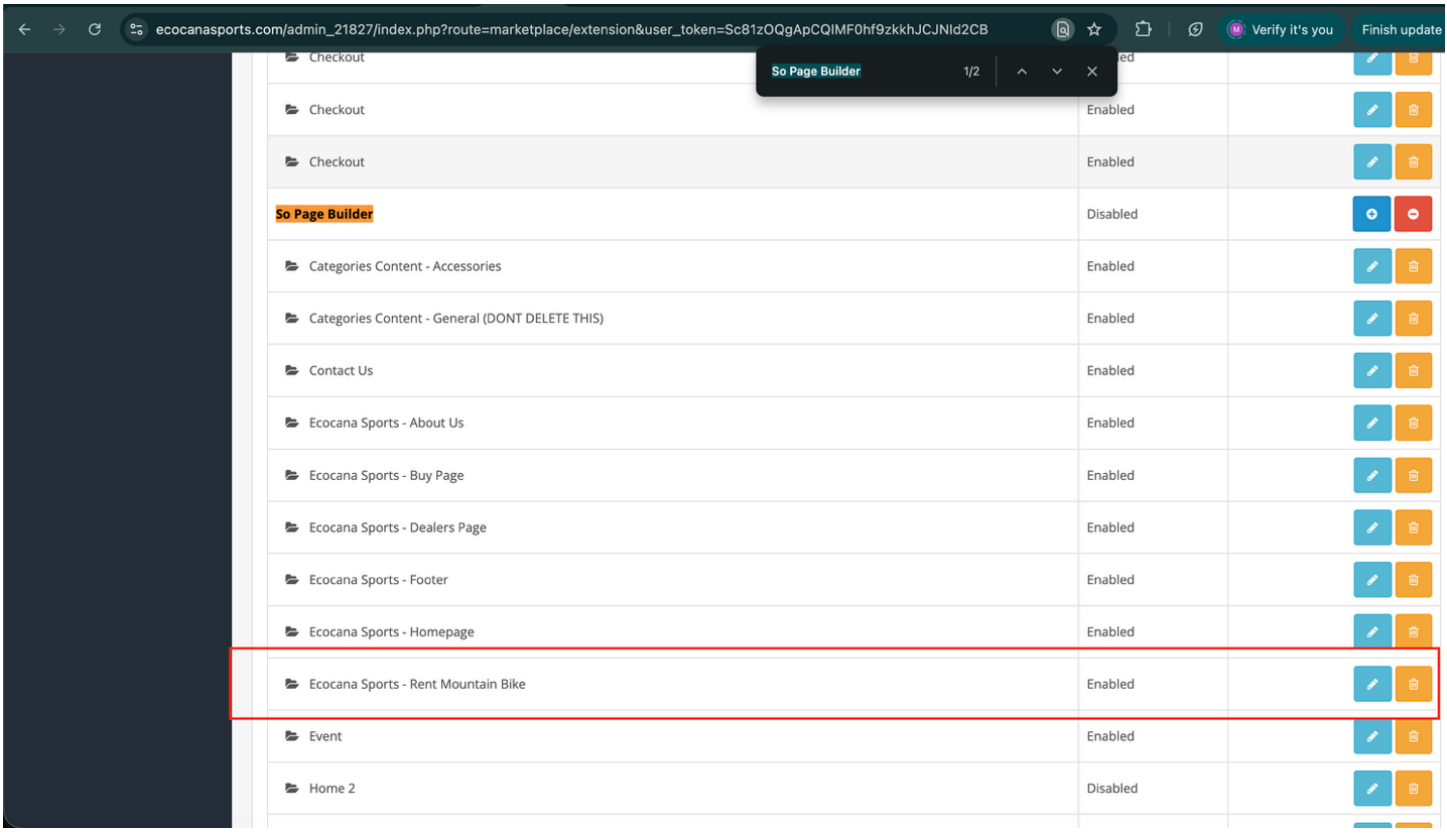
PART D - Page Structure Inside SO Builder
The page is divided into several Rows.
Each Row contains modules like:
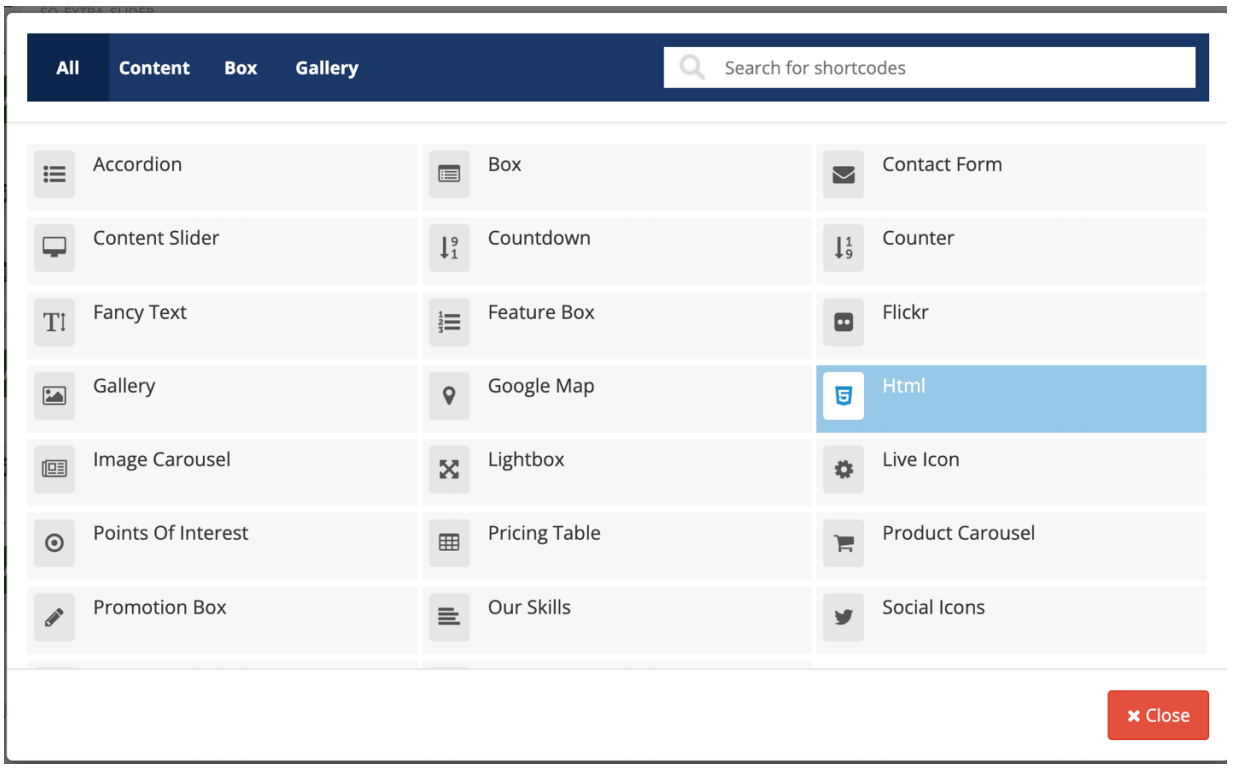
- HTML
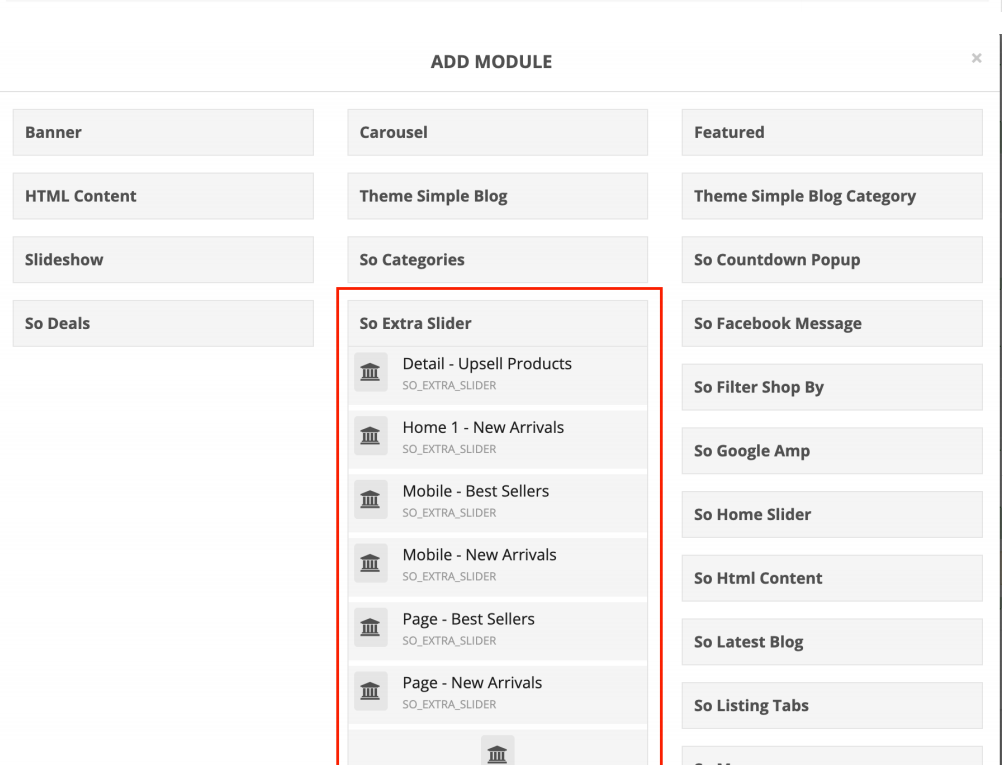
- SO Extra Slider
- Lightbox
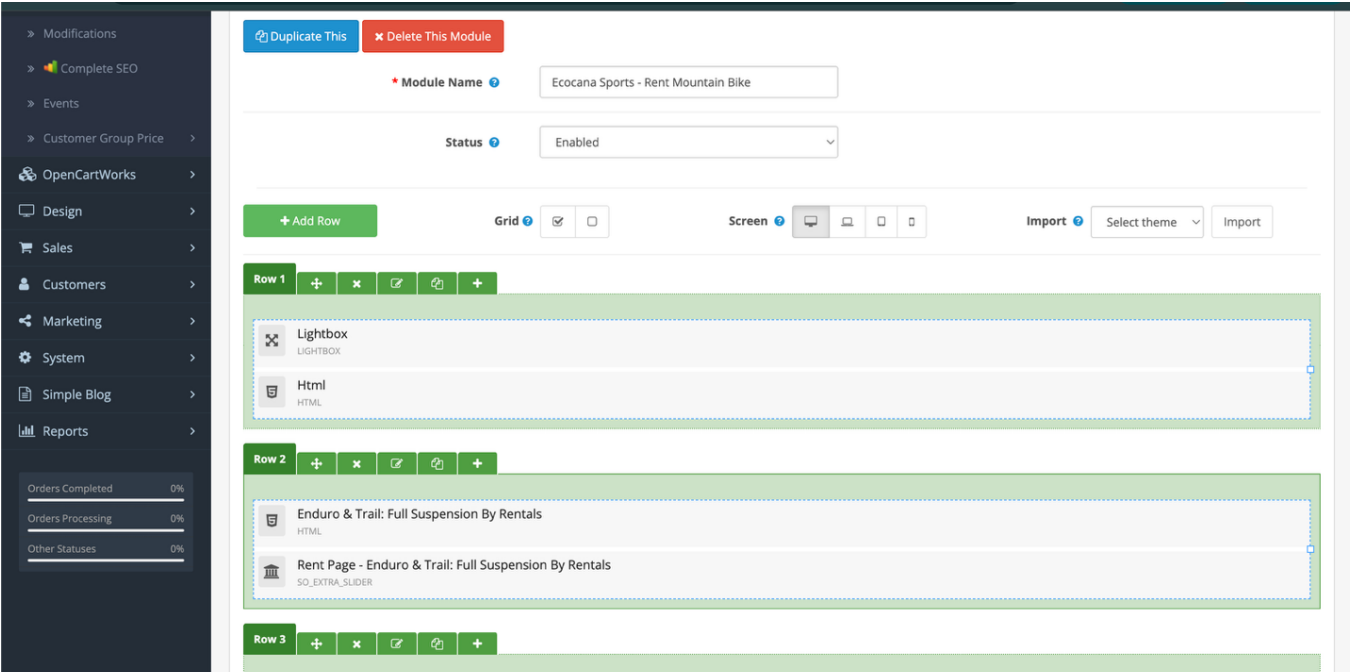
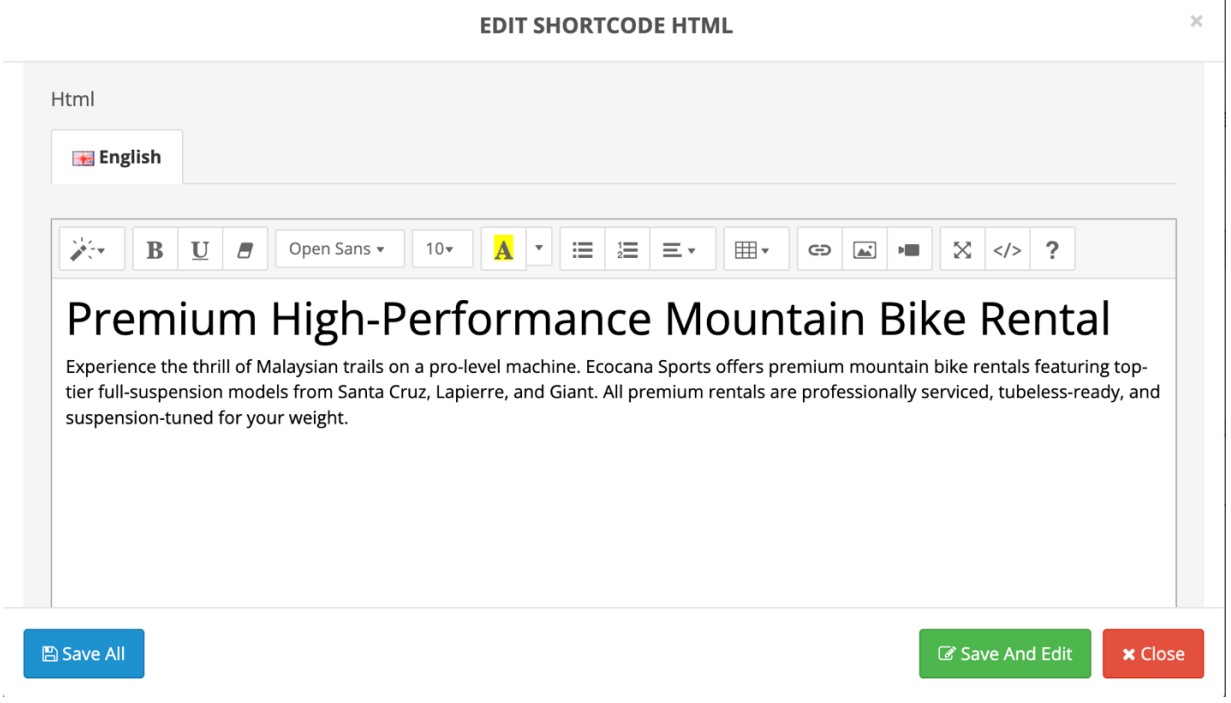
Row 1 – Banner Section
This section usually contains:
- Lightbox
- HTML (text)
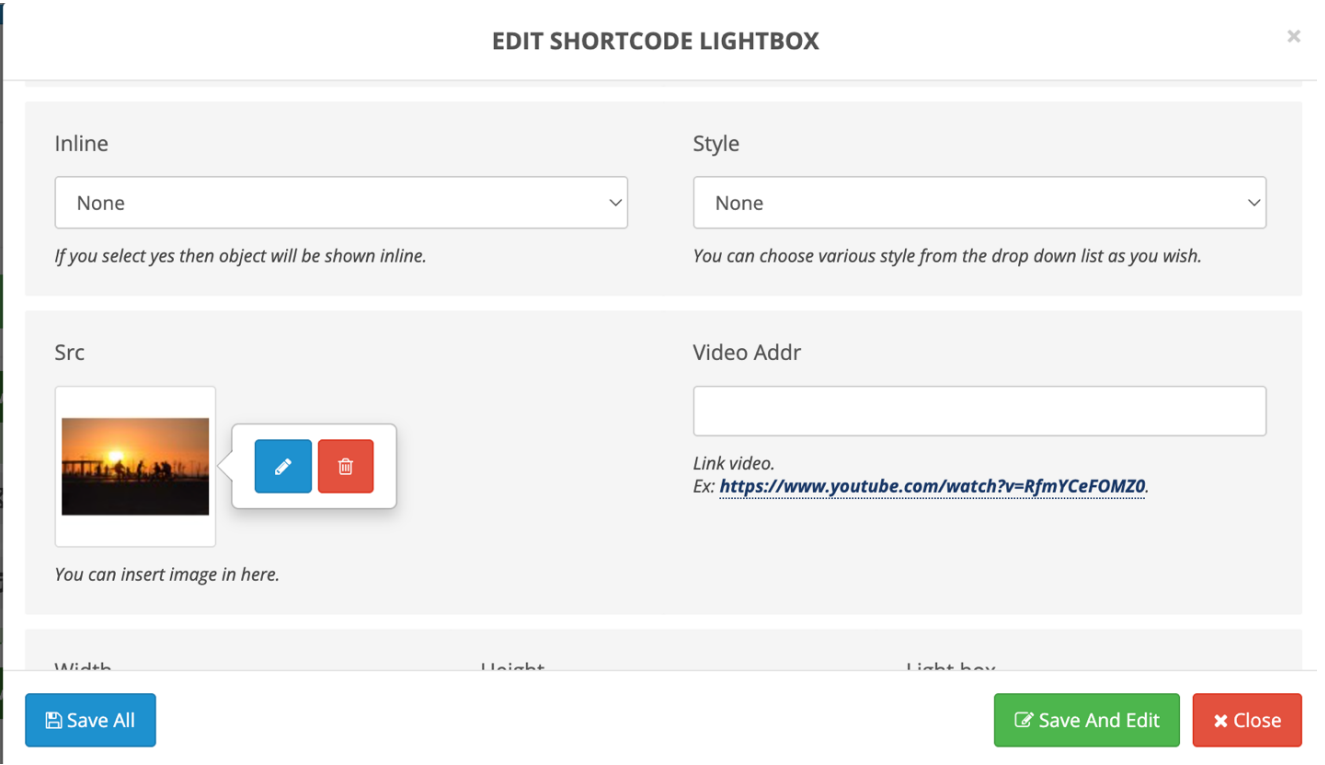
- Click the Edit Shortcode (✏)
- Change:
3. Click Save


Row 2 – Enduro & Trail Section
This row contains:
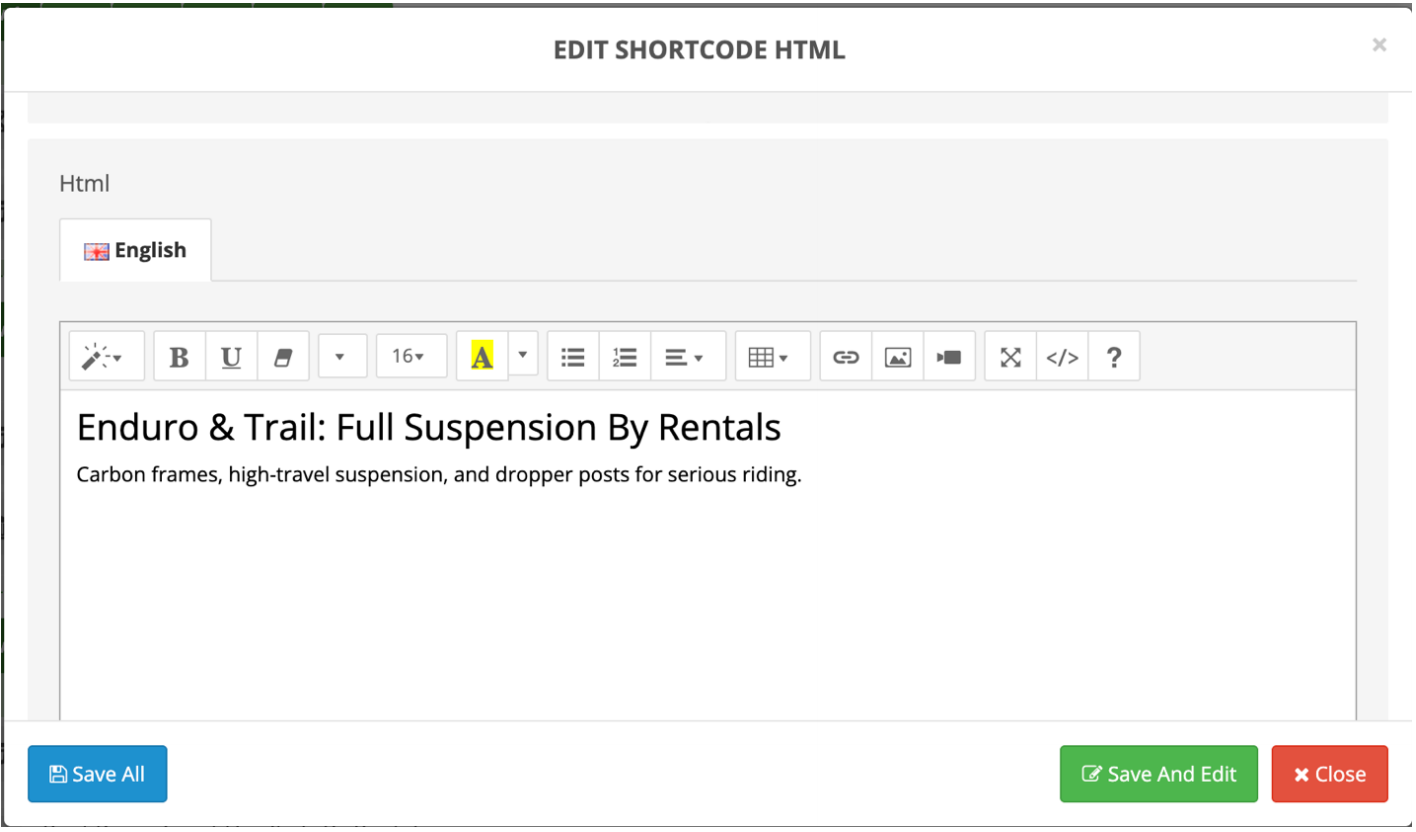
- HTML (section title)
- SO Extra Slider (products)
Edit Section Title:
- Click HTML module
- Change text:
Example:
"Enduro & Trail: Full Suspension By Rentals"
3. Click Save.

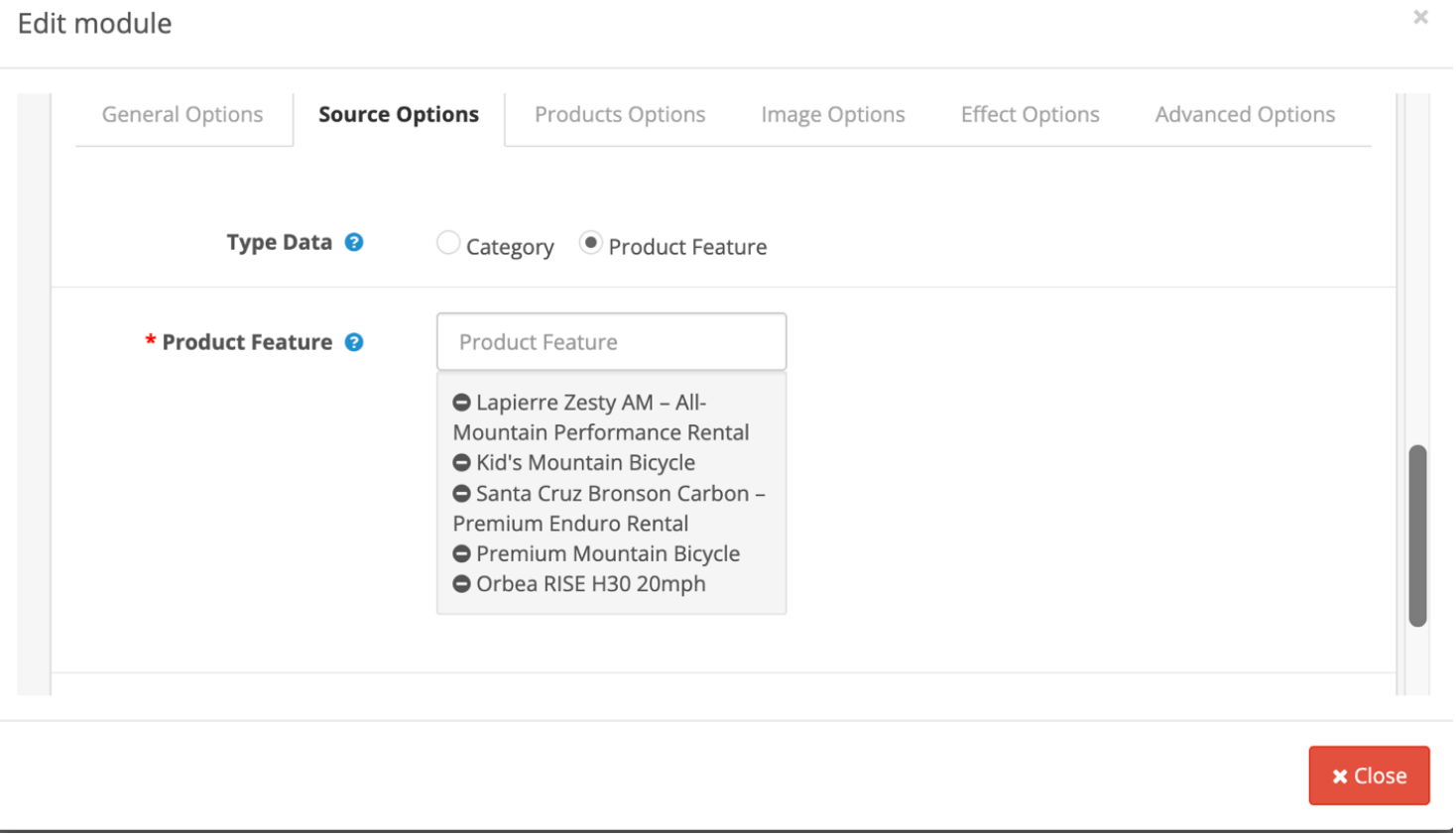
Edit Products (Slider):
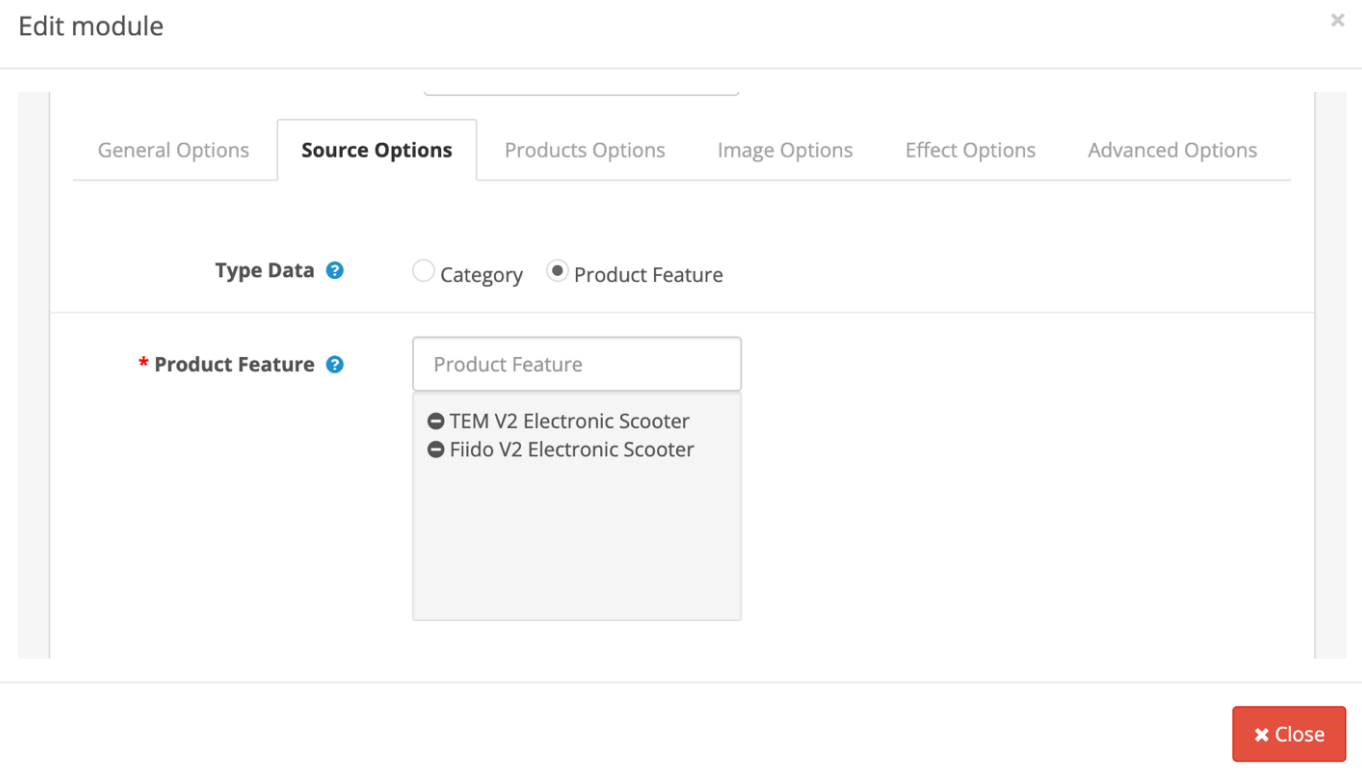
- Click SO Extra Slider module.
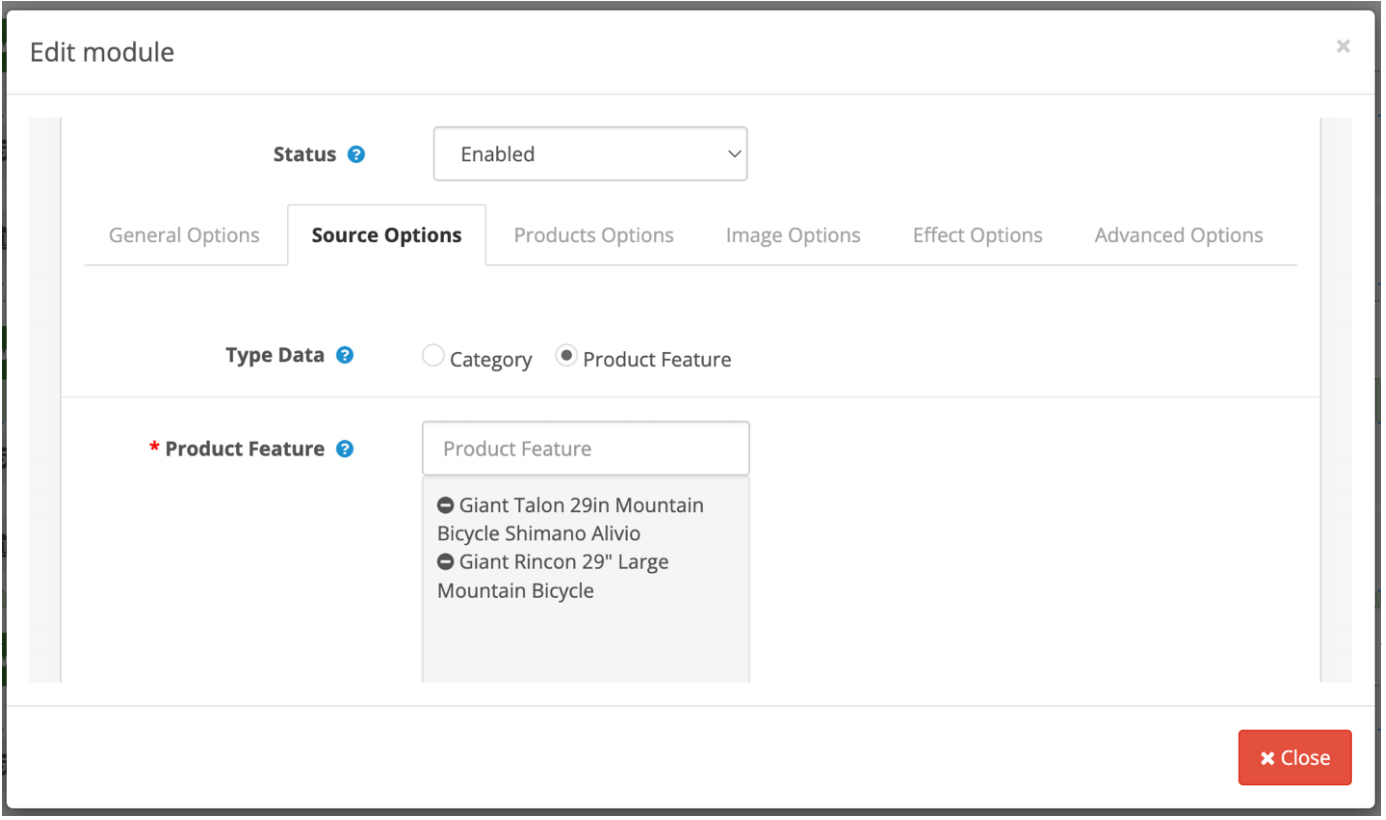
- Change: Product Feature.
- Click Save.

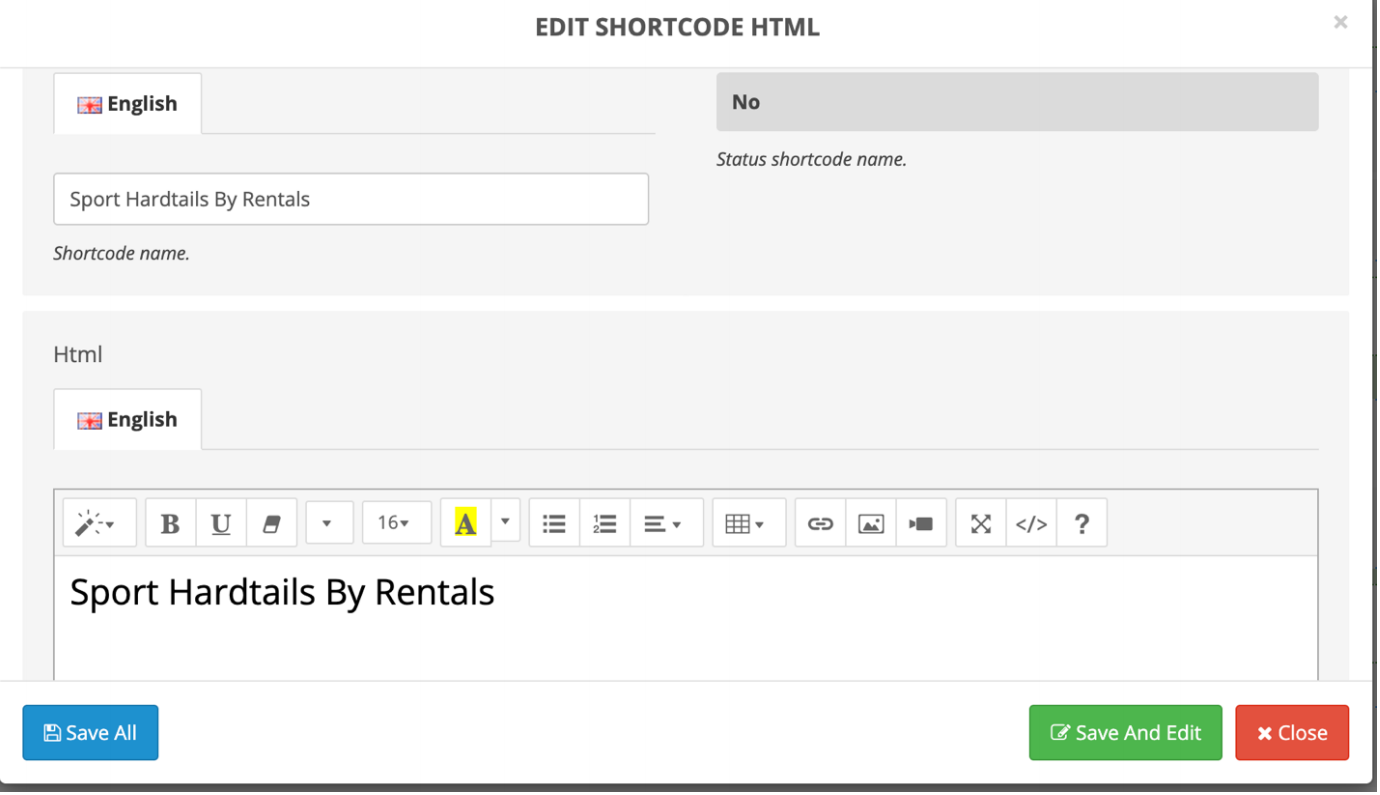
Row 3 – Sport Hardtails Section
Structure is the same as Row 2:
- HTML (title)
- SO Extra Slider (products)
Edit the Product Feature if you want different products.


Row 4 – Road Bikes Rentals
Contains:
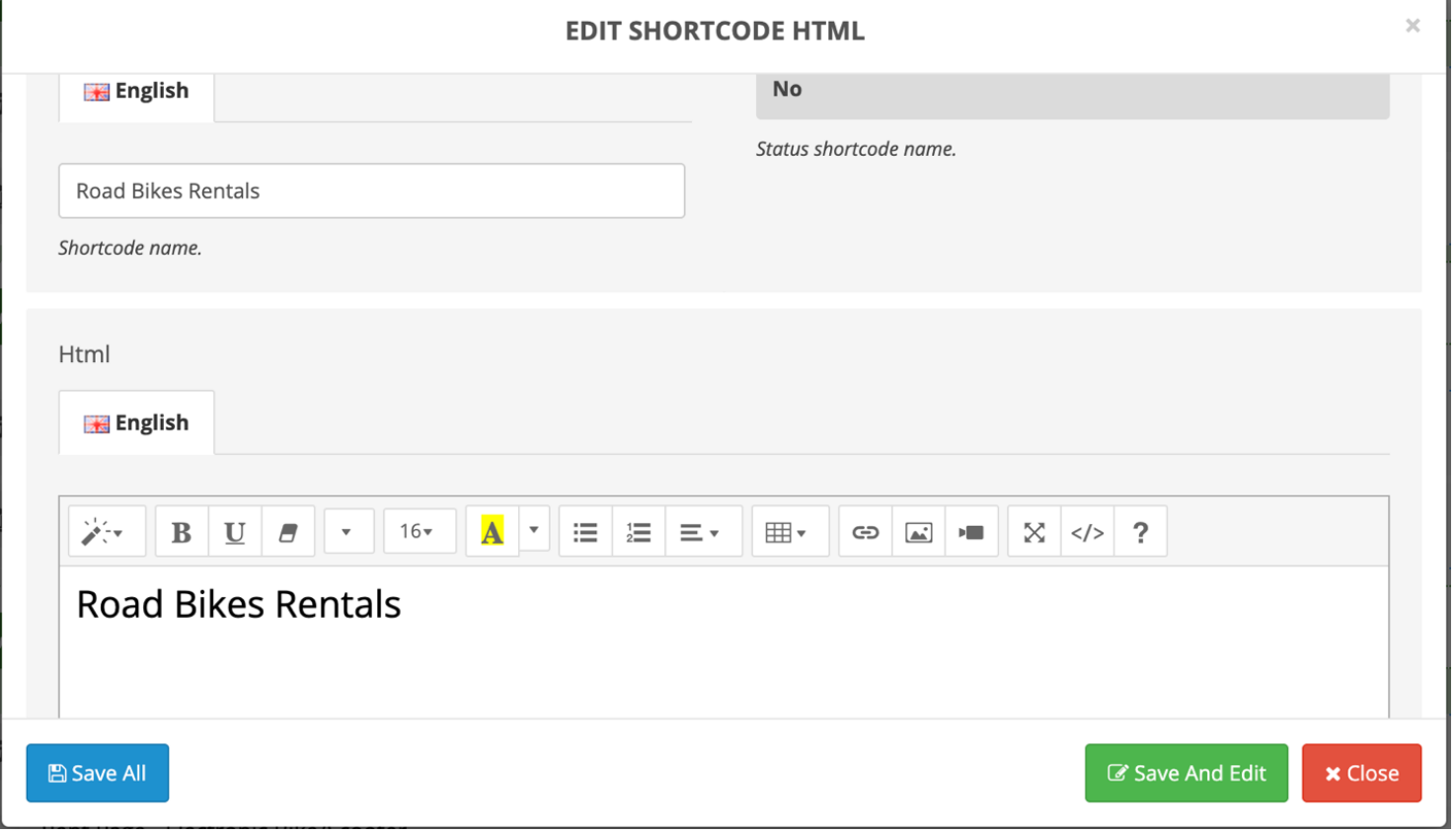
- HTML (title)
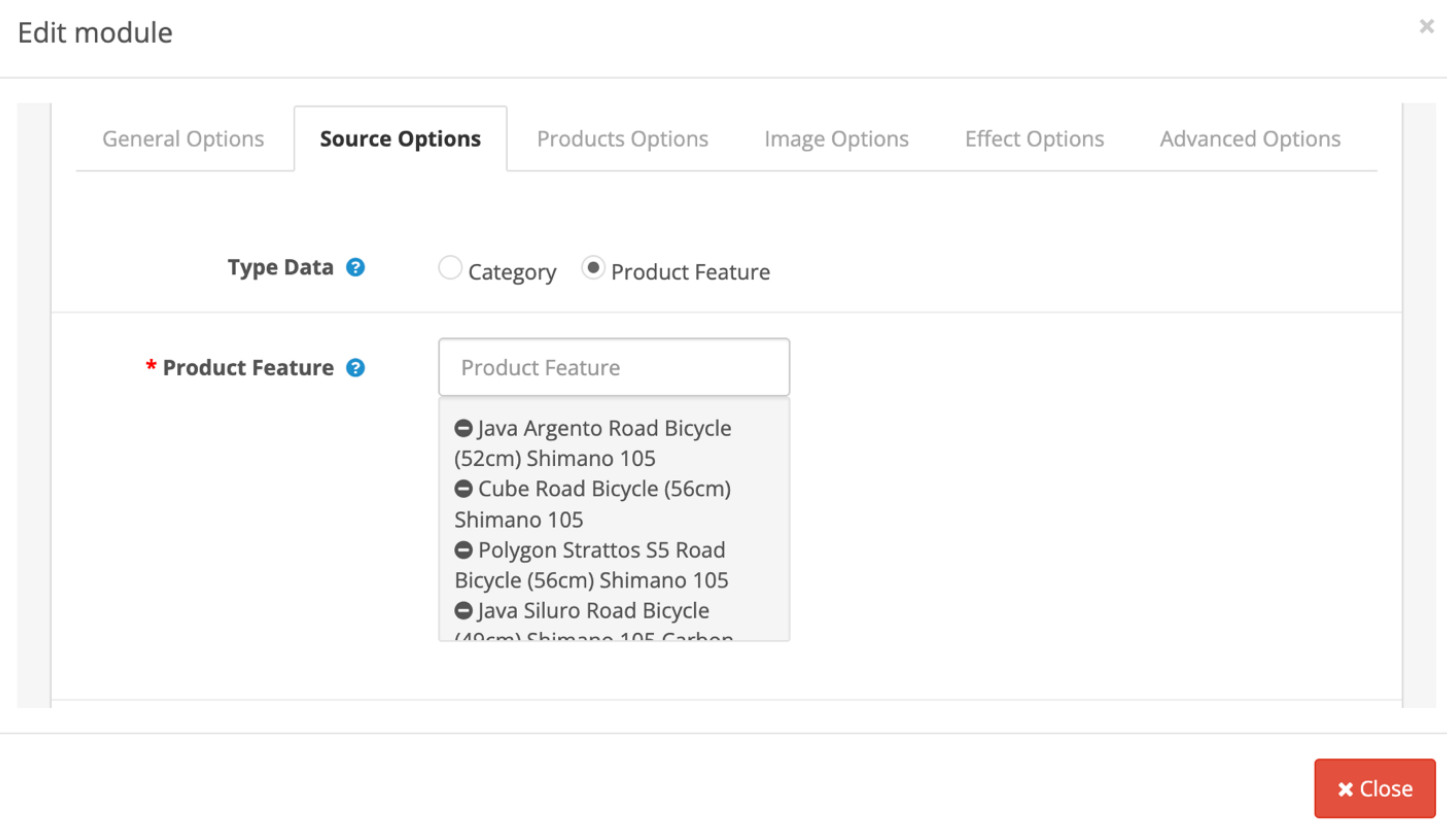
- SO Extra Slider (products)
Edit the Product Feature if you want different products.


Row 5 – Electronic Bike & Scooter Rentals
Contains:
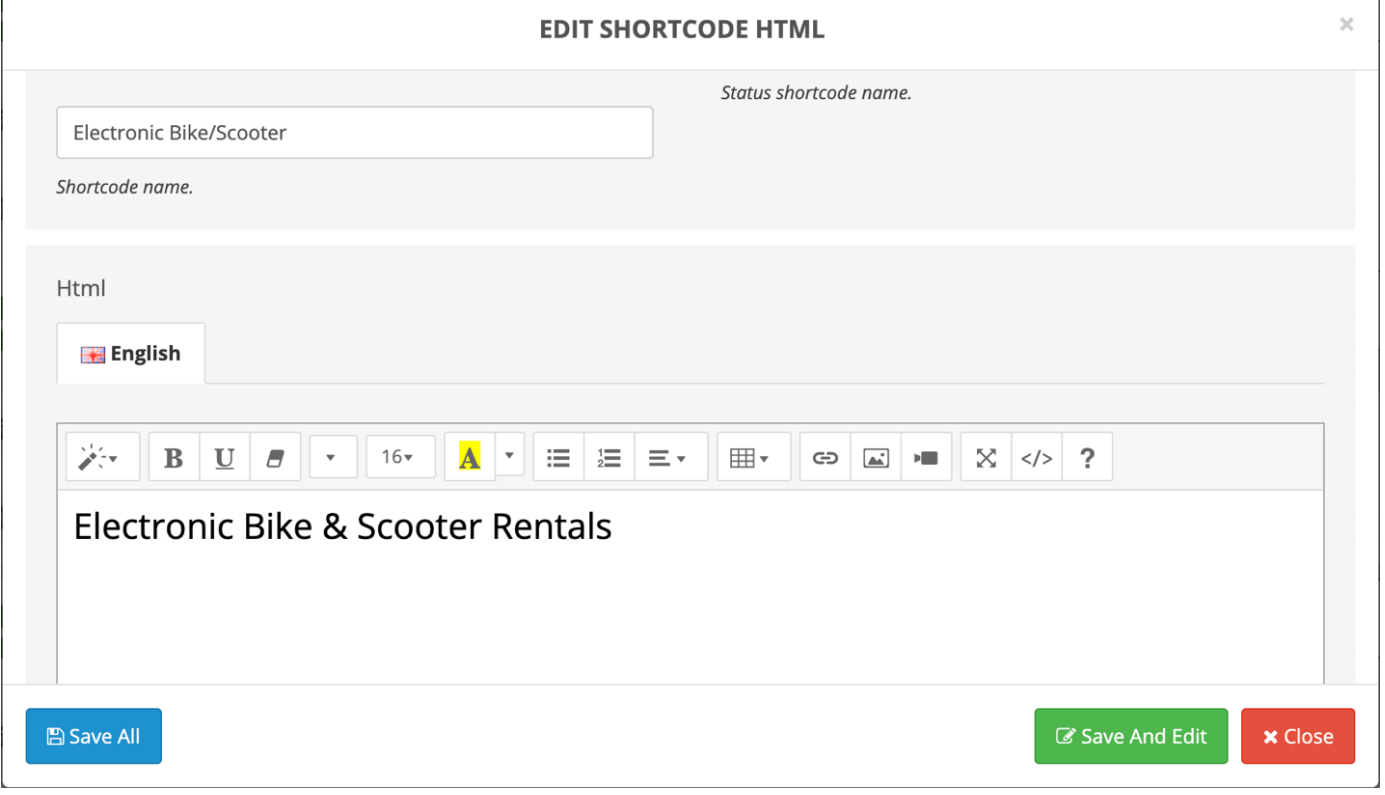
- HTML (title)
- SO Extra Slider (products)
Edit the Product Feature if you want different products.


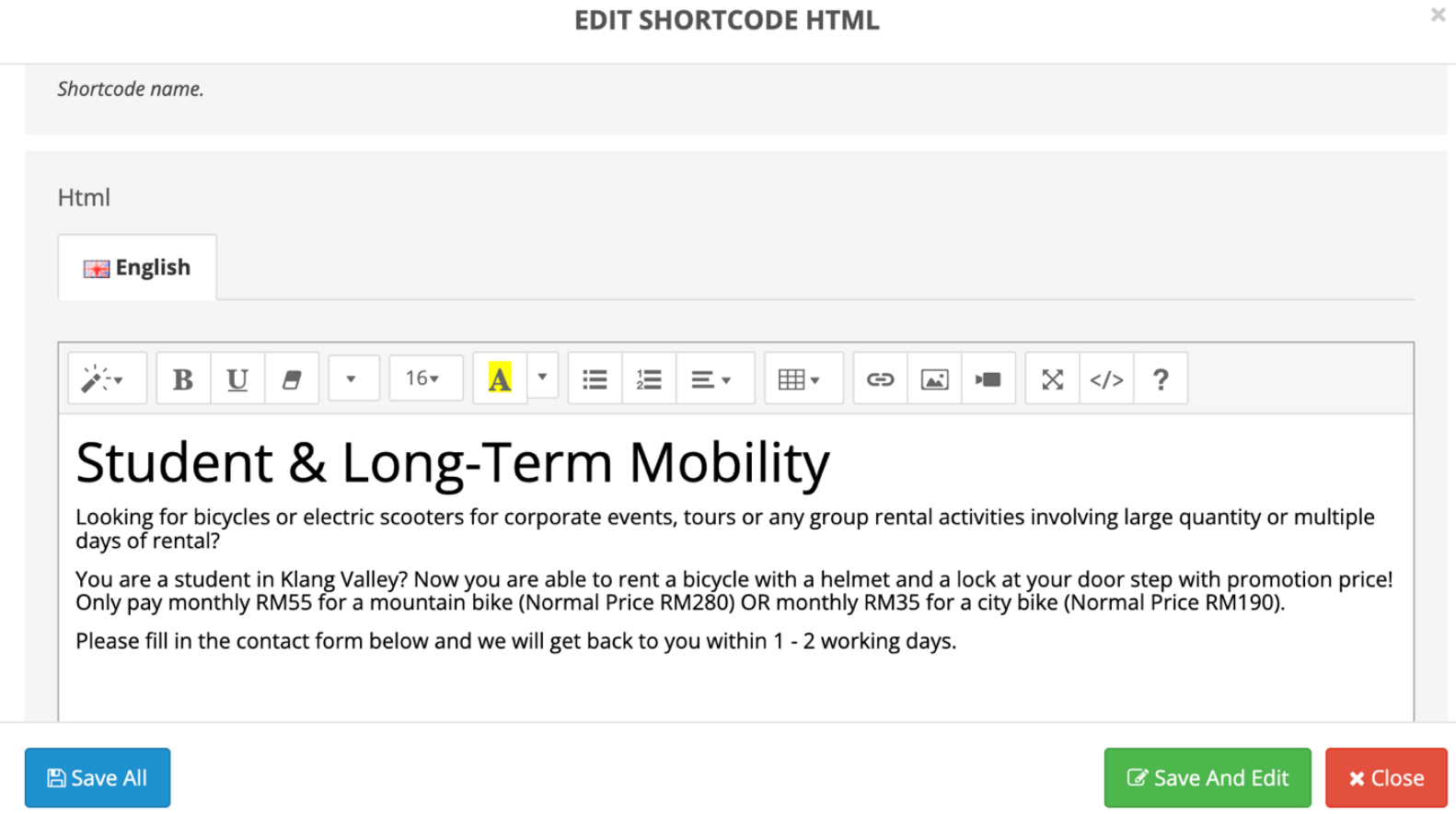
Row 6 – Student & Long-Term Mobility
Contains:
- HTML (title)
Edit the html to change the content.

PART E - Frontend Result
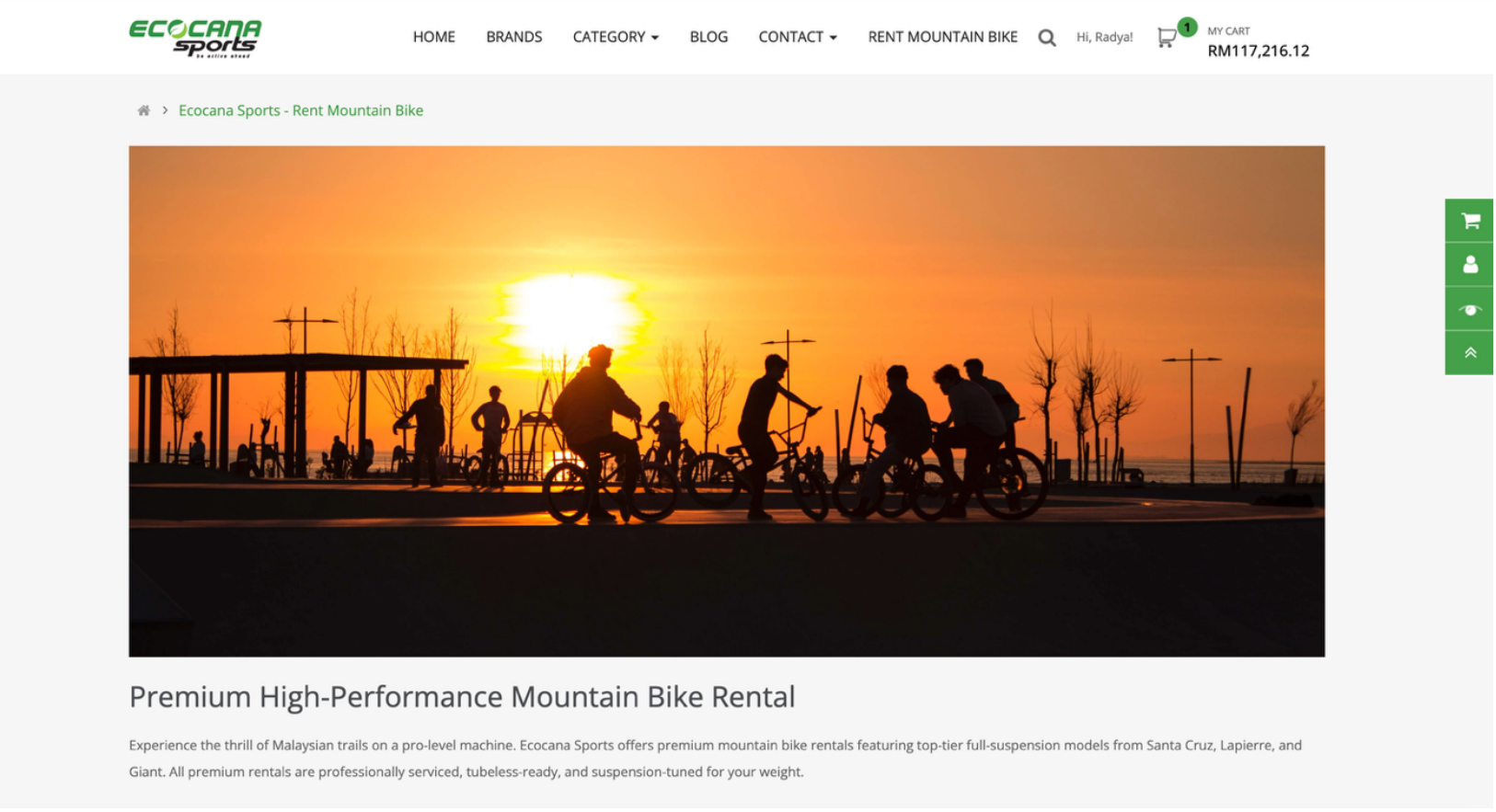
After you click Save:
- Open your website front page
- Go to Rental Page
- Refresh the page
- Check the changes
PART F - How to Add New Section
If you want to add a new section:
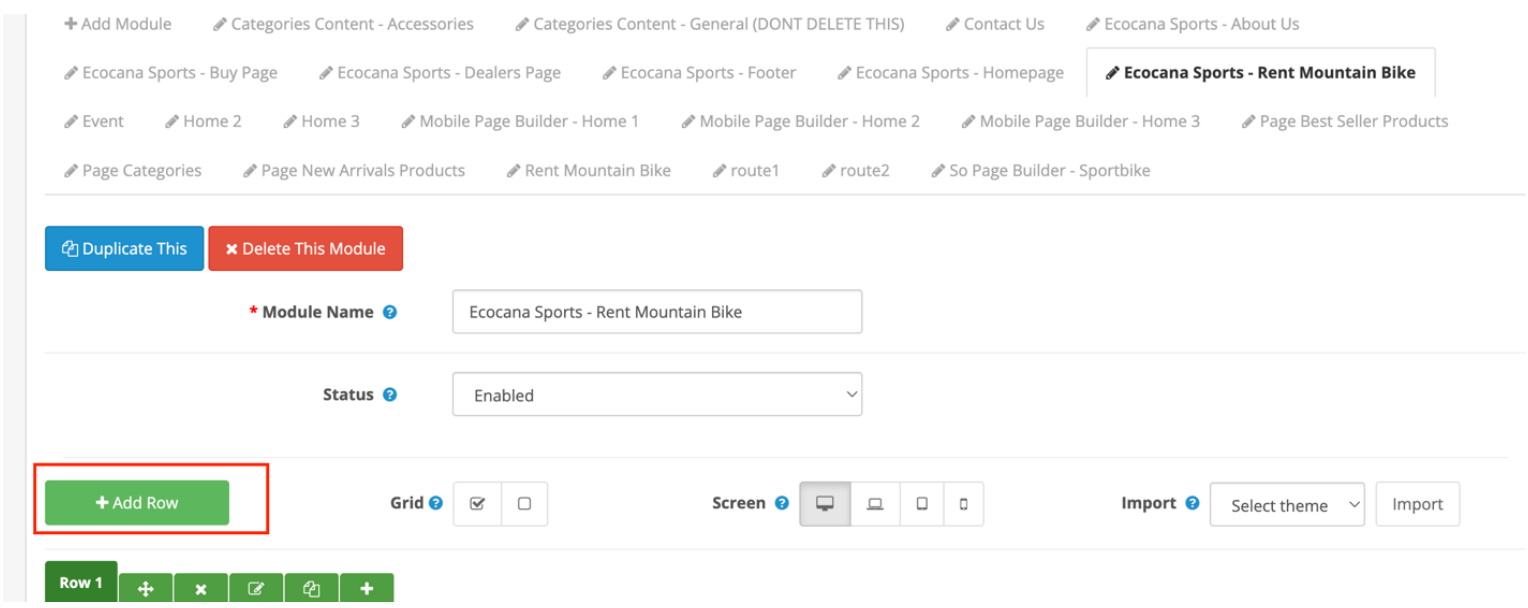
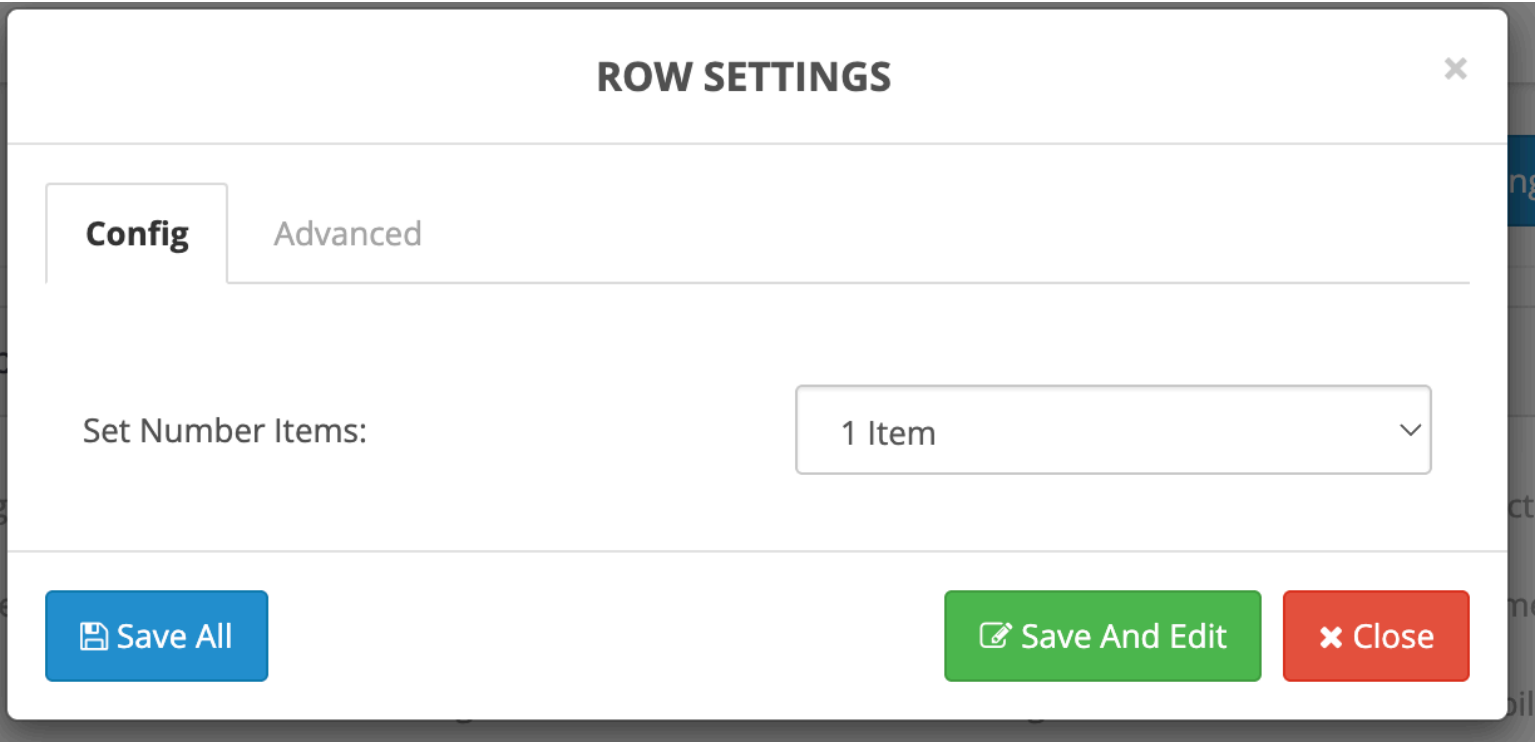
1. Click ➕Add Row button in SO Builder
2. Add:
- HTML (for title)
- SO Extra Slider (for products)
3. Drag and drop to adjust position
4. Click Save.

Best Practice
- Use HTML module for text only
- Use SO Extra Slider for products
- Always Save before exit
- Always check frontend after edit
- Do not delete rows without backup