5. iii) Campaigns (Engine)
How to Create a Campaign in Outreach (Unofficial) ?
Step 1 :
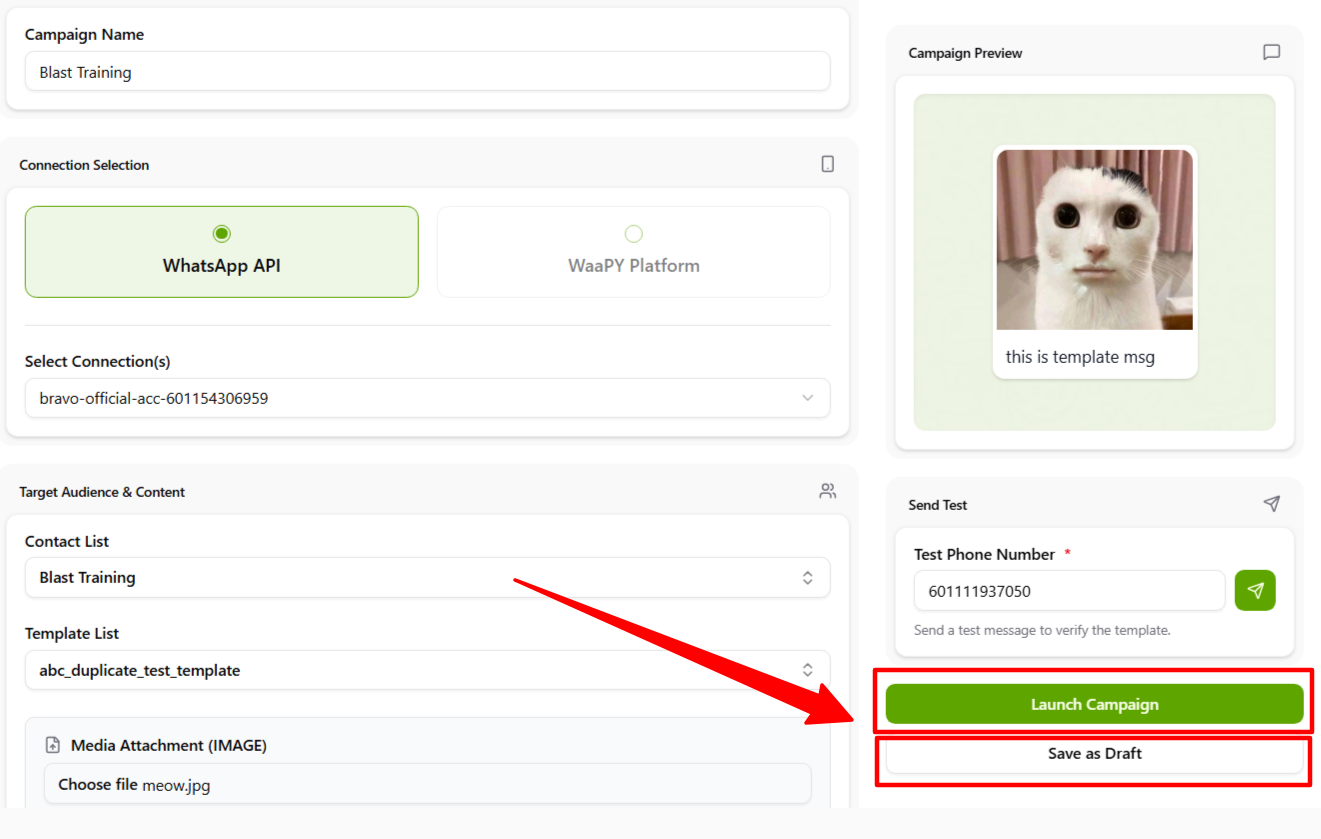
- First, set a name for your campaign ( we suggest to create campaign name same like contact list name ).
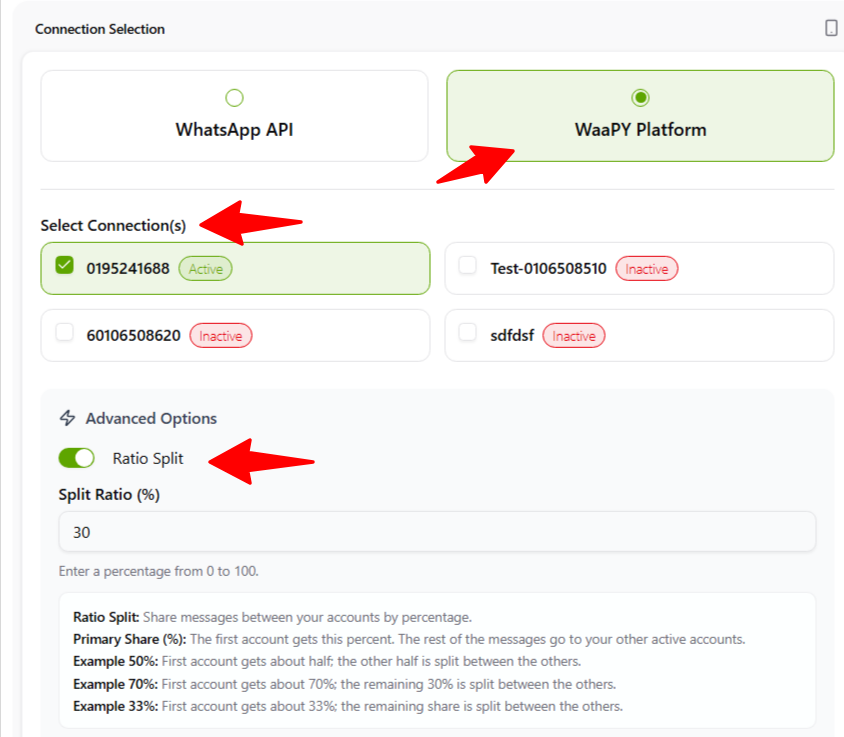
- Choose Waapy Platform and pick any available connection
Step 2 :
Ratio Split: This feature is used to distribute messages between your accounts based on the percentage you set.
Example 50%: The first account will receive approximately half of the total messages, while the remaining half will be shared among the other accounts.
Example 70%: The first account will receive approximately 70% of the total messages, while the remaining 30% will be shared among the other accounts.
Example 33%: The first account will receive approximately 33% of the total messages, while the remaining percentage will be shared among the other active accounts.
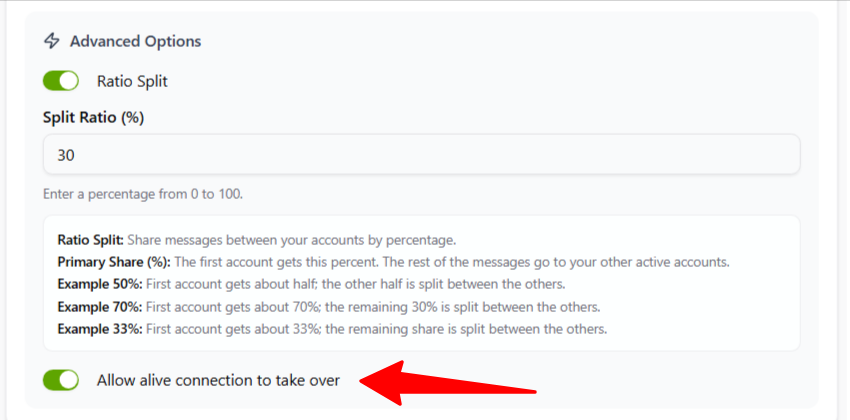
Allow Alive Connection Take Over: This feature allows another active session or connection to take over the current connected session without requiring the existing connection to be disconnected manually.
When enabled, the system will automatically replace the current active connection if a new connection is established using the same account or session credentials. This helps ensure smoother reconnection and reduces interruption during login or device switching.
Step 3 :
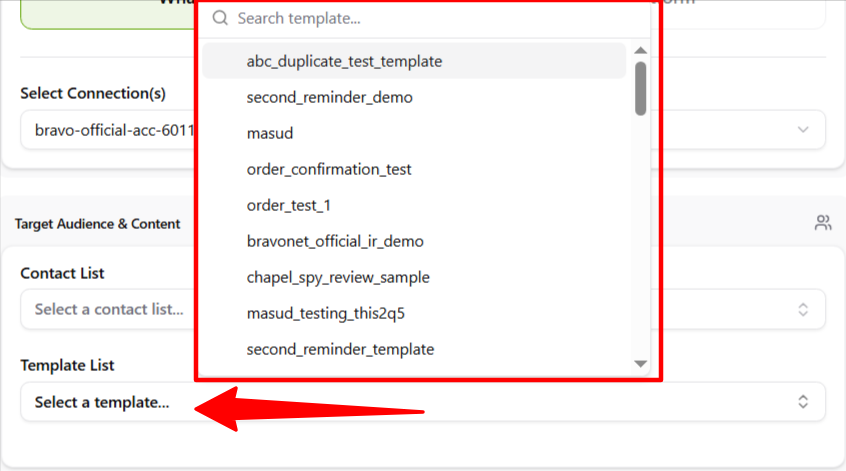
Choose a template that has been approved by Meta for blasting.
Step 4 :
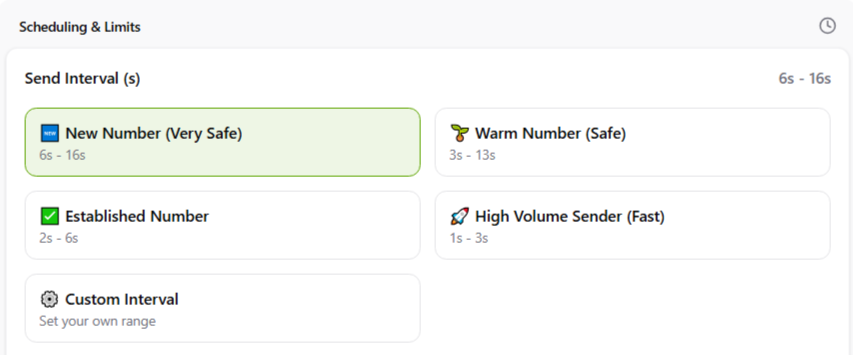
Set the interval range between sending messages to each number (from the first to the second, and so on).
Step 5 :
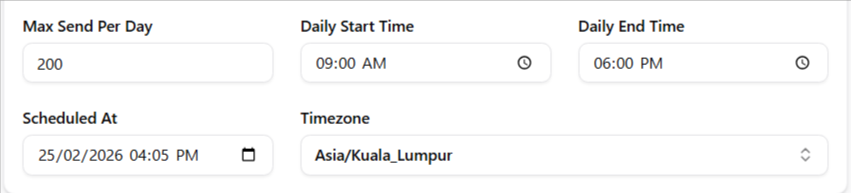
- Set the maximum messages per day for the campaign.
- Schedule when to start sending blast messages (it is recommended to set the schedule within your daily start and end time).
- Set the start and end period for the campaign, and select the timezone (by default, it shows Kuala Lumpur time).
Step 6 :
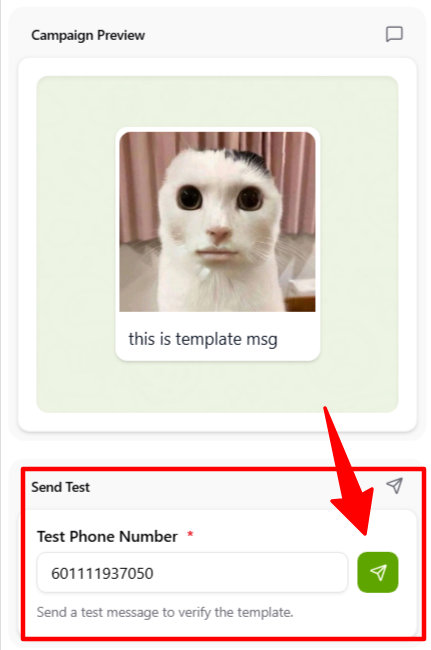
- Preview your template using the Campaign Preview feature.
- You can test-send the campaign to your number or a chosen test number by clicking the jet icon.
Step 7 :
Once all fields are completed:- Click Draft to save the campaign if you are not yet ready to launch.
- Click Launch Campaign if you are confident and ready.
- The campaign will then be sent according to the scheduled time.