
4. How To Verify Your Business in Meta Business Suite
You may need to verify your business in Meta Business Suite to access certain advertising, developer, billing, or spending options.
Note:
Business verification is different from Meta Verified for businesses. Verifying your business in Meta Business Suite does not give a verified badge.
Before you begin
- You can only start verification if your business portfolio is eligible.
- You must have full control of the business portfolio.
- Providing false or misleading information, attempting to verify a business you are not authorised to represent, or trying to bypass Meta’s review process may result in:
- Verification being blocked
- Verified status being removed
- Additional actions taken on the account
To verify your business:
To verify your business:
- Go to Security Centre in Meta Business Suite or, from Business Info, under "Business verification status".
- If you cannot access this, you may not have full control of the business portfolio.
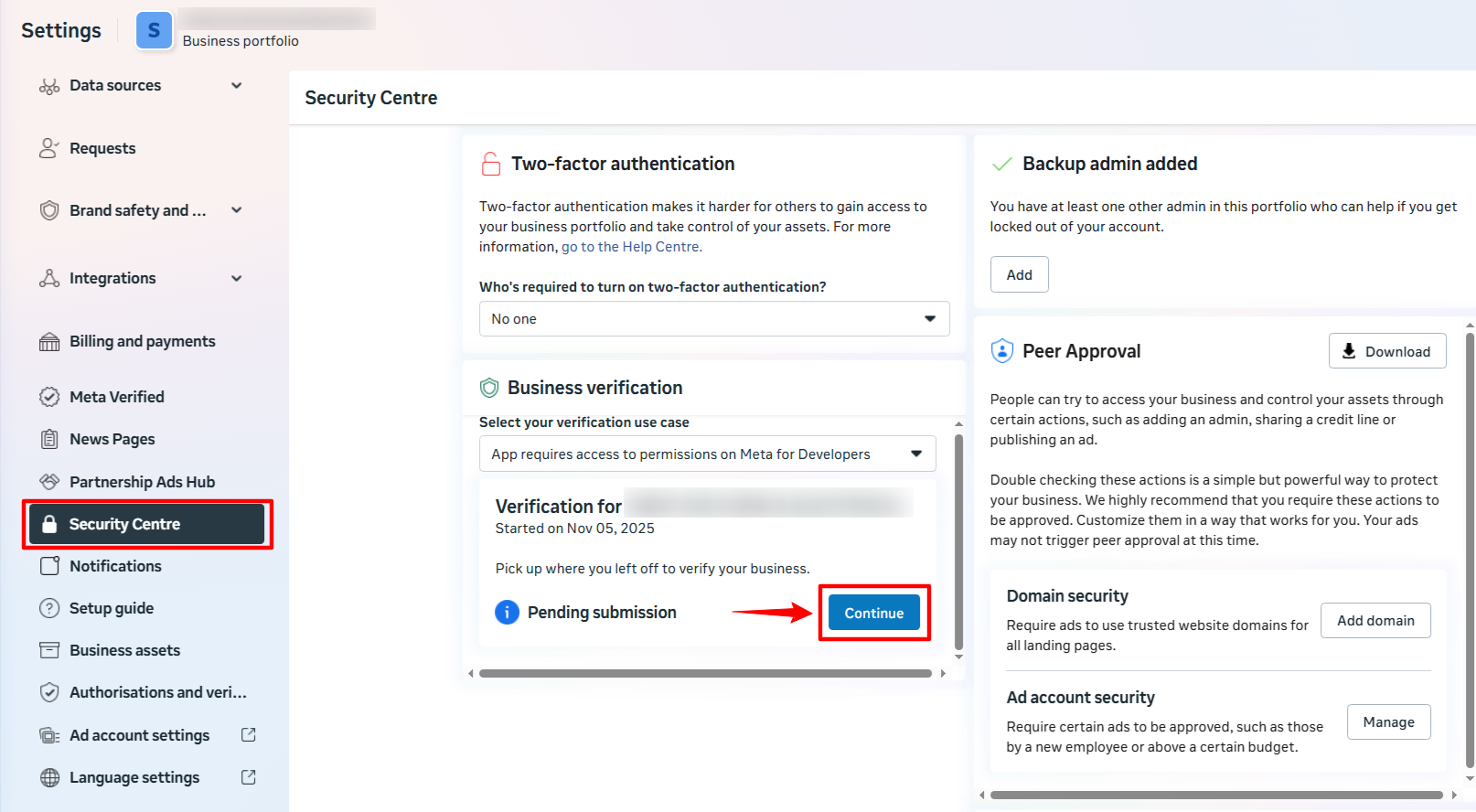
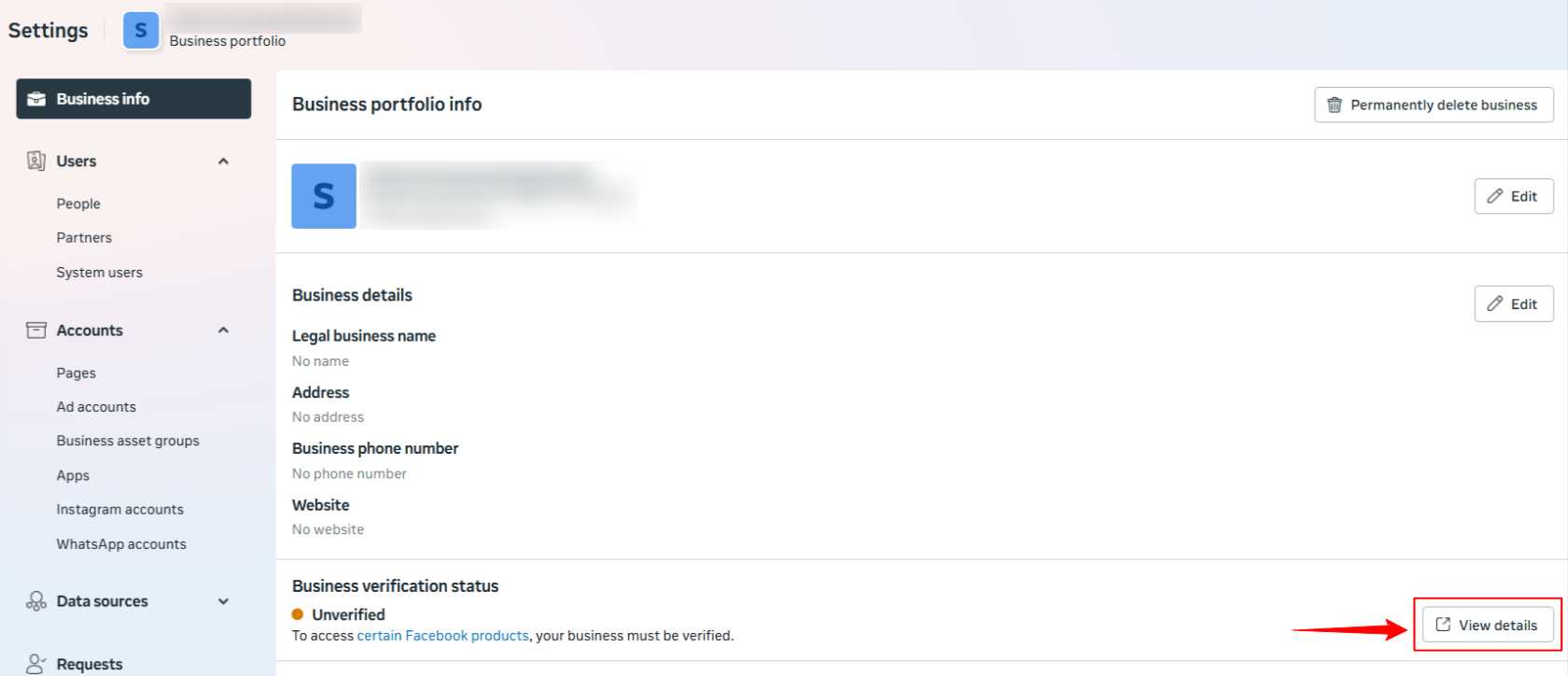
- If you cannot access this, you may not have full control of the business portfolio.
- Click Start verification.
If you see Ineligible for verification, means verification isn’t required at this time in Security Centre. This happens because you haven’t created any apps yet in Meta Business Suite under Accounts.
- Enter your business details:
- Legal business name
- Address
- Phone number
- Website
Make sure all details exactly match your legal business entity and that the website loads and is HTTPS-compliant.
- Confirm your business details.
- If no matching record is found, select My business isn’t listed or None of these match.
- You may be asked to upload official documents (for example, business licence or articles of incorporation) to confirm the details provided.
- Choose a verification method:
- Phone
- Text message
- WhatsApp message
- Domain verification
- Confirm your connection, then click Done.
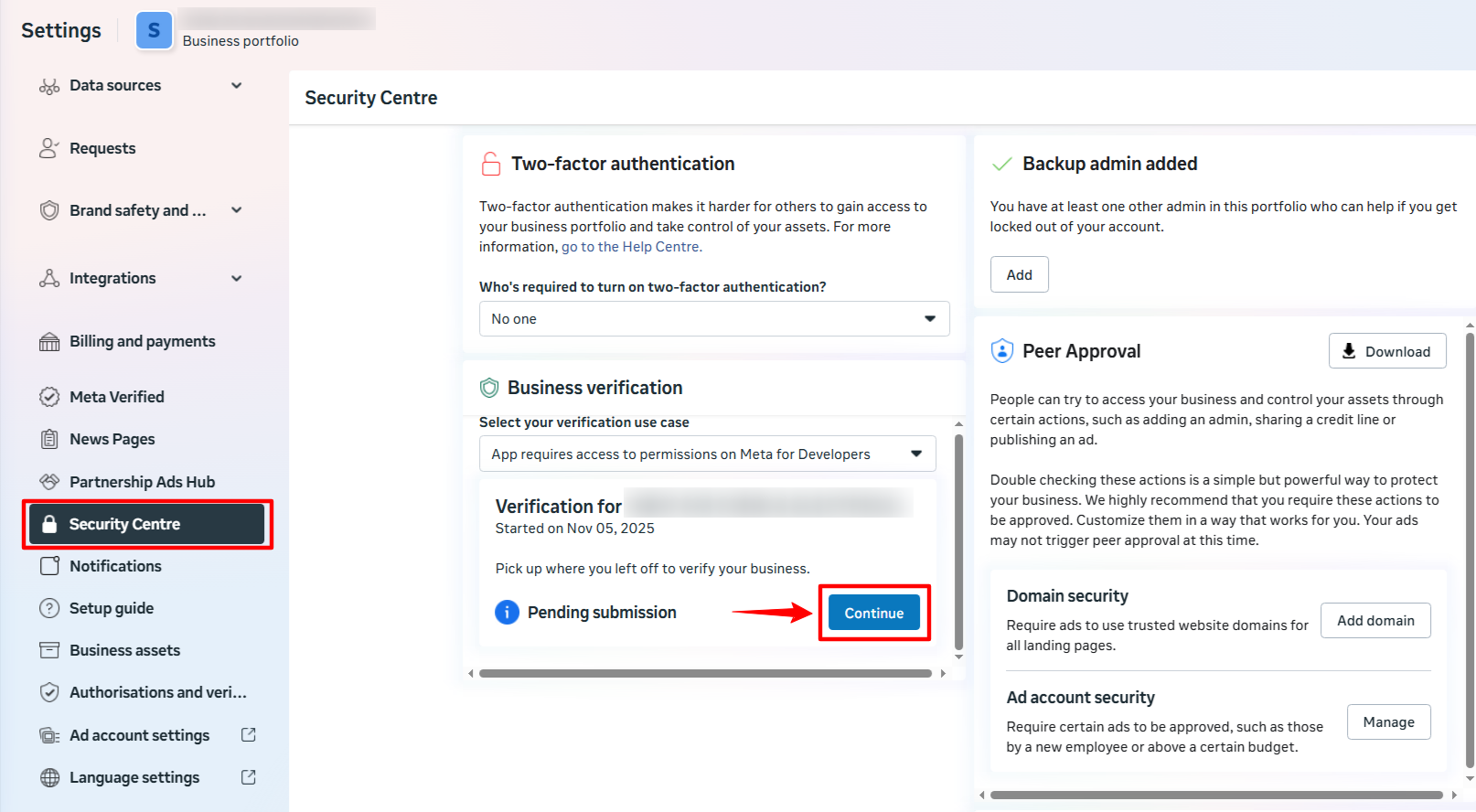
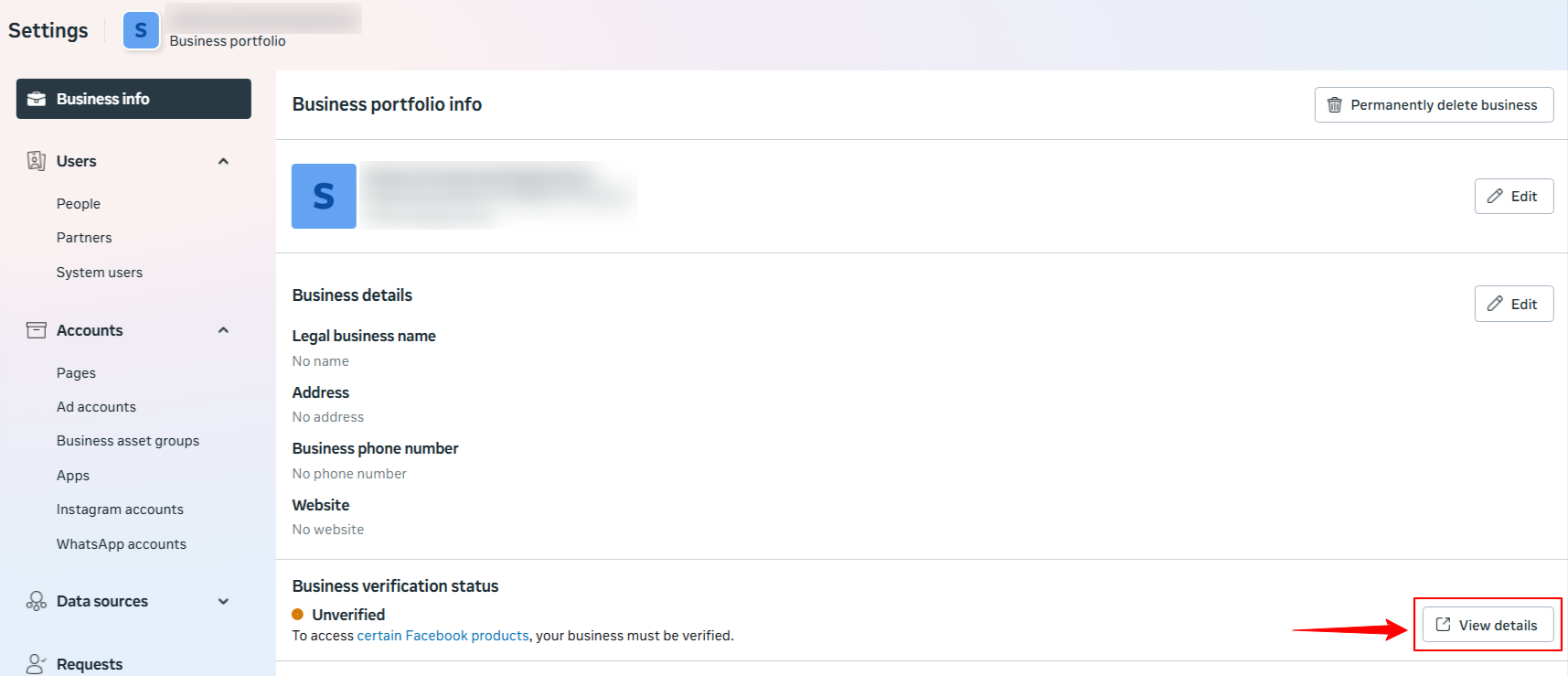
A decision may take up to 14 working days. You’ll receive a notification once the review is complete.
If your business is verified, no further action is required.
Note:
If you edit your business details, you must complete the verification process again.