
4. Templates
Step 1 :
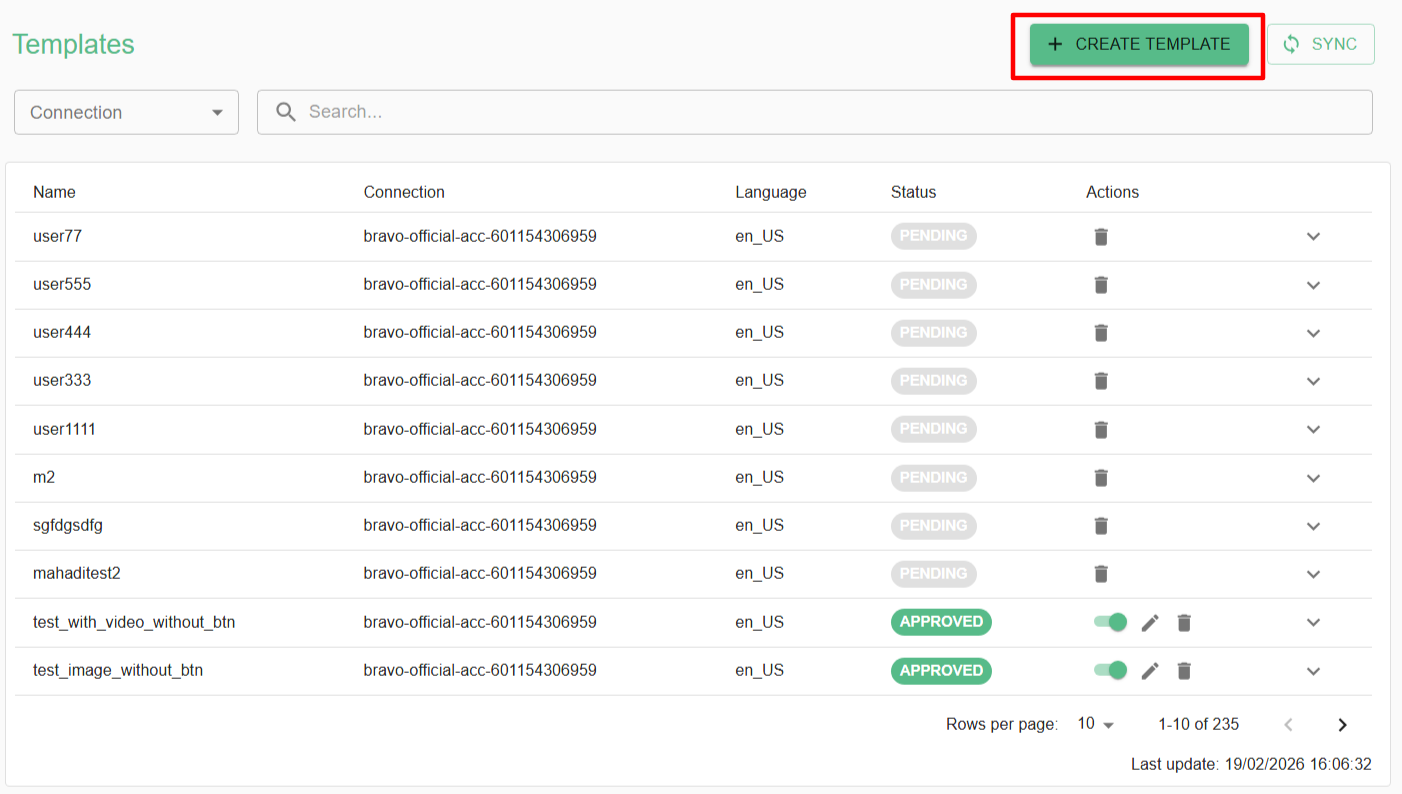
- Create a template on Templates page
Step 2 :
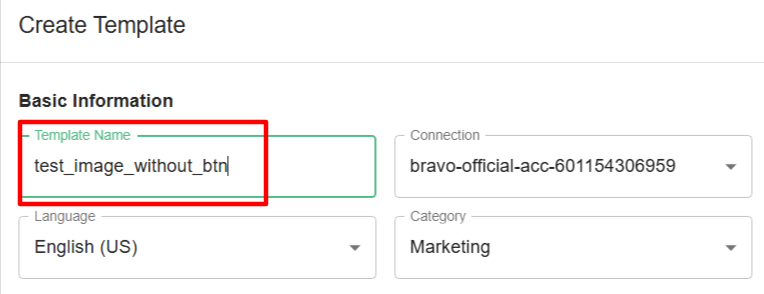
- Name the template you want to create
Template's Name must be lowercase, start with letter, and contain only letters, numbers, and underscores
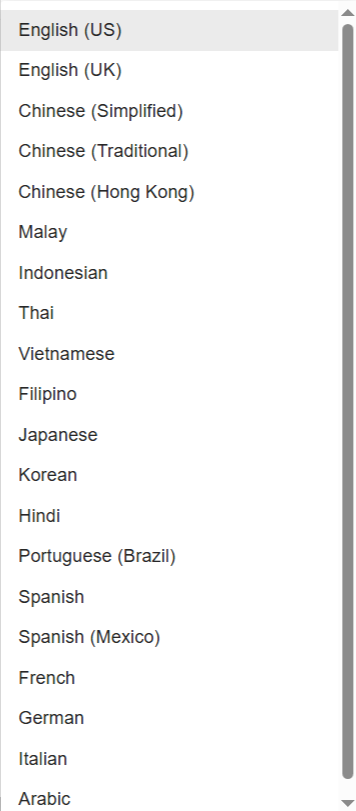
- For the language part you can choose depend on your templates content , if you want to create Malay content then you can select as Malay language
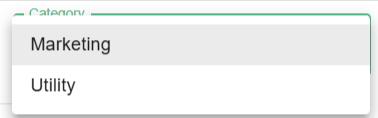
- For the category is depend on you to place your template under Marketing or Utility category
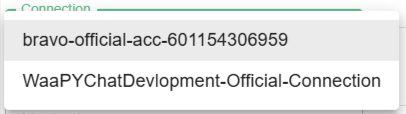
- Choose the connection
Step 3 :
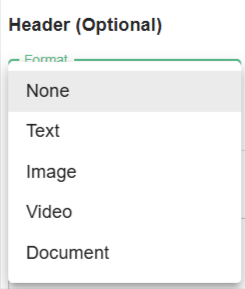
- Then , you can add Title and you can attach Image , Video and Documents to be your Header of the template content
Step 4 :
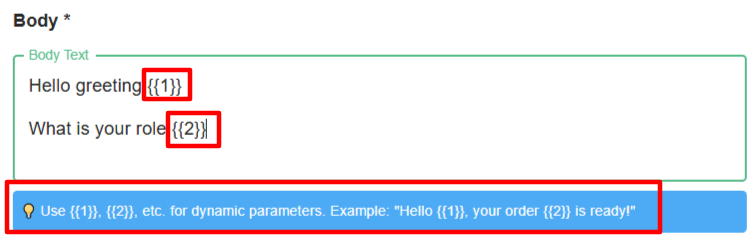
You can use placeholders like {{1}}, {{2}}, etc., to insert dynamic content into your messages. These placeholders will be replaced with actual values when the message is sent.
Example:
"Hello {{1}}, your order {{2}} is ready!"
{{1}}will be replaced with the recipient’s name.{{2}}will be replaced with the order number or any relevant information.
Result:
If
{{1}} = Johnand{{2}} = #12345, the message sent will be:"Hello John, your order #12345 is ready!"
Tips:
- You can use as many dynamic parameters as needed (
{{1}},{{2}},{{3}}, …). - Make sure the correct values are provided for each parameter when sending the message.