3. ii) Contact List
What is Contact List ?
The Contact List feature lets you group multiple contacts into one list, making it easier to send blast messages.
How to create a Contact List :
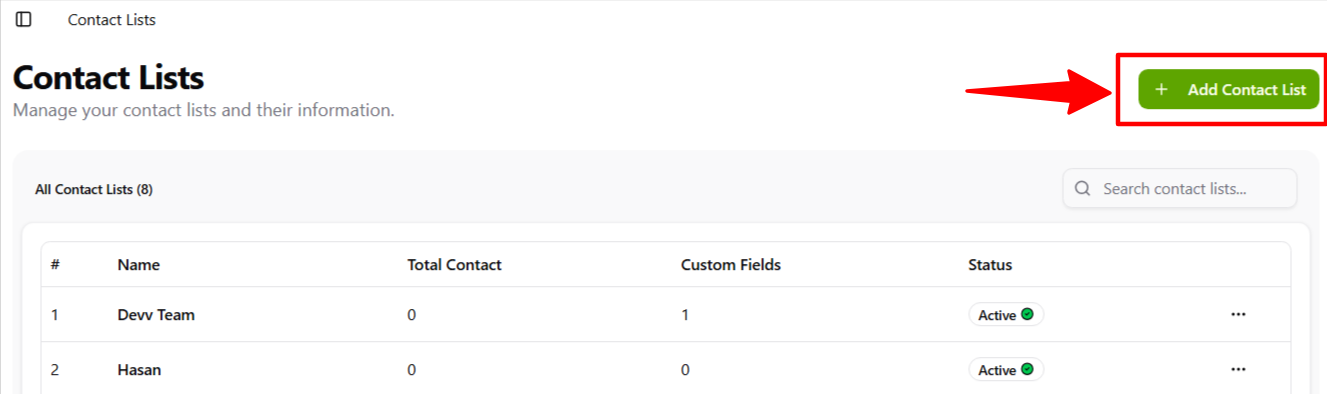
Step 1 :
Tap the Add Contact List button to create a new contact list group.
Step 2 :
Fill in the form and activate the toggle button.
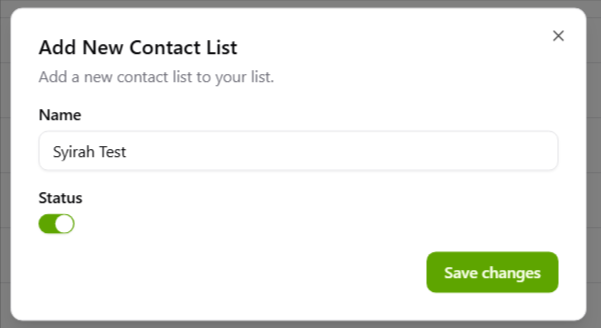
Press Save once you’ve completed the form.
Step 3 :
Tap the three dots and then select Contacts.

You will now be on the Contact List page.
Contact List Page
1. Manage Fields
Use the Manage Fields button to add custom fields to your contact list. By default, only Name and Phone Number are included. For example, you can add Department, Role, Birthdate, etc.
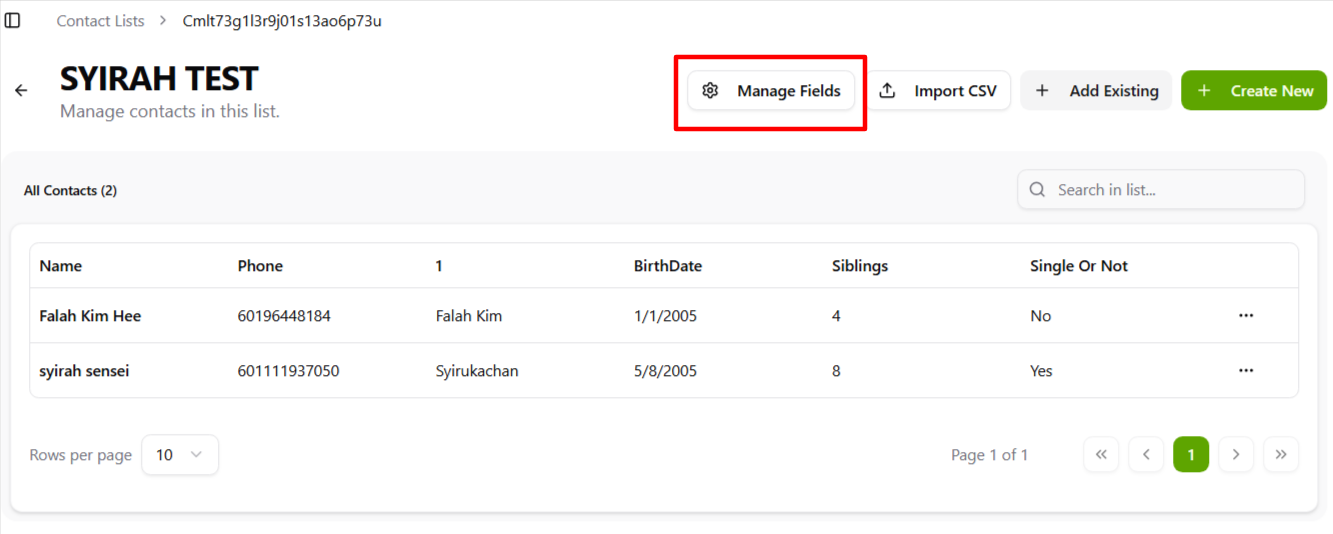
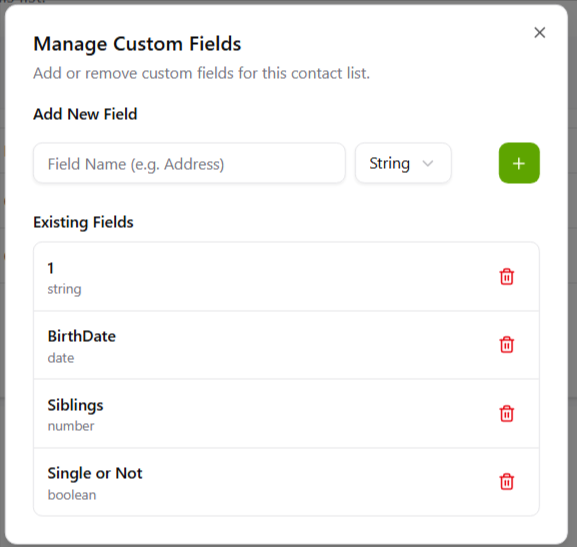

name - (required)
phonenumber - (required)
1 - (consider as custom fields)
birthdate - (consider as custom fields)
siblings - (consider as custom fields)
single or not - (consider as custom fields)
For custom fields, you can enter them without spaces, or include spaces if you prefer. Only the name and contact number need to follow the required format.
2. Import CSV
You can import CSV or XLS files if you have data in a spreadsheet to add to your contact list.
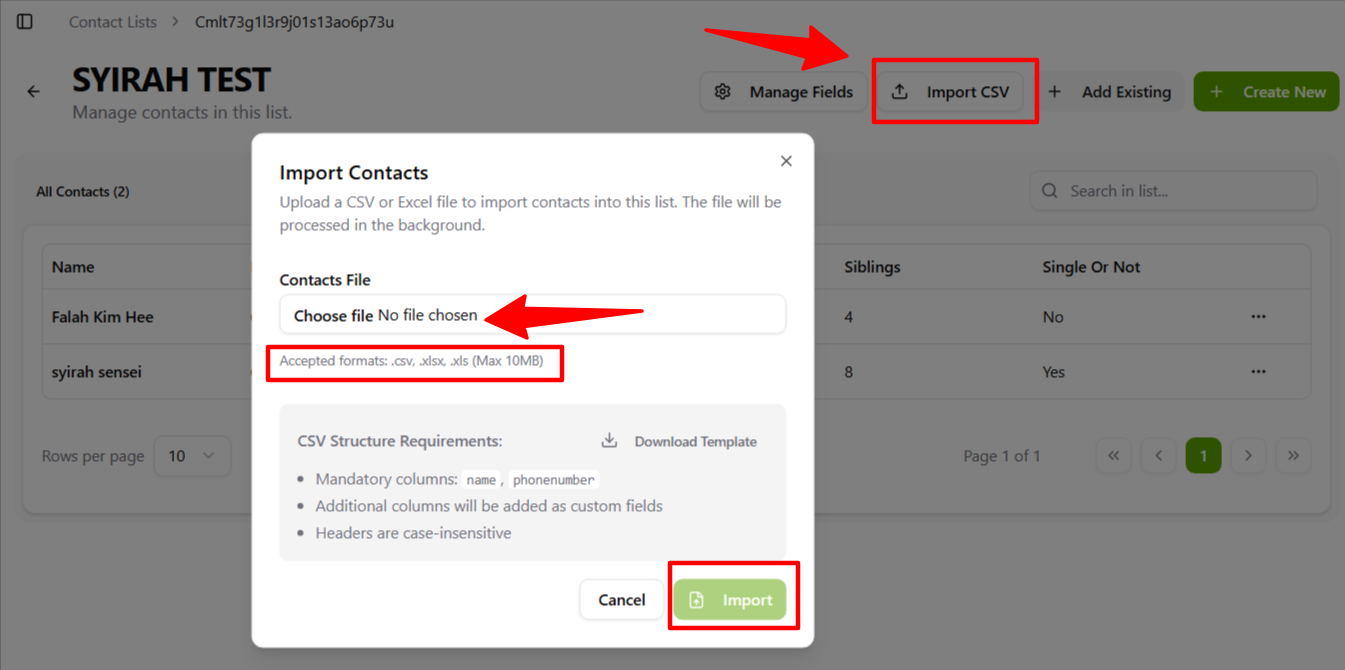
Click Import and after it success imported , please refresh the page
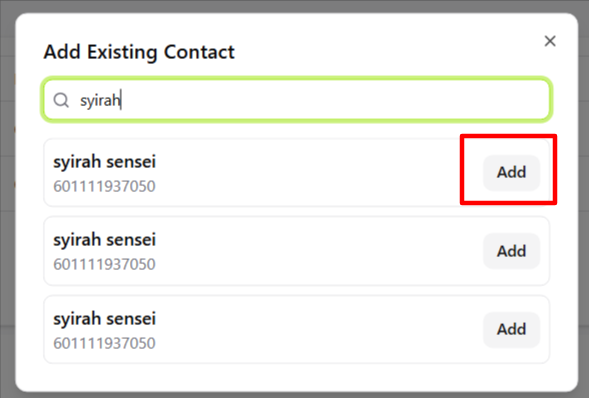
3. Add Existing
You can also add existing contacts from the All Contacts list.
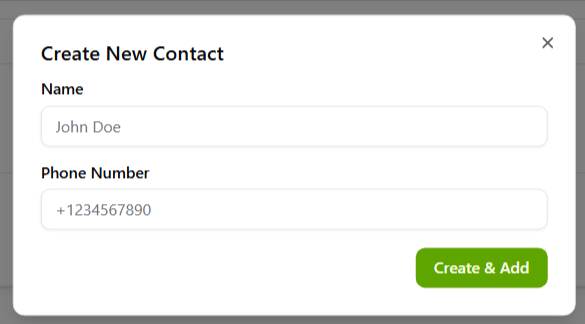
4. Create New
You can add new contacts directly to an existing contact list by clicking Create New button.
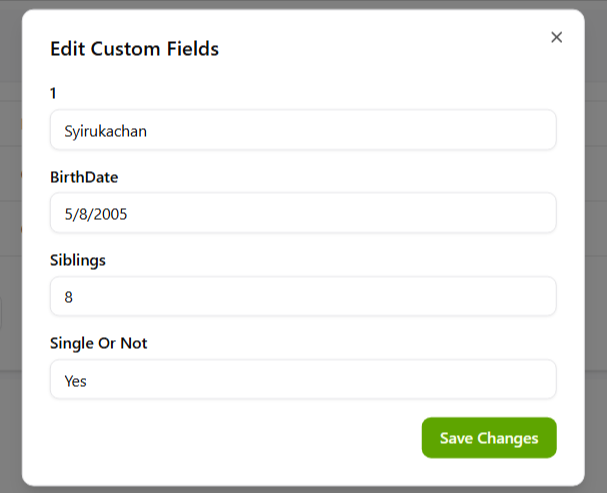
5. Edit Custom Fields
Tap the three dots for options to edit custom fields or delete contacts from the contact list.